Video Guide
Start with the video for a quick overview, then follow the written steps below.
What Are Vendor Settings
Vendor settings are a collection of options and tools that allow you to customize and manage your online store according to your business nature and specific needs. Through these settings, you can control everything from your store’s basic information to advanced technical configurations that affect user experience and website performance.
You can access the vendor settings by following these steps:
§ Log in to the store’s dashboard.
§ Choose the Settings section in the side menu.
§ After entering the Settings section, search for the Vendor Settings option. Clicking on it will display a set of detailed settings that allow you to have full control over your online store
Available Vendor Settings
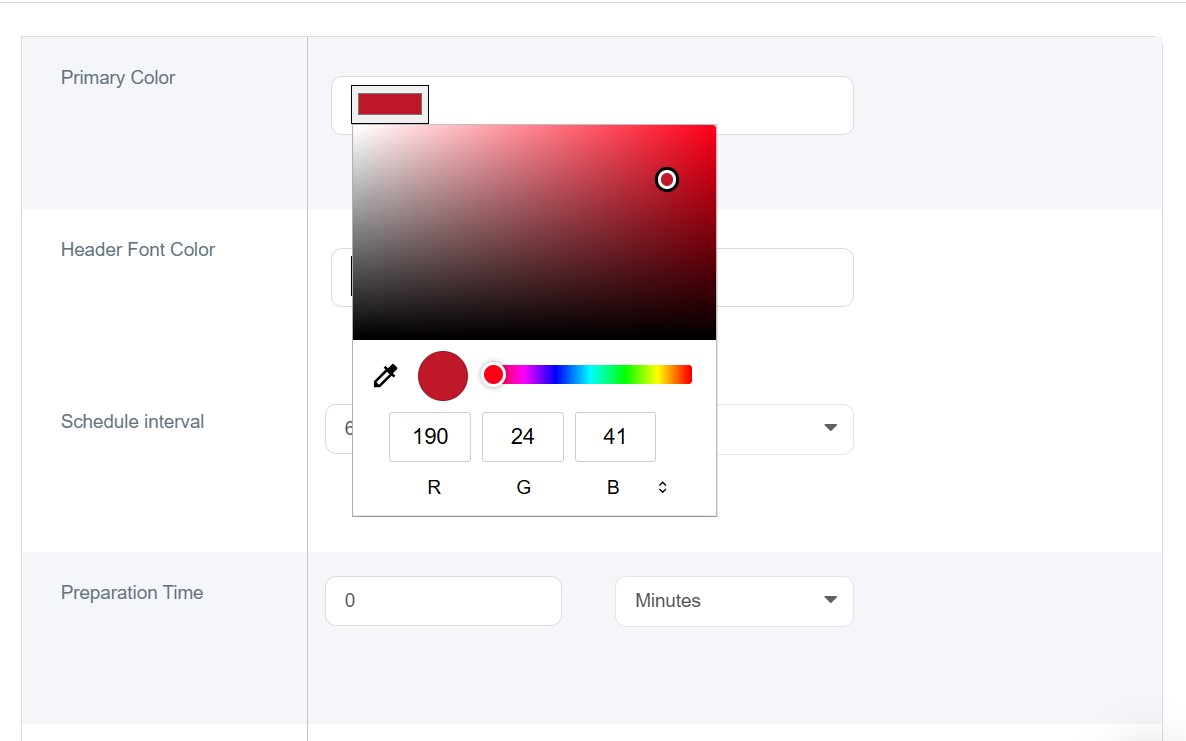
1. Primary Color
The primary color defines the main visual identity that reflects your brand image and gives your store a cohesive and professional appearance. This tool allows you to fine-tune your visual identity with high precision and full control over color tones using RGB values, ensuring perfect harmony with your store’s branding.
2. Head Font Color
In addition to the main color, you can customize the head front color separately, giving you greater flexibility in designing your store’s interface and ensuring visual consistency across all design elements.
3. Schedule Interval
This option allows you to define scheduling intervals an essential feature for stores offering booking or delivery services at specific times. You can set these intervals in minutes to match your business type and operational capacity.
For example, if you choose a 60-minute interval, booking slots will appear as:
10:00–11:00, 11:00–12:00,.... and so on.
4. Preparation Time
One of the key features is the ability to set an estimated preparation time for orders, helping you manage customer expectations and enhance transparency. This feature is particularly useful for stores offering made-to-order or pre-prepared products.
If a specific preparation time is set for an individual product, the system will automatically prioritize that product’s time over the general setting to ensure scheduling accuracy and a more professional customer experience.
5. Vendor Default Front Store Language
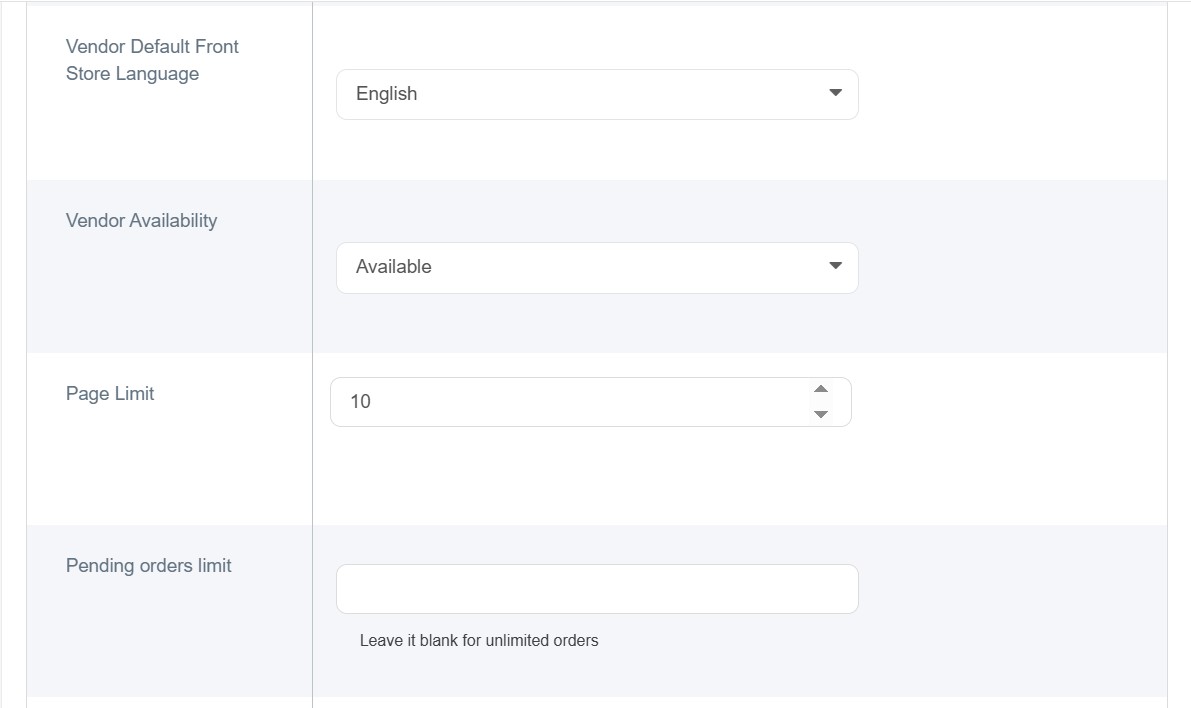
This is the main language customers and visitors will see when they access your store.
6. Vendor Default Dashboard Store Language
This setting determines the language displayed in the store dashboard while managing products, orders, and configurations.
7. Vendor Availability
You can control your store’s operational status by switching between “Available” and “Not Available.” This is useful when you want to temporarily pause your store.
8. Pending Orders Limit
Specifies the maximum number of orders that can remain in a “pending” state (unconfirmed or unprocessed). If this field is left blank, the store can receive an unlimited number of pending orders without restrictions.
9. Minimum Order Amount to get Free Delivery
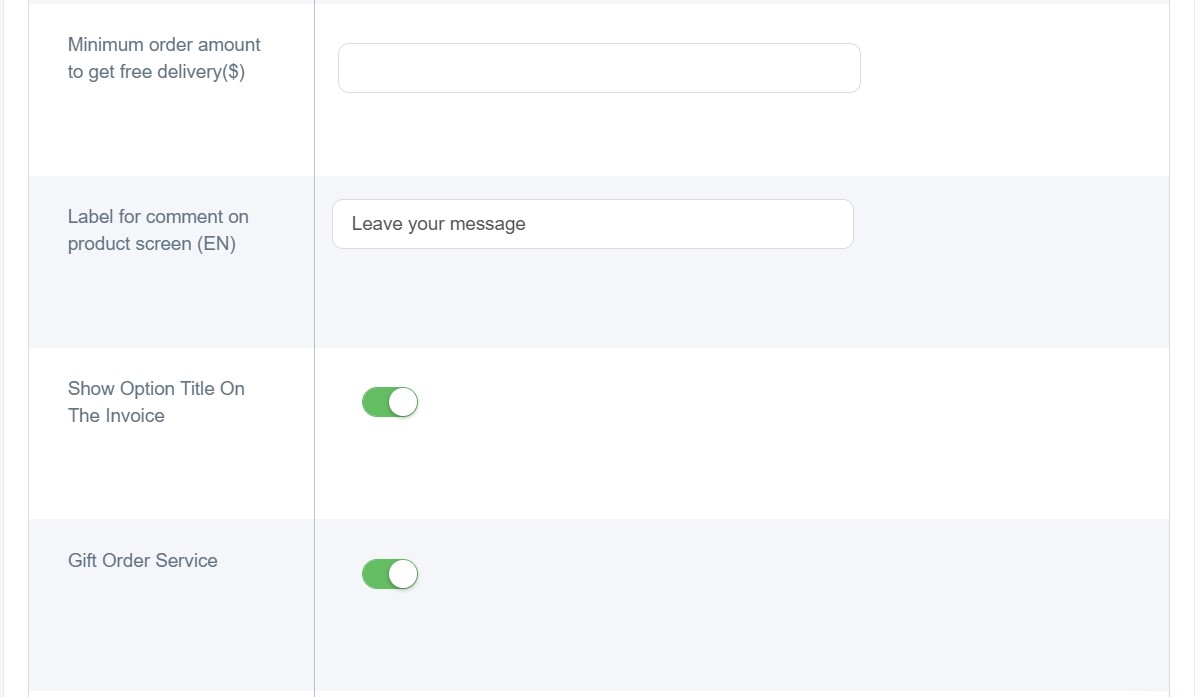
You can set a minimum order amount required to qualify for free delivery. This setting helps increase profitability and encourages customers to raise their cart value.
10.Label For Comment on Product Screen
This option allows you to customize the text prompting customers to leave comments or feedback on products or orders. You can add versions in English: “Leave your message” ”. The appropriate text will appear based on the customer’s browser language when they view or add products to the cart.
11.Show The Option Title on The Invoice
This setting controls how product options appear on invoices. When enabled, option titles and their values (e.g., Size: Large, Color: Red) are displayed clearly, providing better clarity for both customers and staff. When disabled, only the values appear, resulting in a more concise invoice. It is recommended to keep this enabled for stores offering multiple product variations to ensure order accuracy.
12.Gift Order Service
A modern feature that allows customers to send products as gifts along. You can enable or disable this option depending on your business model and customer needs.
13.Order Tips
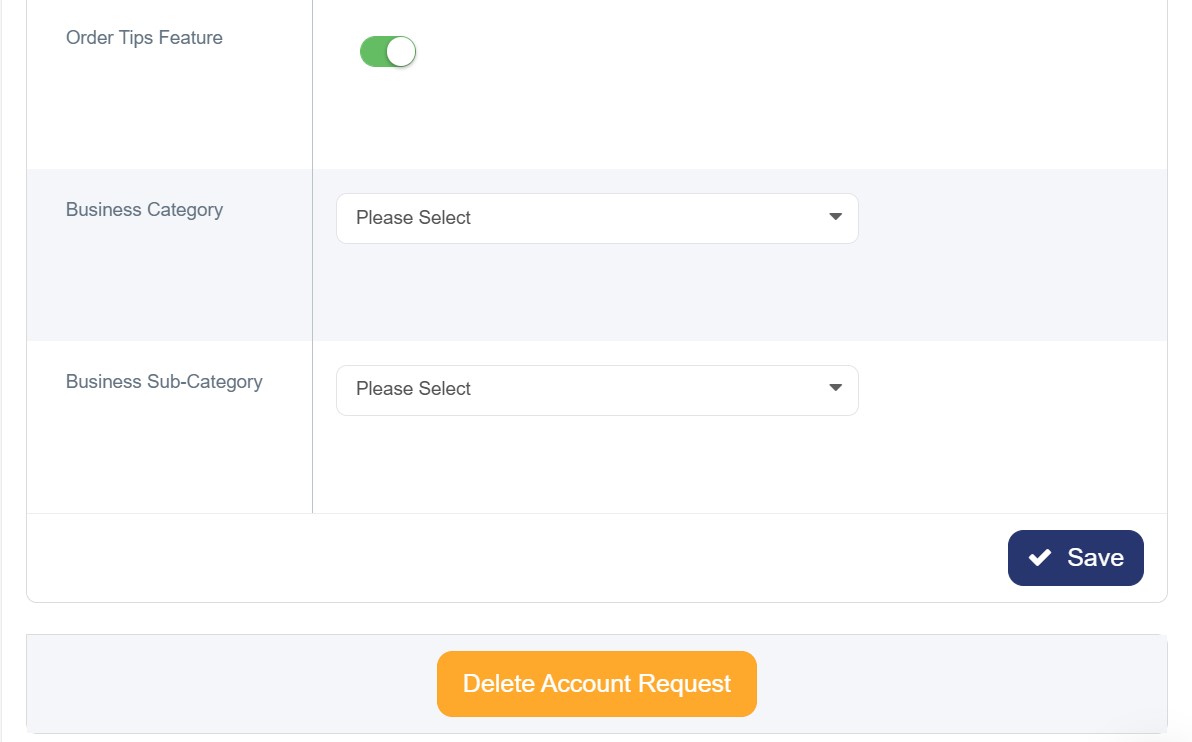
The Order Tips feature allows customers to add an optional tip during checkout, usually to support delivery or service staff.
14.Business Category
The primary classification of your business type, such as Food & Beverages or Retail. This helps define your store’s overall nature and improves search visibility.
15.Business Sub Category
A more specific classification under the main category, such as Restaurants under Food & Beverages. This subcategory provides greater accuracy in identifying your store’s products or services.
16.Delete Account Request
This setting allows the store owner to submit a request to permanently delete their account and store from the Cartley platform. When this option is selected, a warning confirmation window appears, notifying the user that once the request is submitted, it will be processed within 30 days, and includes an option to agree to the terms before proceeding.