What is Supplier Management in the “Cartley ” Platform
Supplier management is a key element for the success of any online store, as it serves as the link between the merchant and product sources. The “Cartley ” platform provides a comprehensive supplier management system that helps store owners organize their business relationships and track supplier transactions efficiently. This tool allows you to record and save all supplier data in a unified database that includes contact information, country, email address, and other important details—helping you build a structured and reliable supplier network that supports the growth of your online store.
Importance of Adding Suppliers to Your Online Store
1. Quick and Easy Access to Information
All supplier details (phone numbers, email addresses, and physical addresses) are stored in one place, saving time when contacting suppliers or requesting new stock—without needing to search through scattered files or old messages.
2. Better Comparison and Business Decisions
Having a complete database allows you to compare prices and quality among different suppliers, helping you choose the best offers and increase profit margins, while also giving you stronger negotiation power.
3. Risk Reduction and Ensured Continuity
Relying on a single supplier can be risky. Having a database of multiple suppliers ensures continuity of operations even if issues arise with one supplier, providing ready alternatives.
How to Access and Add Suppliers
To access the supplier management page in your store on “Cartley ,” follow these steps:
1. Log in to the dashboard of your online store.
2. From the side menu, select the Inventory section, and a dropdown menu will appear containing the Suppliers option.
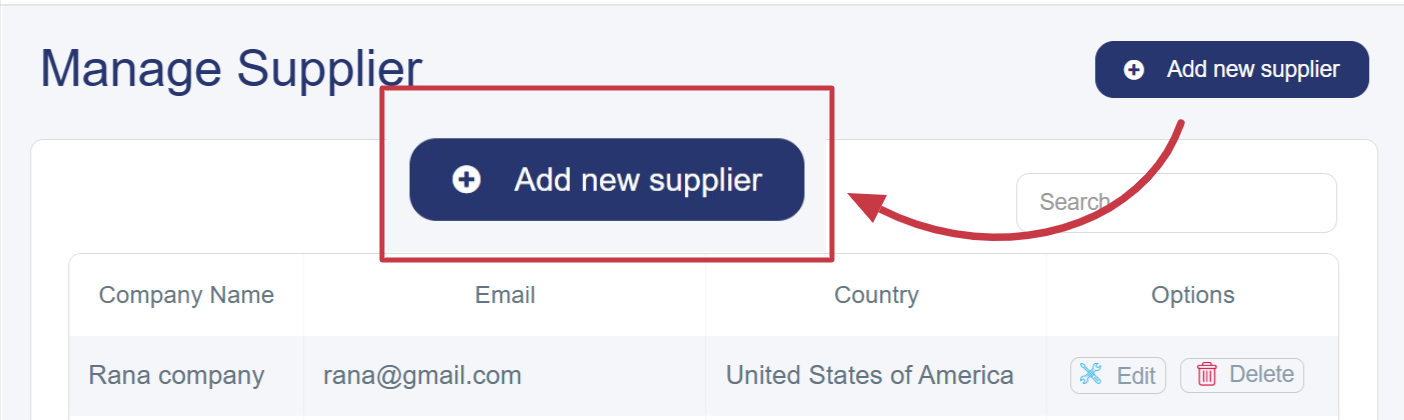
3. You will be taken to a page displaying a table of all registered suppliers.
4. At the top of the page, click Add New Supplier.
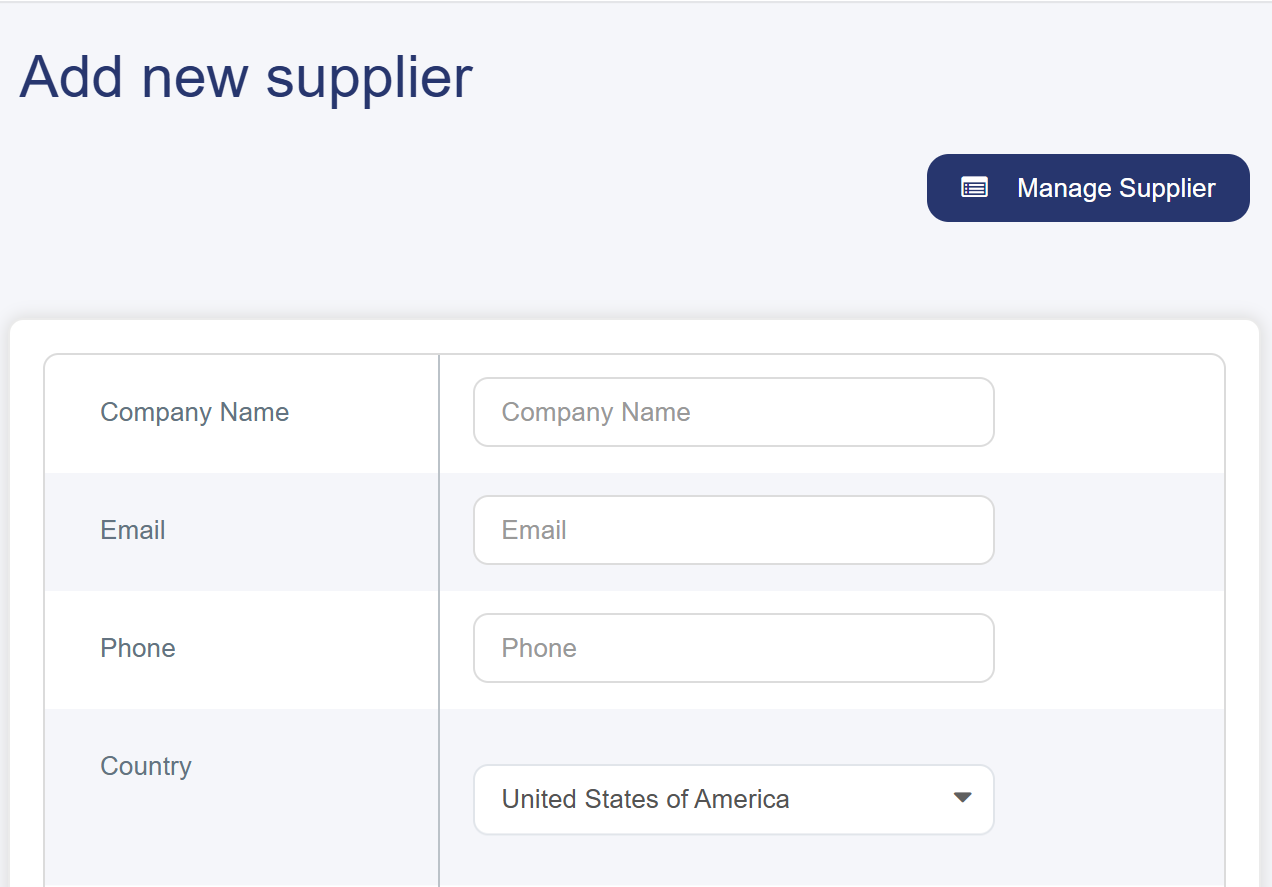
A window will appear allowing you to enter the essential supplier information, including:
• Company Name: Enter the official name of the company or supplier.
• Email Address: Add the supplier’s email to enable direct communication.
• Phone Number: Include the supplier’s phone number for quick contact.
• Country: Choose the supplier’s country from the dropdown menu (e.g., Kuwait, Jordan, etc.).
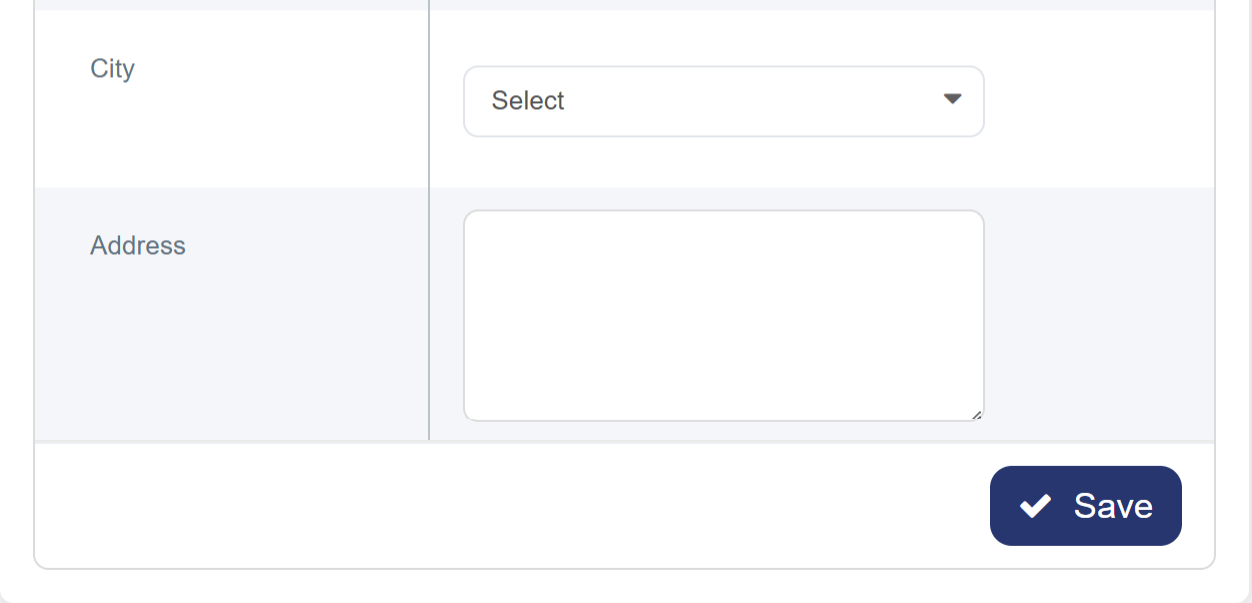
• City: Select the city from the available dropdown list.
• Address: Add any additional address details in the optional text field.
• Then click Save, and the information will appear in a structured table with options to edit or delete the supplier.