What is SEO and Its Importance for E-commerce Stores
Search Engine Optimization (SEO) is a strategic process aimed at increasing the visibility of your online store in organic (non-paid) search results on engines like Google. It involves applying techniques and best practices to attract potential customers who are searching for products you offer. Investing in SEO is essential for sustainable growth, as it increases organic traffic and sales without relying continuously on paid ads. Over time, SEO builds a strong foundation that enhances customer trust in your brand and ensures your lasting digital presence. Cartley also provides a dedicated section in the settings to manage and optimize your SEO efficiently through the following steps:
· Log in to your store’s dashboard
· Navigate to the Settings section in the sidebar.
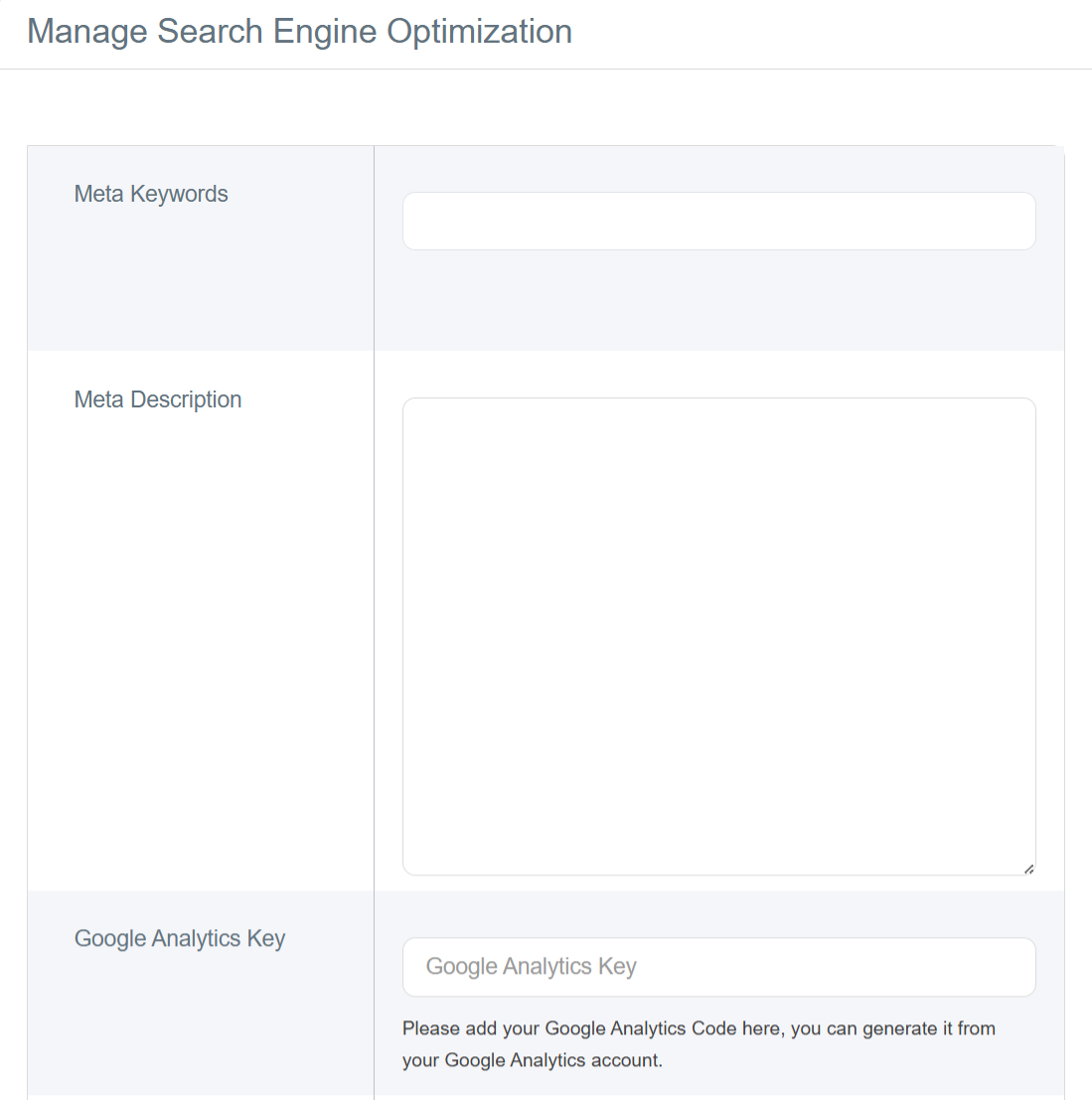
· Within Settings, select SEO to open a window where you can add the necessary data.
Components of SEO
§ Meta Keywords
These are the words or phrases customers use when searching for products or services similar to what your store offers. Choosing the right keywords helps search engines like Google understand your store’s content and present it to interested users.
§ Meta Description
This is the short text that appears below your website title in search results. It should be concise and compelling (around 150–160 characters) to encourage clicks. Write a brief description of your offerings and include a clear call-to-action.
Google Analytics Key
A free tool from Google for analyzing visitor traffic. By entering your Tracking ID (usually in the format UA-XXXXXXXXX-X or G-XXXXXXXXXX for Google Analytics 4), you can monitor customer behavior, traffic sources, most visited pages, and conversion rates, helping you optimize your store’s performance and make data-driven marketing decisions.
How to Obtain It:
1. Go to analytics.google.com.
2. Sign in with your Google account.
3. Click on Admin.
4. Create a new account and new property (website).
5. Select “Web” for websites.
6. You will receive a tracking code that starts with G-XXXXXXXXXX or UA-XXXXXXXXX.
Facebook Pixel ID
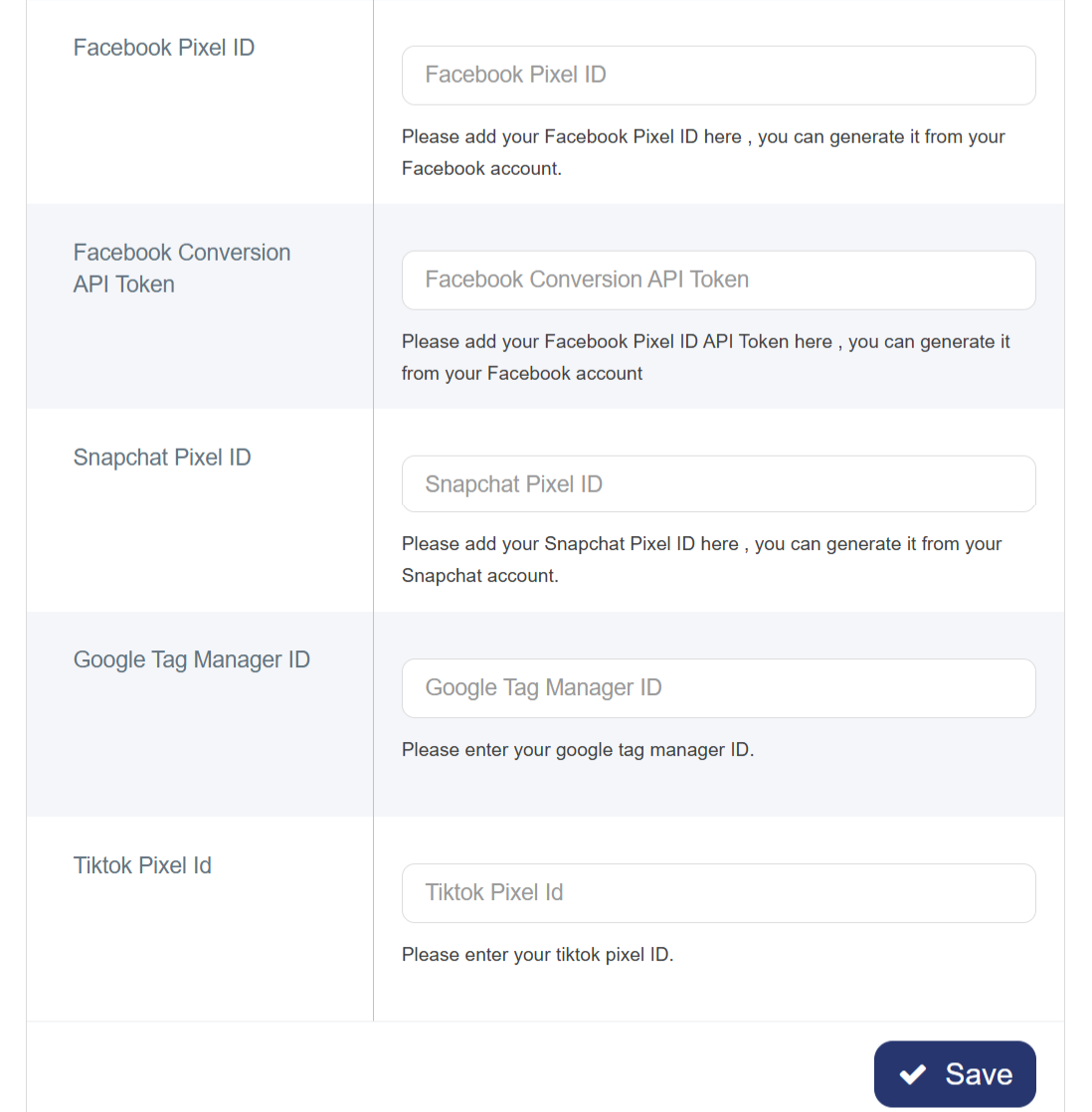
A tracking code that allows you to measure the effectiveness of your ads on Facebook and Instagram, build targeted audiences, and improve campaign performance. By entering your Pixel ID from your Facebook Ads account, you can track conversions and retarget visitors who did not complete purchases.
How to Obtain It:
1. Go to Facebook Business Manager.
2. From the sidebar menu, select Events Manager.
3. Click “Connect Data Sources” → “Web.”
4. Choose “Facebook Pixel.”
5. Create a new Pixel — you will then receive an ID number consisting of digits only.
Facebook Conversion API Token
A key that connects your store directly to Meta (Facebook) servers to track and analyze customer interactions more accurately. It enables sending event data, like purchases or product additions, directly to Facebook, improving ad performance measurement and customer targeting.
You can obtain it by following the steps:
1. From the same Events Manager in Facebook.
2. Select your Pixel.
3. Go to Settings.
4. Find the "Conversions API" section.
5. Click "Generate Access Token".
6. Copy the Token, which is a long string of letters and numbers.
The difference between Facebook Pixel ID and Facebook Conversion API Token
| Element | Facebook Pixel ID | Facebook Conversion API Token |
| Tracking Method | Browser-based tracking | Server-based tracking |
| Relies on Cookies | Yes | No |
| Accuracy & Reliability | Lower | Higher |
| Purpose | Links the Pixel code to the Ads Account | Enables sending event data through the server |
| Recommended Use | For standard websites | For advanced e-commerce stores or large campaigns |
Snapchat Pixel ID
A unique code used to connect your store to your Snapchat Ads account, allowing you to track visitor activity and measure campaign performance. This Pixel tracks key events such as purchases, product additions, and page visits, helping you understand customer behavior and optimize ad targeting.
How to obtain it:
1. Go to Snapchat Ads Manager.
2. From the menu, select "Events Manager".
3. Click "Create Pixel".
4. Enter the Pixel name and your website name.
5. You’ll receive a Pixel ID consisting of letters and numbers.
Google Tag Manager ID
A unique code used to link your store to Google Tag Manager, a free platform that lets you manage all marketing and analytics tags on your site without modifying the site’s code directly.
How to obtain it:
1. Go to tagmanager.google.com.
2. Create a new account.
3. Create a new container.
4. Select “Web” as the container type.
5. You will receive a code starting with GTM-XXXXXX.
TikTok Pixel ID
A unique code used to connect your store to your TikTok Ads Manager account, enabling you to track visitor behavior and measure the performance of your advertising campaigns accurately.
How to obtain it:
1. Go to TikTok Ads Manager.
2. From the menu, select "Assets" → "Events".
3. Click "Manage" then "Create Pixel".
4. Choose "TikTok Pixel".
5. Enter the Pixel name and website name.
6. You will receive a Pixel ID.