Related Products are items displayed to customers inside the product page to suggest additional or alternative products related to the item being viewed.
Purpose
- Increase sales through complementary or similar product suggestions.
- Improve user experience by helping customers discover other relevant products.
- Enhance upselling and cross-selling opportunities.
How to Access Related Products
1. From the left sidebar, click Products.
2. Select Products.
3. Click the blue Add New Product button.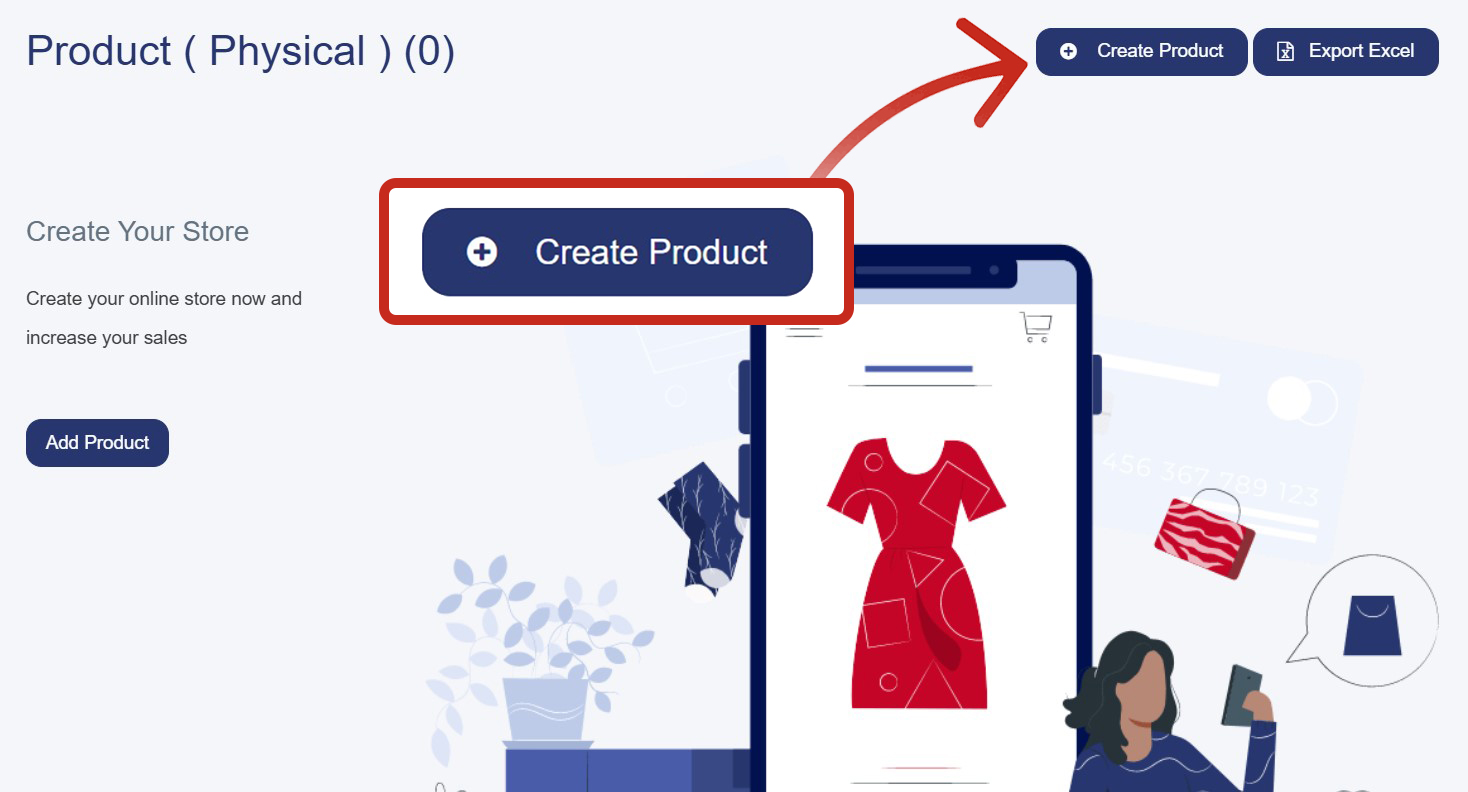
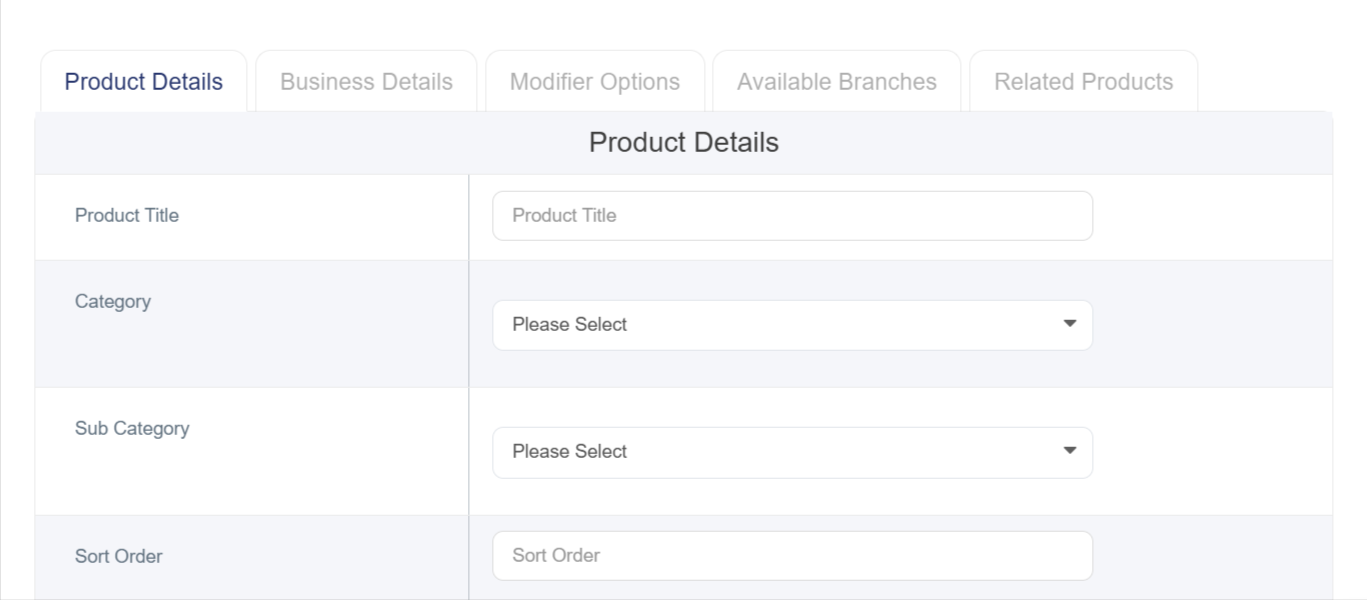
4. Fill in Product Details
Required Fields
- Product Name (English)
- Product Name (Arabic)
- Category
- Weight (Enter “0” if unavailable)
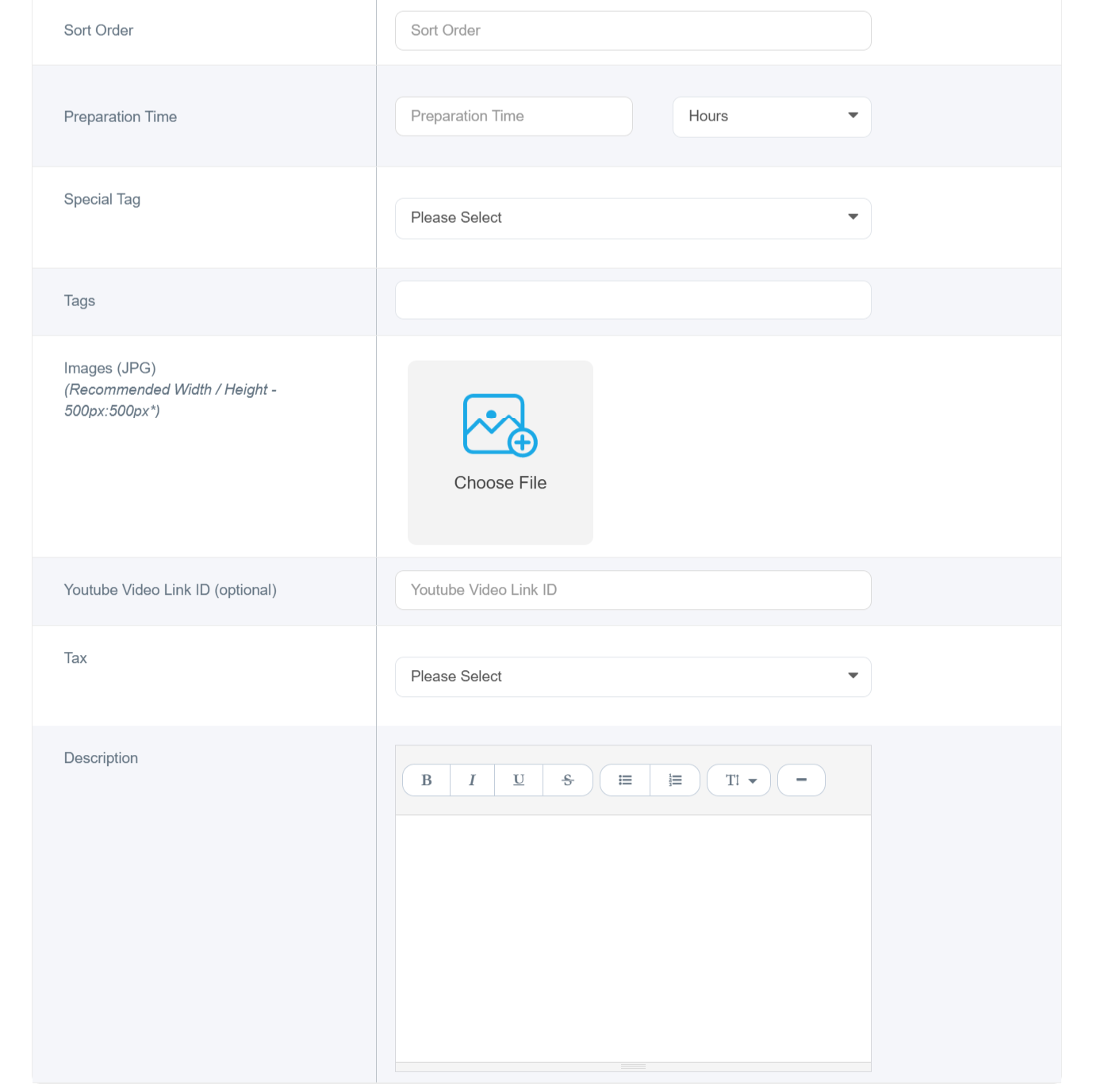
- Product Image (500×500 px, JPG/JPEG)
Optional Fields
- Subcategories
- Display Order
- Preparation Time
- Product Badge (New, Limited, Featured, etc.)
- Keywords
- YouTube Video ID Example: From https://www.youtube.com/watch?v=mjovEakZusk add only: mjovEakZusk
- Description (EN / AR)
5. Business Information
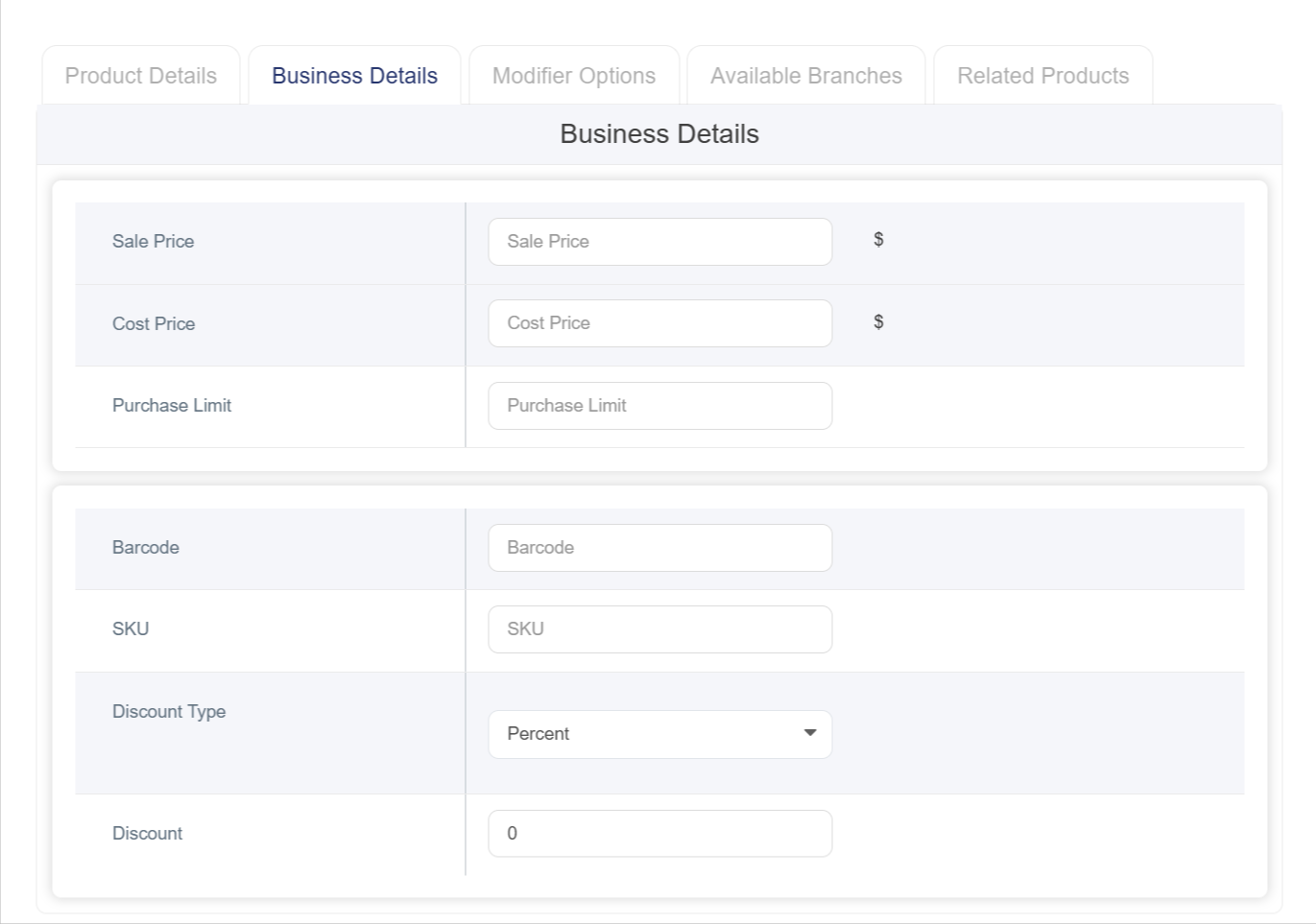
- Selling Price
- Product Cost
- If unavailable, enter “0”
- Purchase Limit
- Barcode
- SKU
- Discount Type
- Discount Value
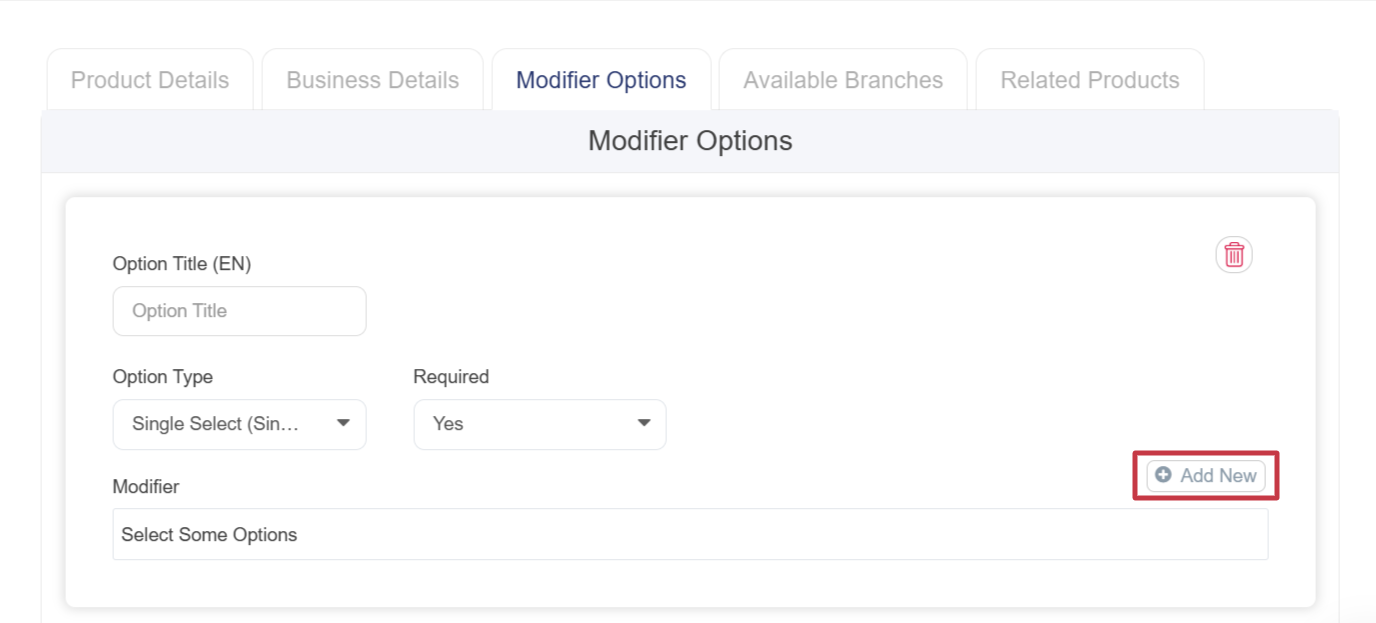
6. Modifiers Options
This section is used to add extra options such as sizes, colors, or toppings.
- Click Choose Add-ons Group.
- Enter the option title in both languages.
- From Additional Option Type, choose:
Single Choice: Customer selects only one option (Small, Medium, Large).
Multiple Choice: Customer selects multiple options (Pizza toppings), with quantity increase support.
Single Choice (Button Type) : Similar to single choice but displayed as buttons.
- From Required, specify whether the option is mandatory.
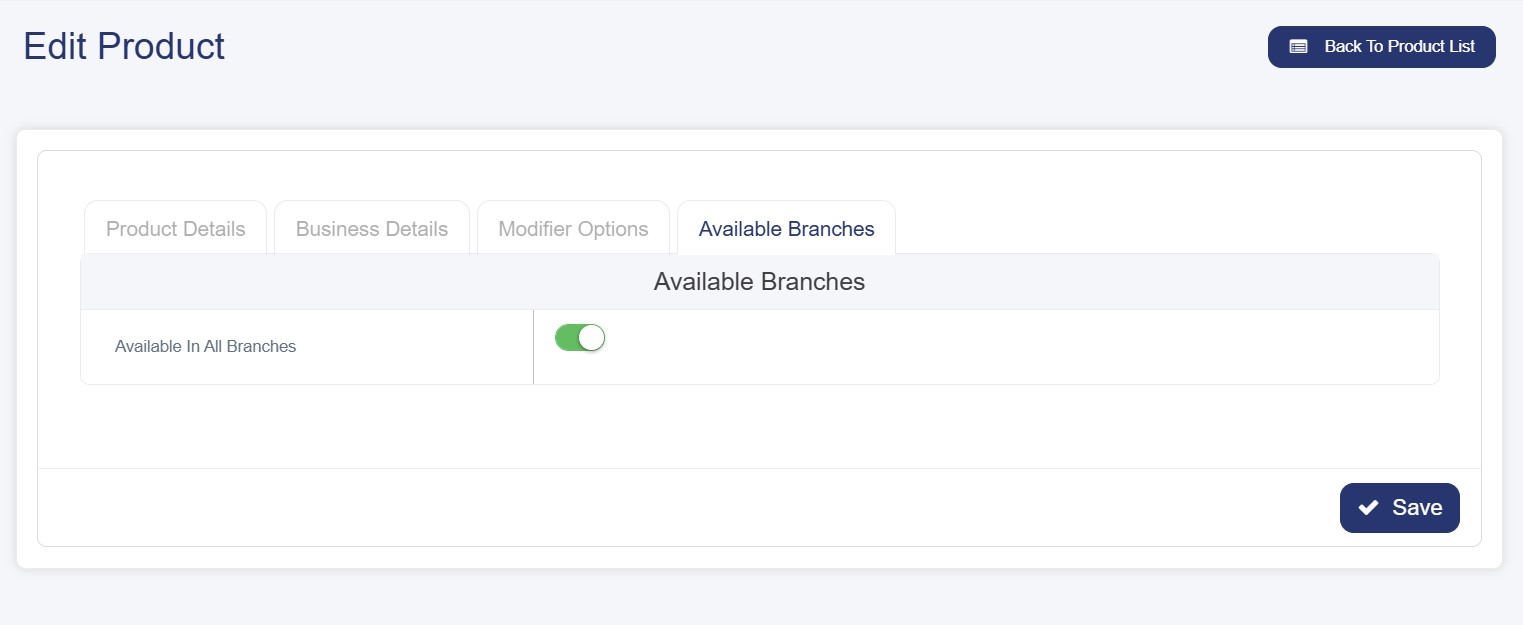
7. Available Branches
- Enable if available in all branches.
- Or manually select available branches.
8. Related Products Tab Go to the Related Products tab to add suggested products inside the main product page.
Using the search box, search and select products to be added as suggested products. The system allows adding up to 10 suggested products. You can also rearrange or remove them within the same tab to ensure the best possible customer experience.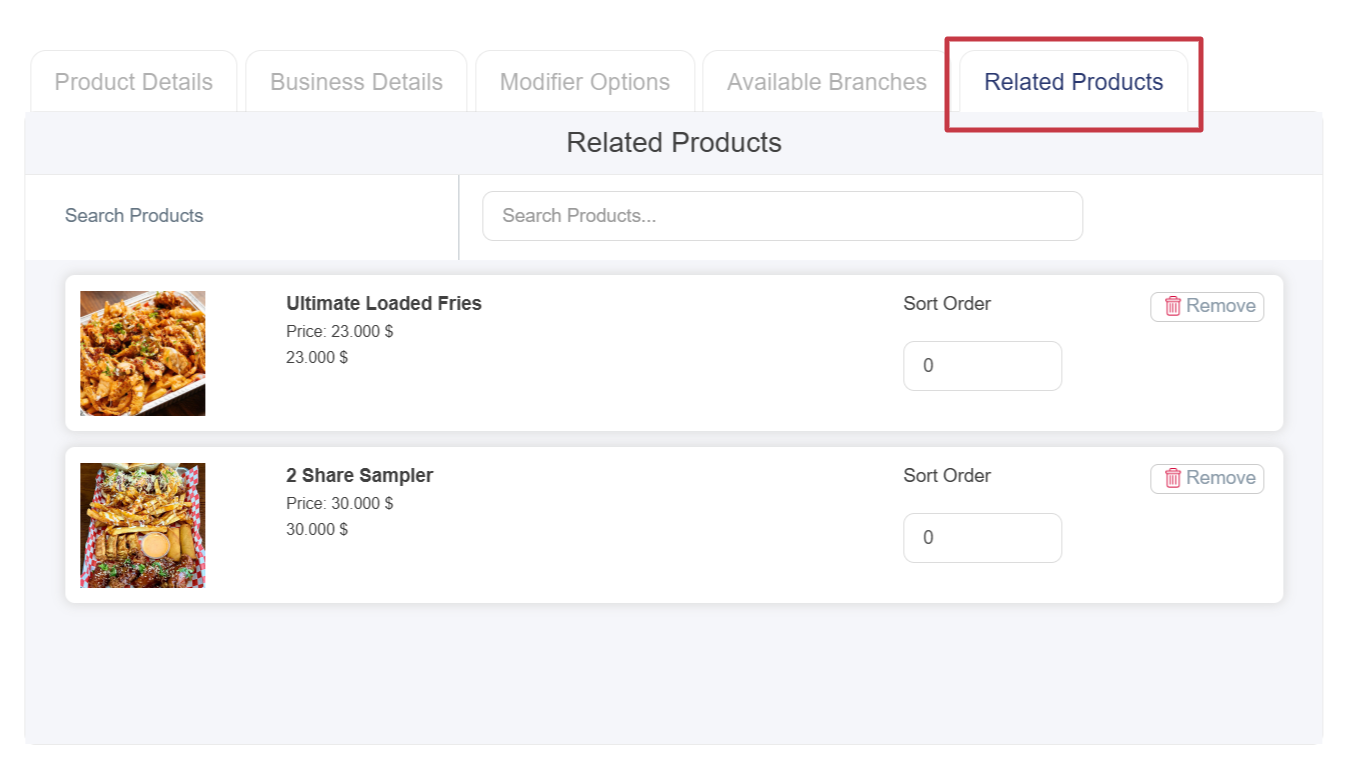
9. Finally, Click Save.