What is Meant by the “Our Stories”
The " Our Stories" section is a distinctive space in your online store that allows you to present your brand’s story in an engaging and professional way. Whether it’s the story of your founding, your growth journey, or inspiring initiatives your store has undertaken, this section helps introduce your customers to your journey, vision, mission, and values that reflect your store’s identity.
Importance of the "Our Stories" for Your Online Store
· Enhancing trust and credibility: Sharing your story and achievements introduces customers to your professional background and reflects your brand’s transparency.
· Building a unique identity: Presenting your story and events through creative visuals gives your store a distinctive character that sets it apart from competitors.
· Increasing engagement and interest: When customers connect with and share your stories and events, they feel a sense of belonging to your brand, which boosts their interaction with you.
· Creating a human marketing experience: Using stories and events adds an emotional dimension to your website, transforming your store from a mere sales platform into a brand with a message and purpose.
Design Your Store’s Story Your Own Way on “Cartley ”
1. Access your store’s dashboard on Cartley .
2. On the right side of the screen, look for the "Store Landing Pages" section.
3. From the dropdown menu, select "Our Stories".
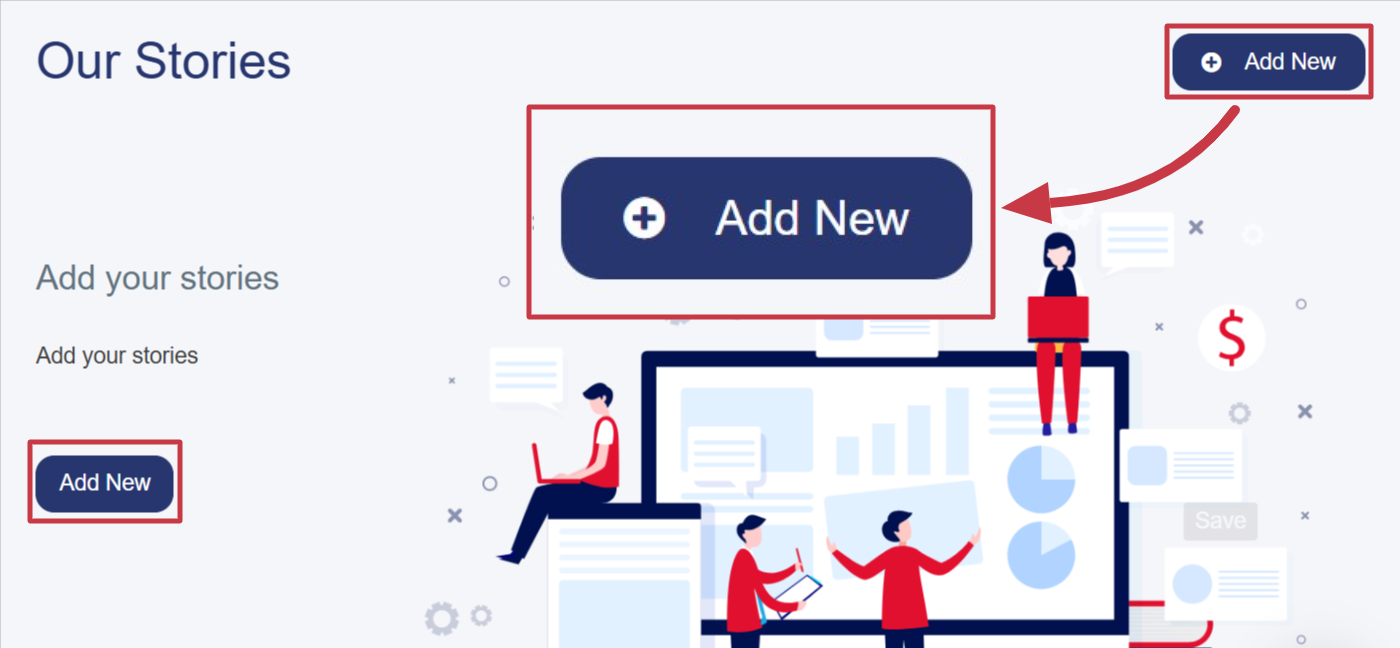
4. Click the "Add New" button at the top right of the page.
5. A new window or page will appear with a form to enter details, including:
- Type: (Content) This feature allows you to design and display interactive cards containing images, text, or visual elements representing your store’s story or a specific event you wish to share. You can organize the content attractively and coherently, displayed in two formats:
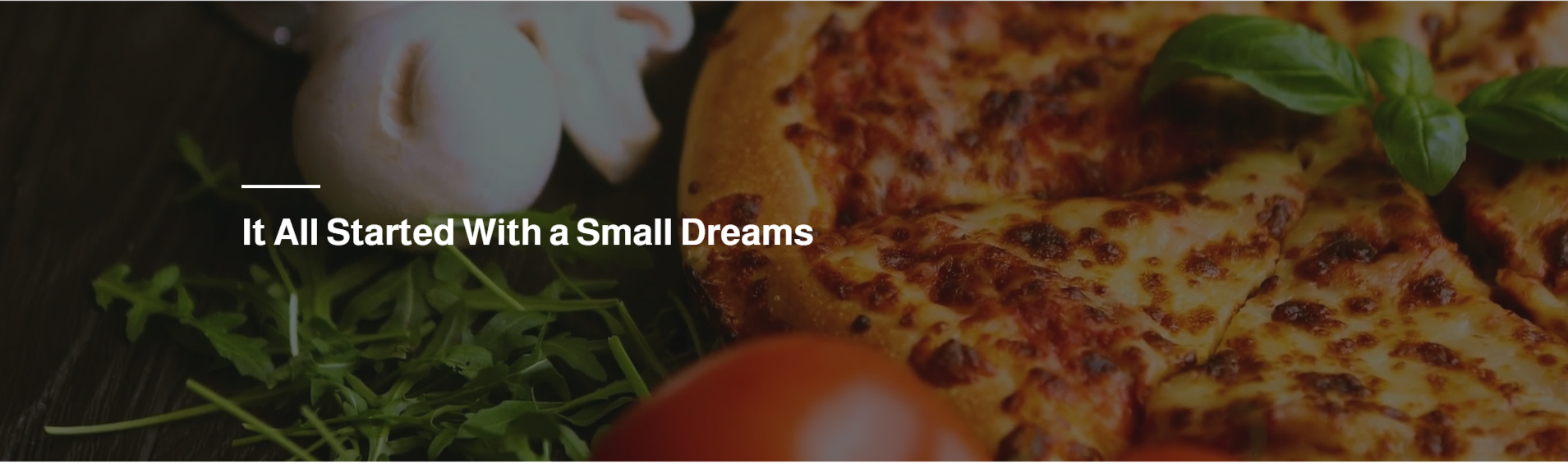
- Cover: Display a high-quality image or video across the full width of the screen, with a title in English and a description of up to 500 characters, highlighting the content attractively without disrupting the page’s visual balance.
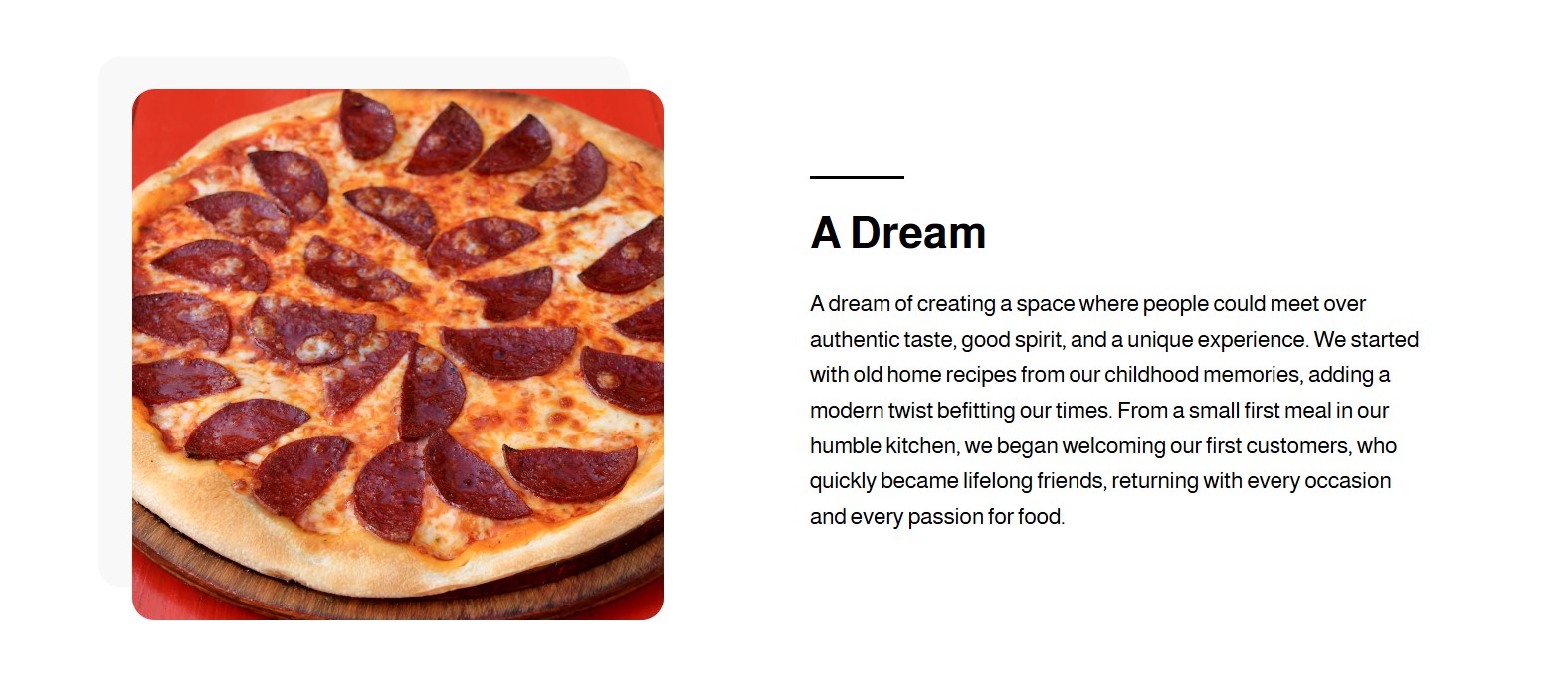
- Card: A design combining a square image or video on one side of the screen, with the option to choose the side (left or right). This format is used to display short, engaging content clearly and neatly.
- Status: Activate the status (green) to display the content on the "Our Stories" interface.
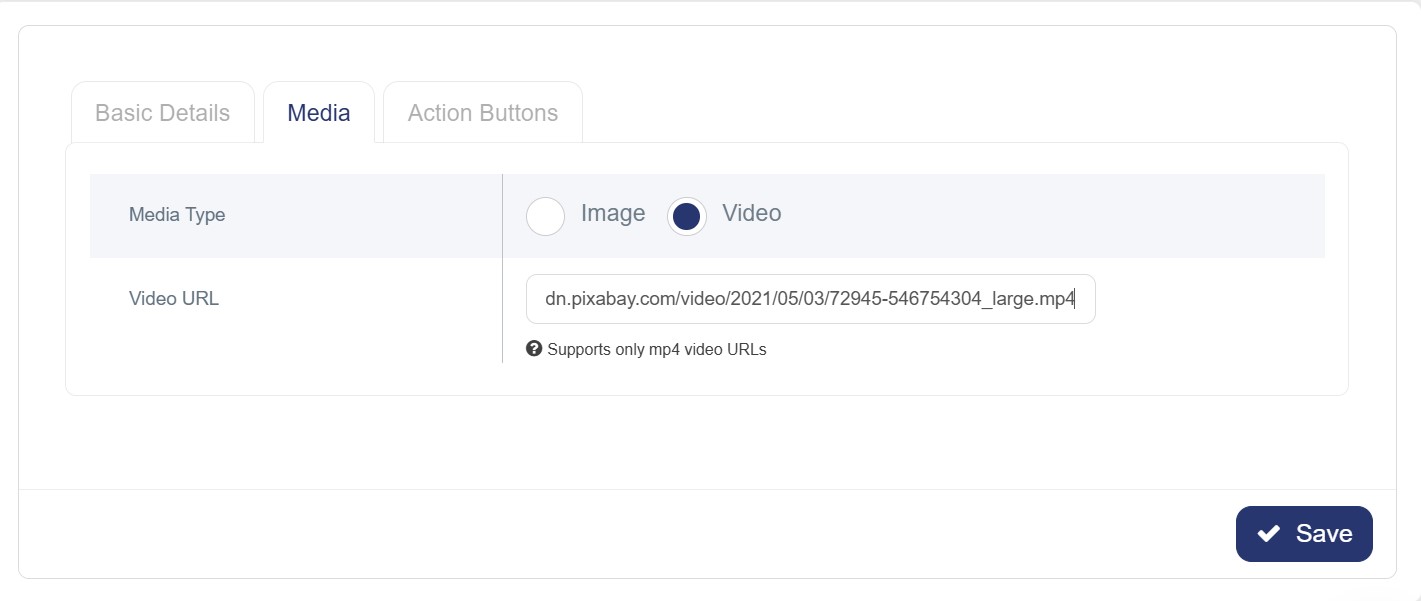
- Medias: Upload images in JPG format (750×1026 pxl) or videos in MP4 format to be displayed on the interface, aiming to highlight your store’s identity and capture visitors’ attention simply and attractively.
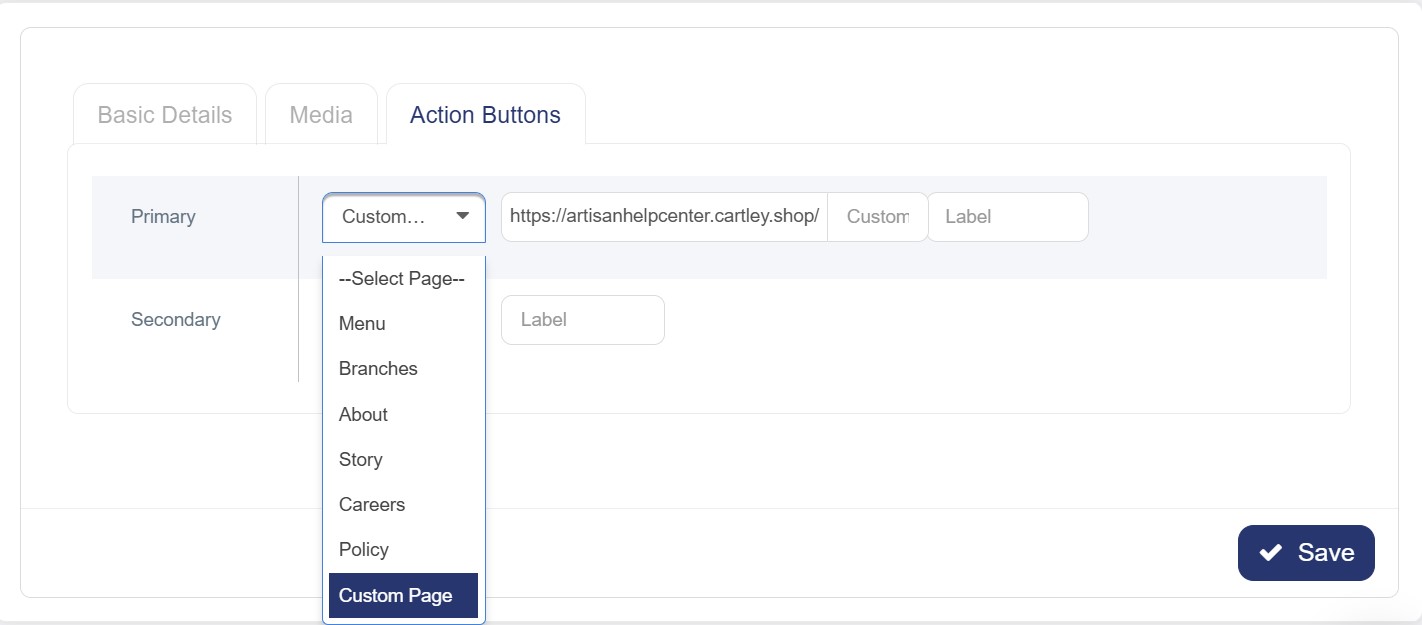
- Action Buttons: You might find additional fields, which are of two types: primary and secondary. These fields help enable extra features and navigation options after selecting the page type.
§ Menu: Navigate to the main products page.
§ Branches: Navigate to a page showing your store’s branches.
§ About: Navigate to the About Us page.
§ Story: Navigate to a page presenting your store’s story or background.
§ Careers: Navigate to the Jobs section, if available.
§ Policy: Display store policies, such as privacy or return policies.
§ Custom Page: Selecting this option shows a field to enter the URL of the page you want to link to. Copy the part after "/" from the URL of the chosen page.
- Save: Save your settings to display them on the store’s front interface.