Video Guide
Start with the video for a quick overview, then follow the written steps below.
Overview
The Orders page in the store dashboard is the primary tool for managing sales and daily monitoring. It allows the store owner to view all incoming orders and track them from the moment they are created until they are delivered to the customer.
Main Sections of the Orders Page
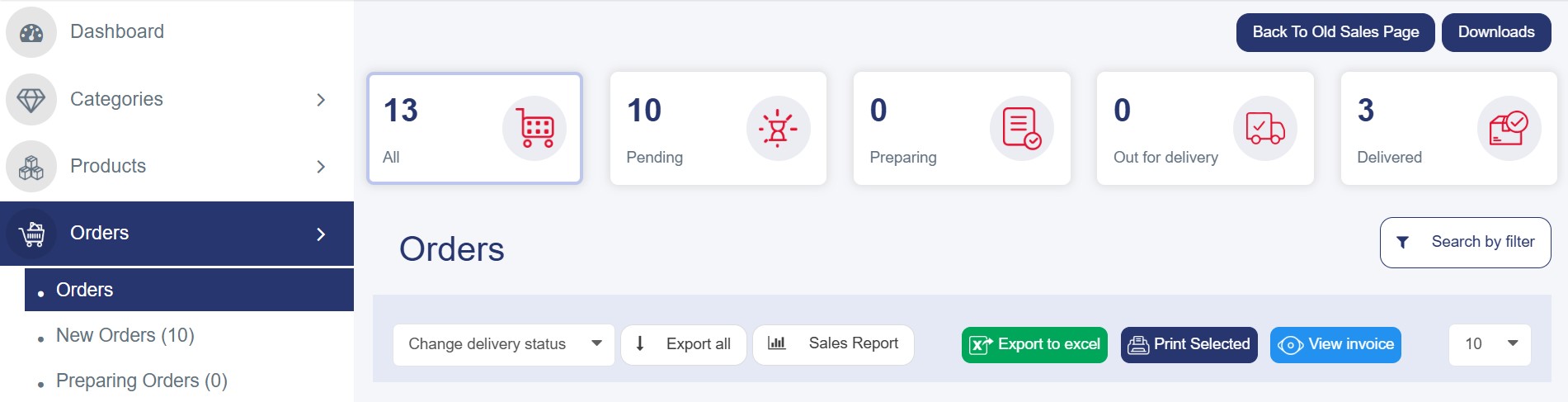
Order Status
At the top of the page, a summary of the current order statuses is displayed. This section enables quick and efficient monitoring of the store’s performance. By clicking on any status, orders are automatically filtered according to that status. The summary includes the following:
· New Orders: Orders that have been recently created and are still pending.
· Preparing Orders: Orders that are currently being prepared.
· Dispatched Orders: Orders that have been handed over to the delivery company or driver.
· Delivered Orders: Orders that have been successfully delivered to the customer.
· Cancelled Orders: Orders that have been cancelled for any reason.
Search by Filter
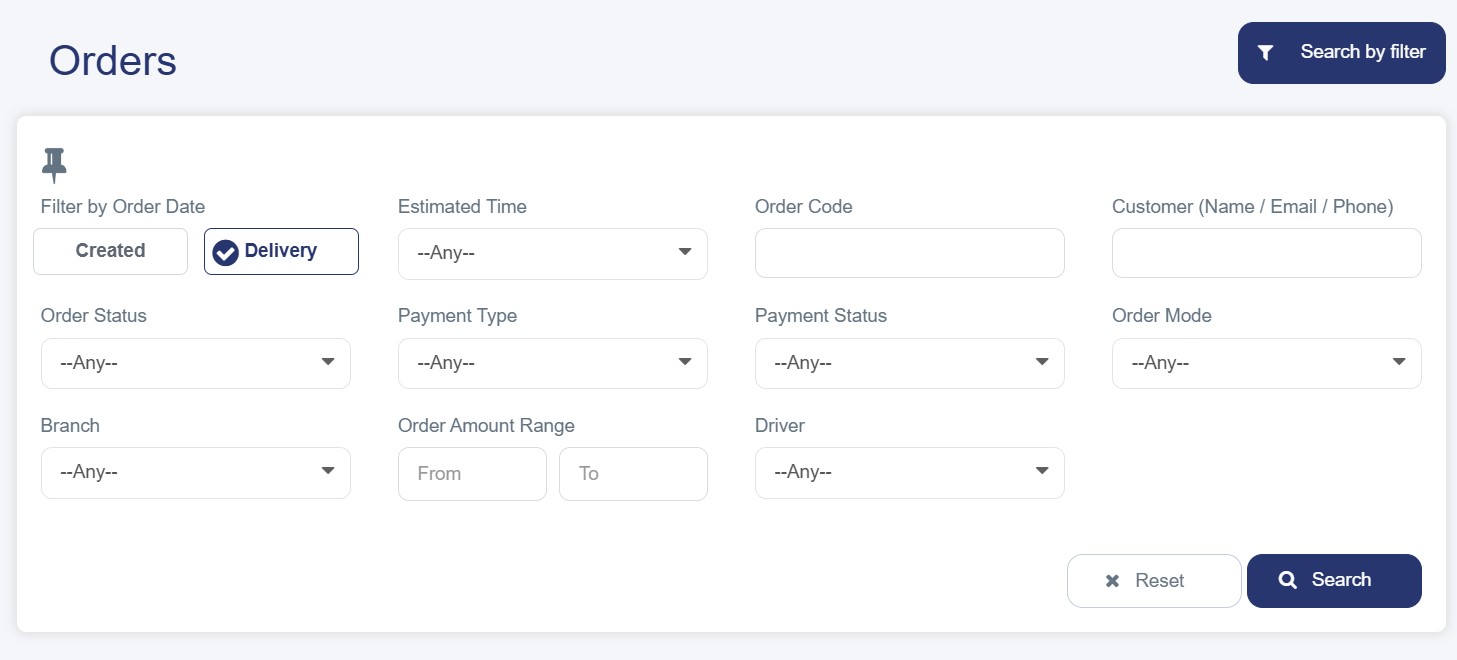
This bar allows for easy searching and filtering of orders, helping to quickly and accurately locate the desired order using the following criteria:
- Estimated Time: A dropdown menu with options to select a specific time period for orders.
- Order Number or Order Code.
- Customer Name or Phone Number.
- Order Status: (Preparing, Out for Delivery, Delivered, Cancelled).
- Payment Type: (Cash, Wallet, etc.).
- Payment Status: (Paid, Pending, Payment Failed).
- Order Mode: (Delivery or Pick-up from Branch).
- Branch: (if multiple branches exist).
- Specific Time Period: (From – To).
- Order Amount Range.
- Delivery Company: (e.g., Verdi, Parcel).
- Driver: Store-specific driver.
Orders List
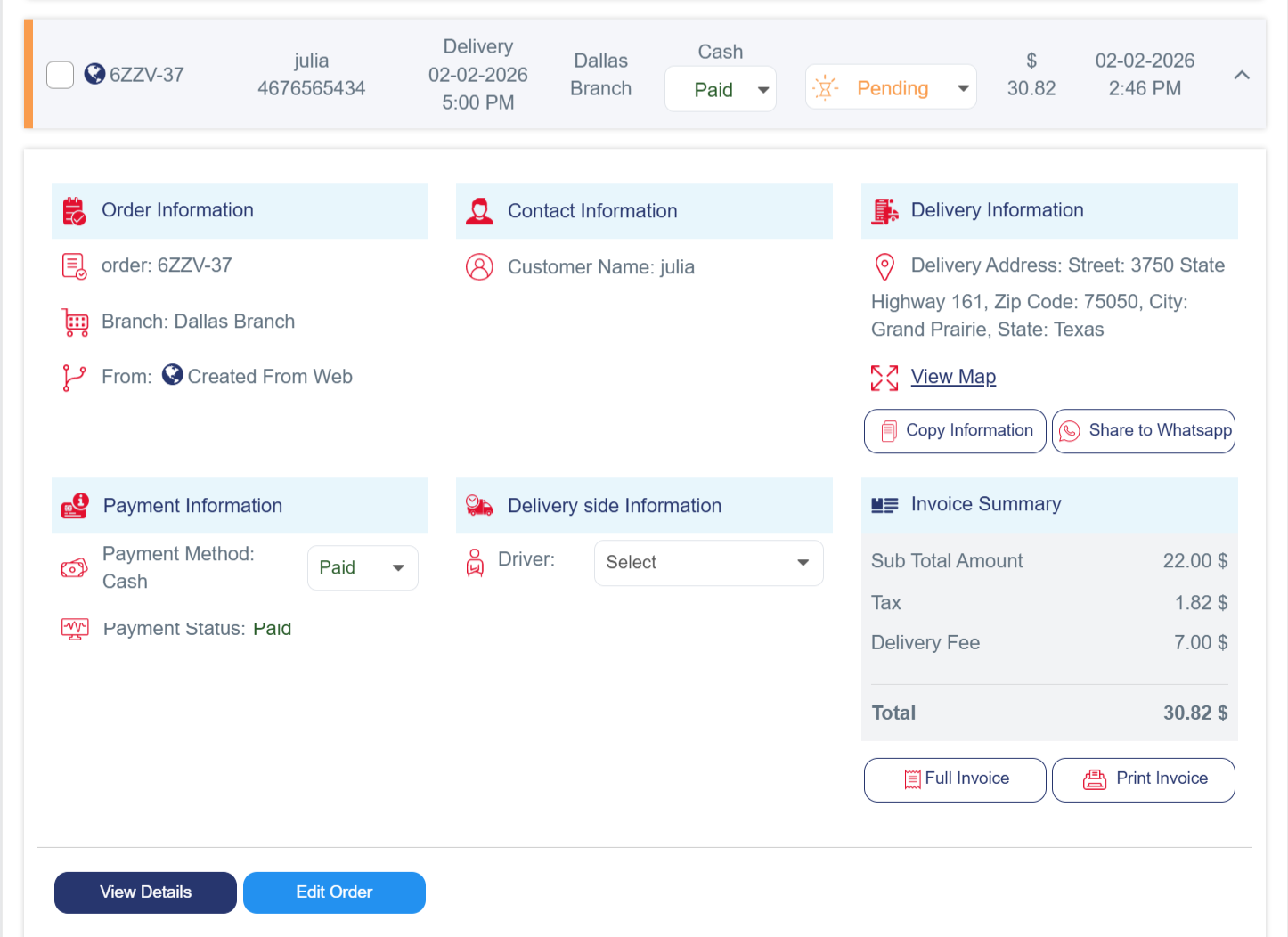
Orders are displayed in a table containing the most important information:
- Order Code: A unique identifier for each order.
- Customer: Name,Phone number and Email if available
- Estimated Time / Order Mode:
- Delivery to the customer.
- Pick-up from the branch.
- Delivery Time: Expected date and time of delivery.
- Order Mode:
- Branch / Area
- Payment Method: Shows the payment type and status (Pending or Paid).
- Delivery Status
1. Pending
2. Preparing
3. On Delivery
4. Delivered
5. Cancelled
- Total: The total value of the order.
- Date Added: The exact date and time the order was placed.
Order Details
Clicking on an order opens a page displaying its full details, organized into clear sections:
- Order Information: Includes the order code, branch and area, and the source from which the order was created (e.g., web or app).
- Contact Information: Includes the customer’s name and phone number for contact.
- Delivery Information: Shows the address where the order will be delivered, with the option to copy or share via WhatsApp. This section is not displayed if the pickup method is from the branch.
- Payment Information: Displays the payment method (Cash on Delivery or Prepaid) and the payment status (Pending or Paid).
- Delivery Side Information: (Driver or Delivery Company) — also not shown if the pickup is from the branch.
If the store is integrated with a delivery company such as Verdi or others, you can:
- Send the order directly to the delivery company.
- Track the delivery status from the same page.
- Receive automatic status updates (Picked Up – In Transit – Delivered).
Invoice Summary:
Includes delivery fees and the total amount. From this section, you can also print the invoice or view its detailed breakdown.
Order Actions
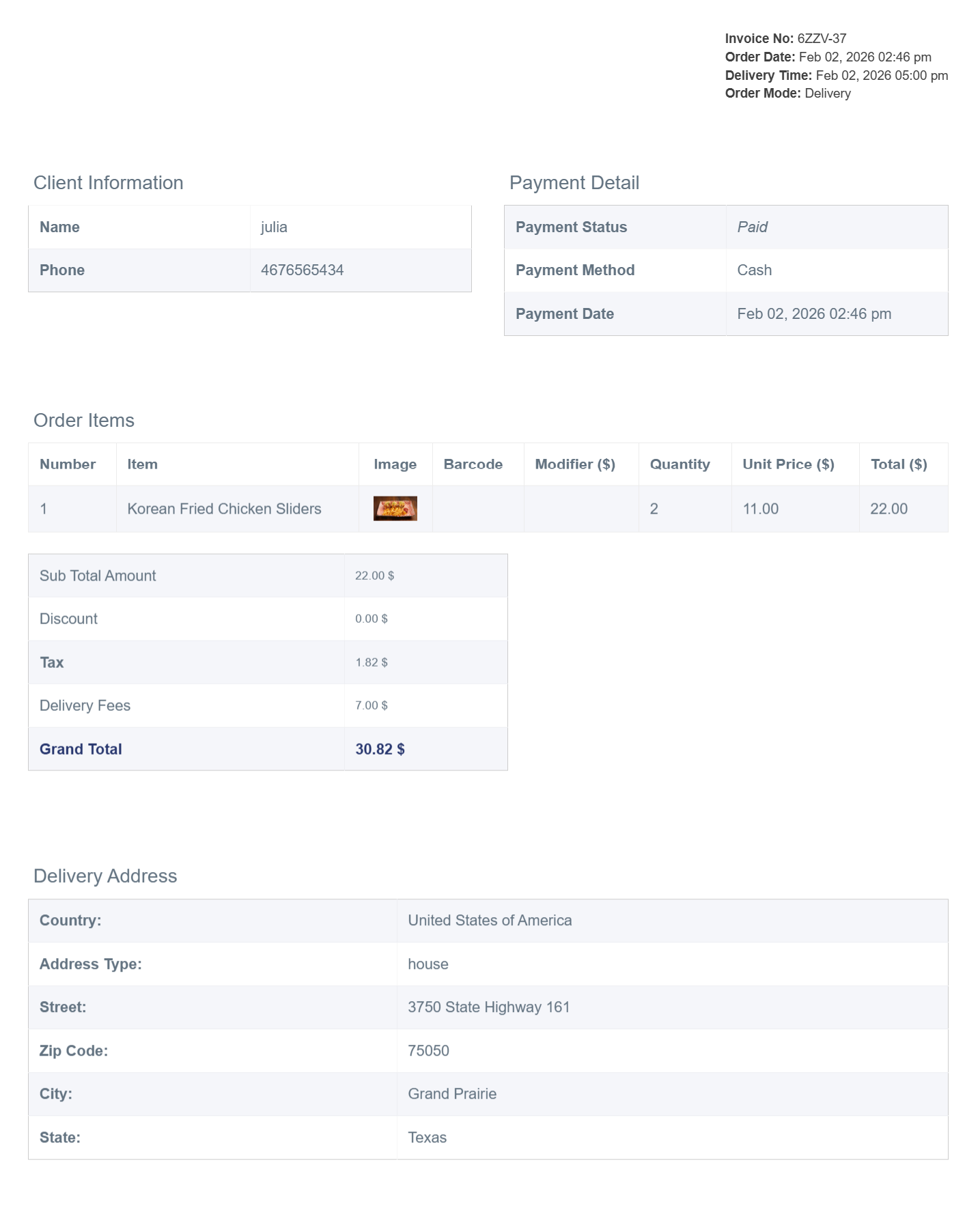
1. View Details: By clicking on “View Details” from the order list, you are redirected to a dedicated page displaying all information related to the selected order in a structured and comprehensive manner, including:
- Branch Information: Address and contact number.
- Invoice Details: Invoice number, order date, delivery time, and pickup method.
- Client Information: Customer’s name and phone number.
- Payment Details: Payment method, status, and transaction date.
- Order items: A detailed table containing all ordered products (product name, image, add-ons, etc.).
- Sub Total Amount: Displays the overall order amount, including product prices, add-ons, delivery fees, and any applied discounts (if available).
- Delivery Address: Country, city, area, and delivery location type.
- Printing Options: Ability to print the invoice in both Arabic and English.
2. Edit Order: By clicking on “Edit Order” from the details page or the action menu, you are redirected to a comprehensive edit page that allows you to modify order and customer details , and editing is only available when the order status is Pending or In Preparation.