Overview
The Drivers section is a vital part of your Cartley store dashboard, providing merchants with comprehensive management of their delivery team. Through this feature, store owners can monitor driver performance, add new drivers, and oversee delivery operations efficiently.
How to Access the Drivers Section on Cartley
1. Log in to your store’s dashboard on Cartley .
2. From the sidebar on the right, locate the “Drivers” section.
3. Click on “Drivers” to reveal a drop-down menu containing:
· Drivers
· Reports
How to Add a New Driver
To add a new driver to your delivery system, follow these steps:
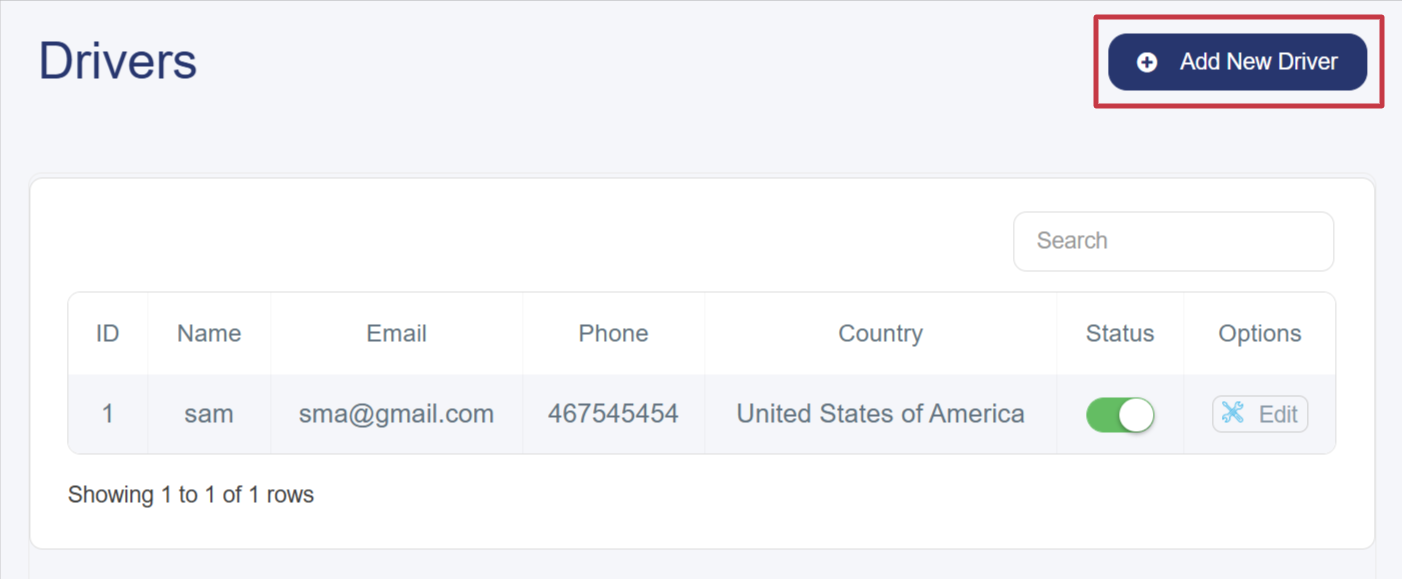
1. Click the “Add New Driver” button at the top of the drivers page.
2. A pop-up window with a data entry form will appear. Fill in the following fields:
· Name: Enter the driver’s full name.
· Email: Enter a valid email address for the driver.
· Phone Number: Enter the driver’s phone number (including country code if available).
· Country: Select the driver’s country from the drop-down list (e.g., Bahrain, Kuwait, Saudi Arabia, etc.).
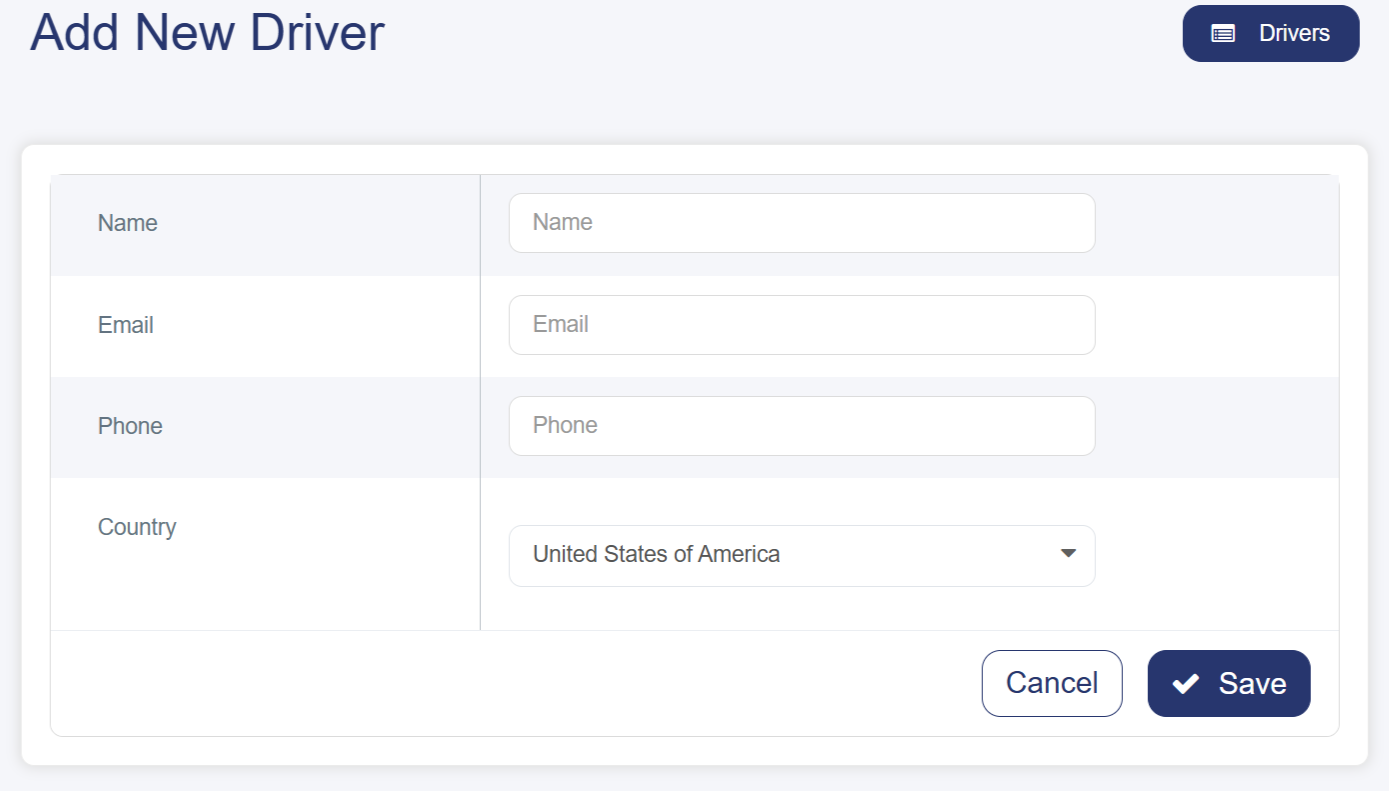
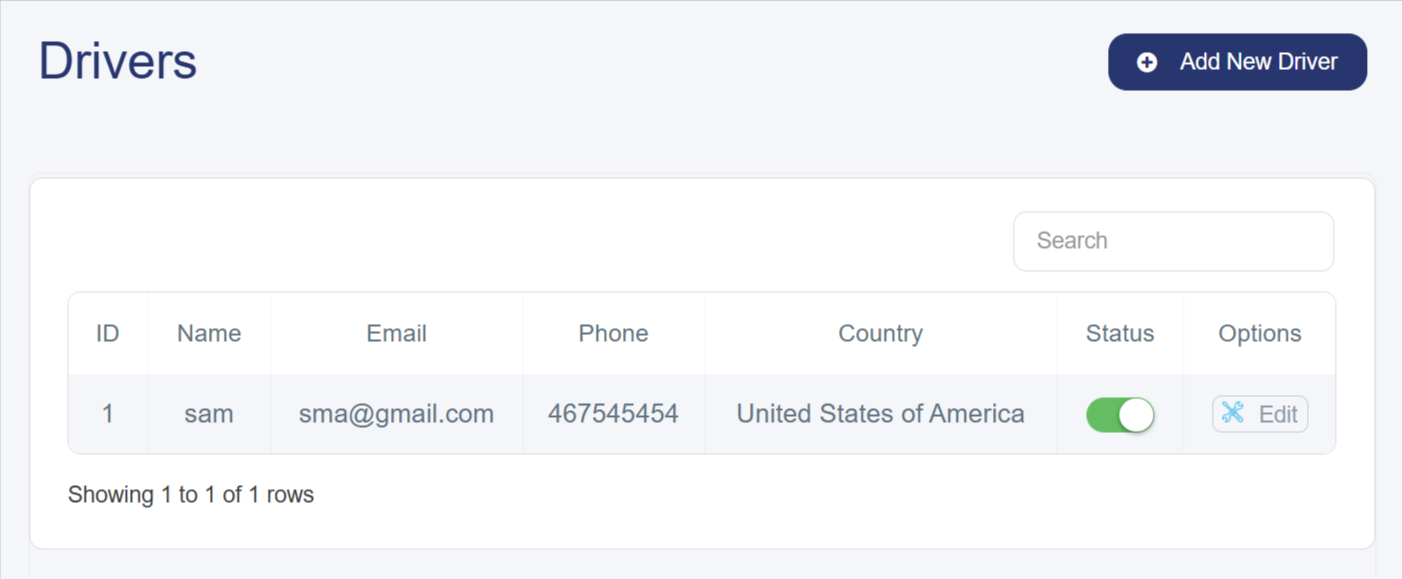
3. Click “Save” to add the driver to the system. A structured table will then appear displaying the following information:
§ Name: Registered driver’s name.
§ Email: Driver’s email address.
§ Phone: Driver’s mobile number.
§ Country: Country where the driver operates.
§ Status: Indicates whether the driver is active or inactive (via the green toggle button).
§ Options: Options to edit or delete the driver’s information.
Drivers Report
Cartley provides an advanced reporting system to help you monitor driver performance and delivery operations. To access the drivers report:
Components of the Drivers Report
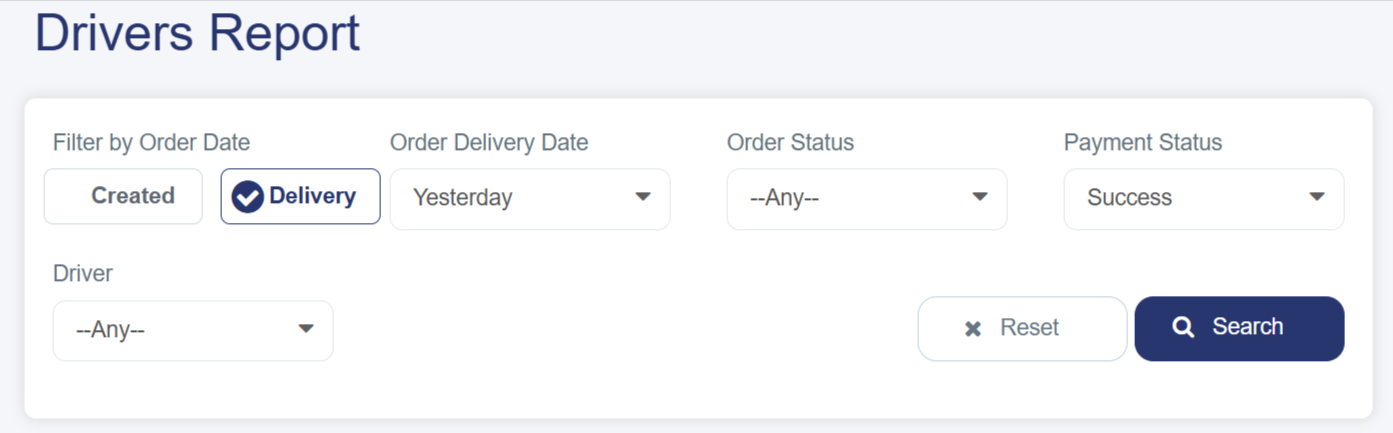
- Search and Filtering Tools: At the top of the page, tools are available to customize the displayed data. The data table will only appear after entering the following mandatory filters:
§ Filter By Order Date: Choose between:
o Delivery: The time the order was delivered.
o Added: The time the order was added.
§ Order Date / Delivery Date: Filter by a specific time period.
§ Order Status: Multiple options including:
o Confirming Your Order
o Preparing
o On Delivery
o Delivered
o Cancelled
§ Payment Status: Filter by payment status (Success, Pending).
§ Driver: Select a specific driver from the drop-down, based on drivers previously added to the system.
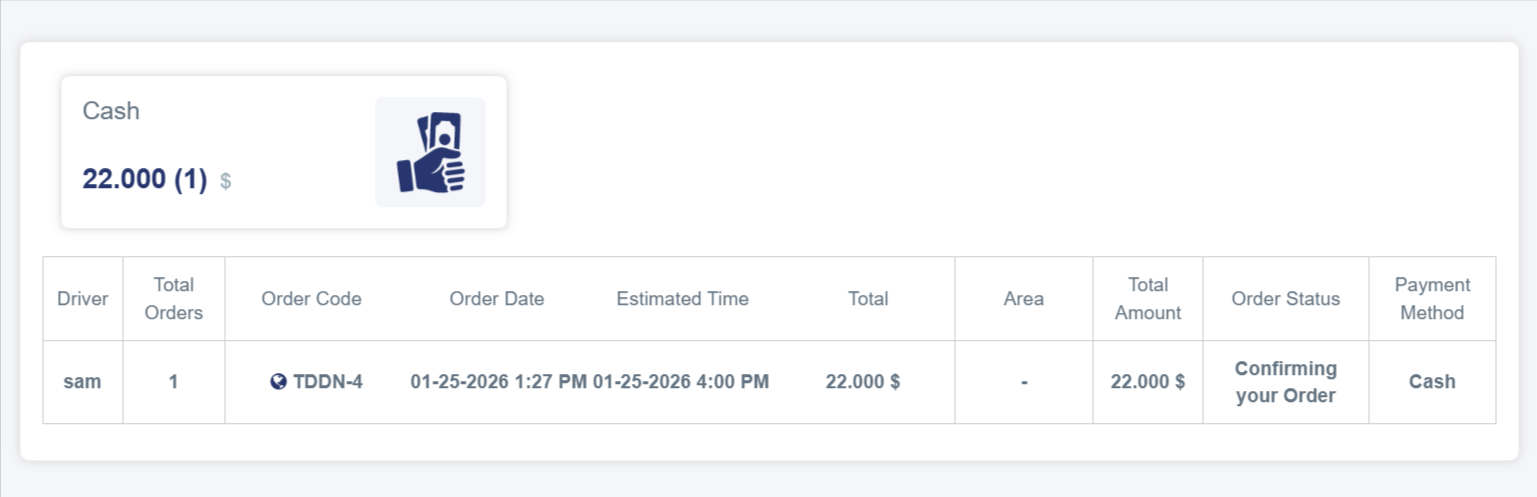
- Detailed Report Information: The report displays a comprehensive table including:
§ Driver: Assigned driver’s name.
§ Total Orders: Number of orders assigned to the driver.
§ Order Code: Unique code for each order.
§ Order Date: Time and date the order was created.
§ Estimated Time: Expected delivery time.
§ Total: Total value of the order.
§ Area: Delivery location.
§ Total Amount: Final amount after all calculations.
§ Order Status: Current status of the order (Delivered, Preparing, etc.).
§ Payment Method: Method used for payment (Cash, Online).