Video Guide
Start with the video for a quick overview, then follow the written steps below.
What Is Inventory and Why Is It Important for Online Stores
The inventory represents the total number of products ready for sale, encompassing all items regardless of their types, sizes, or colors, and this section appears specifically when there is more than one inventory or branch within your store.
Inventory is a fundamental element for the success of online stores, as it ensures product availability at the right time and reduces the risk of stockouts or overstocking. An effective inventory management system also helps monitor product movement, update quantities, and identify low-stock items, enabling store owners to improve planning, reduce costs, and make decisions based on accurate data—ultimately enhancing operational efficiency and boosting customer satisfaction.
Accessing the Inventory Page
1. Log in to the main dashboard, which contains all the store management tools.
2. On the left side of the screen, you will find a sidebar with several options. Locate and click on "Inventory."
3. A dropdown menu will appear, including:
· Inventory Page, which contains:
§ Products
§ Modifiers
· Purchase Orders
· Transfers
· Suppliers
Inventory Page
Upon accessing the inventory page, a dropdown list will appear containing two options: Products and Modifiers. Selecting either option will display a window with a detailed table showing the inventory quantities for each item clearly and neatly.
Products Page: At the top of the Products page, you will find a selection box for choosing the desired branch. Once a branch is selected, a table will appear displaying essential inventory details for that branch, including:
§ Product Image: A thumbnail image that visually identifies the item.
§ Product: The product name, including all available sizes and colors.
§ SKU (Stock Keeping Unit): A unique identifier for each product for accurate tracking.
§ Committed: Quantities reserved for upcoming or scheduled orders.
§ Available: The number of units currently available for sale.
§ On Hand: The total number of units physically in stock, including both available and committed.
§ Incoming: Quantities expected to arrive soon from suppliers.
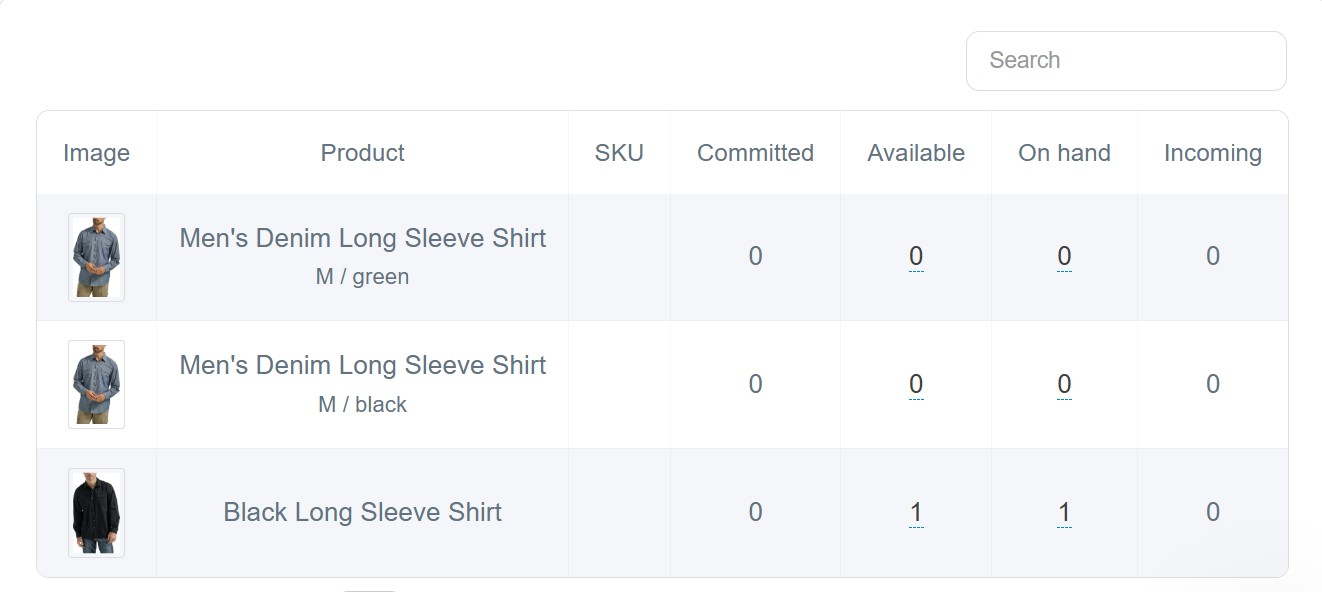
Modifiers Page: In addition to the main inventory page, the system provides a Modifiers page that displays items differently, making it particularly useful for managing products that include optional or supplementary Modifiers.
The difference between the Products page and the Modifiers page
The Products page focuses on displaying and managing the primary items offered directly by the store, while the Modifiers page is used to manage additional services or items that can be attached to the main products, and includes:
§ Image: A thumbnail, if available.
§ Product: Clearly displays the name of the add-on.
§ SKU: A unique identifier for each Modifiers.
§ Committed: Refers to the quantities reserved for upcoming or scheduled orders
§ Available: The number of units currently available for sale
§ On Hand: The total number of units physically present in the warehouse, including both available and scheduled quantities.
§ Incoming: Stock expected to arrive soon for product Modifiers.
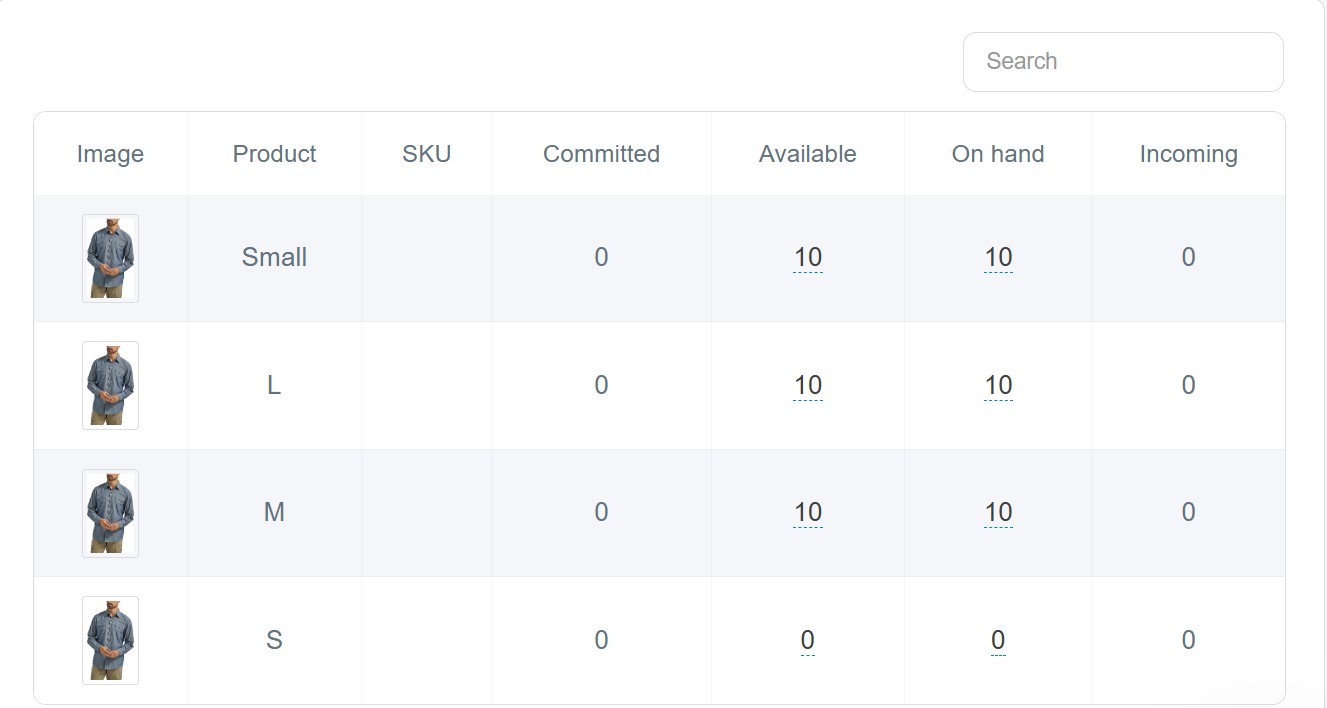
How to Edit Product or Modifiers Inventory Quantities
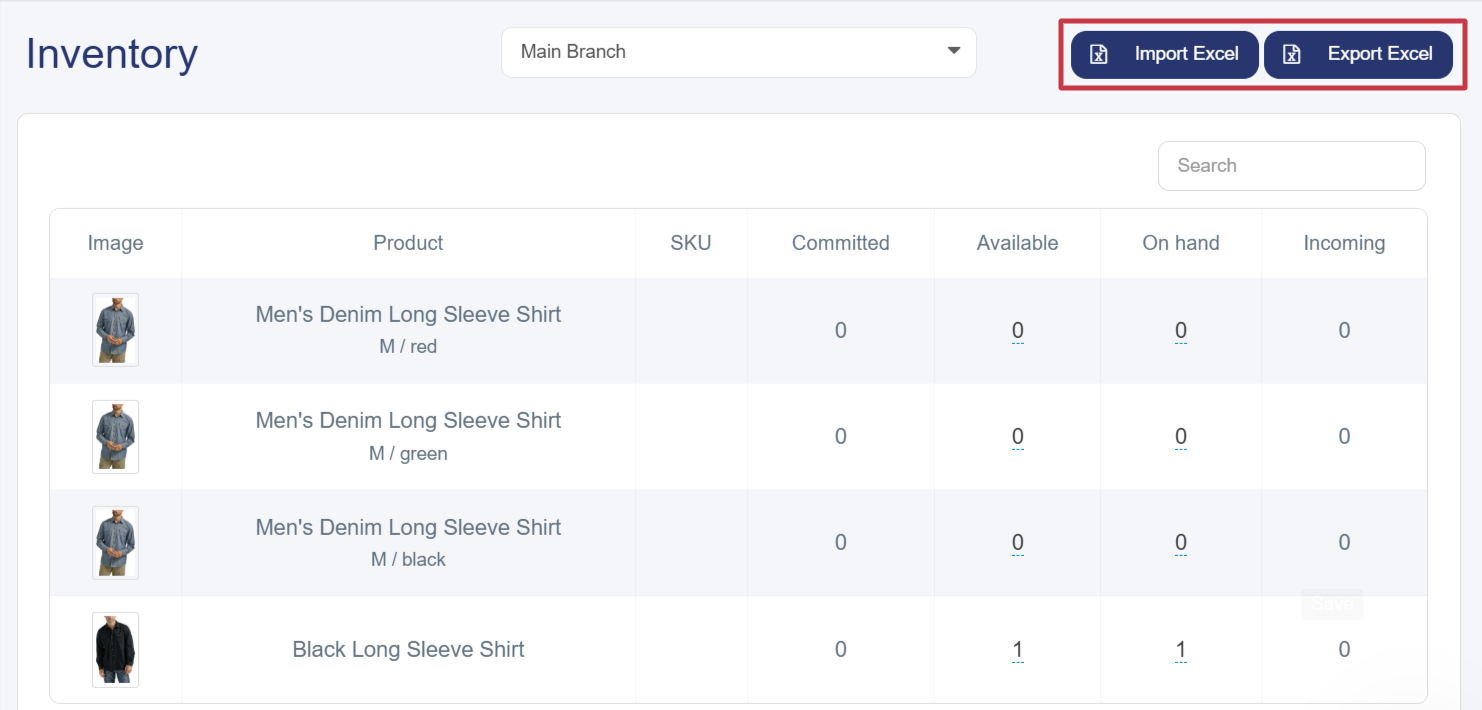
You can easily add quantities to the inventory by clicking on the "Export Excel" option located at the top of the page. When you do so, an inventory file will be generated and displayed within the Reports section in the dashboard, allowing you to download it directly to your device. The file contains a structured table that includes the essential columns required for data entry, enabling you to fill them in accurately and re-upload the file for the inventory to be updated automatically and correctly.
Basic data for the Excel file:
· Product: The full product name as it will appear to customers
· SKU: Stock Keeping Unit code
· Committed: The reserved or scheduled quantity
· Available: The quantity currently available in stock for sale
· On Hand: The total actual quantity in stock, including scheduled and available
· Incoming: The quantity expected to arrive from suppliers
After completing the inventory quantity updates, you can easily retrieve them by clicking on the "Import Excel" option located at the top of the page. A window will appear containing the necessary instructions and a "Choose File" option to upload a CSV file from your device. After selecting the file, click on "Upload" for the inventory to be calculated automatically based on the values you imported, whether they are related to products or modifiers.
Quantities can be adjusted easily by clicking on the number shown in the Available or Actual Inventory fields. A small pop-up box will appear, allowing you to enter the new quantity directly. After entering the desired value, simply click Submit to update the inventory instantly.
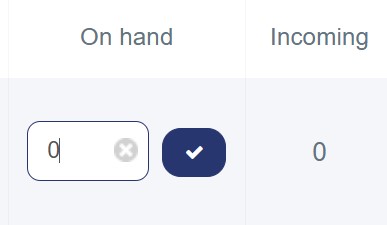
This streamlined process provides a fast and accurate way to manage product quantities, ensuring up-to-date stock information and allowing changes to be applied efficiently and in real time.