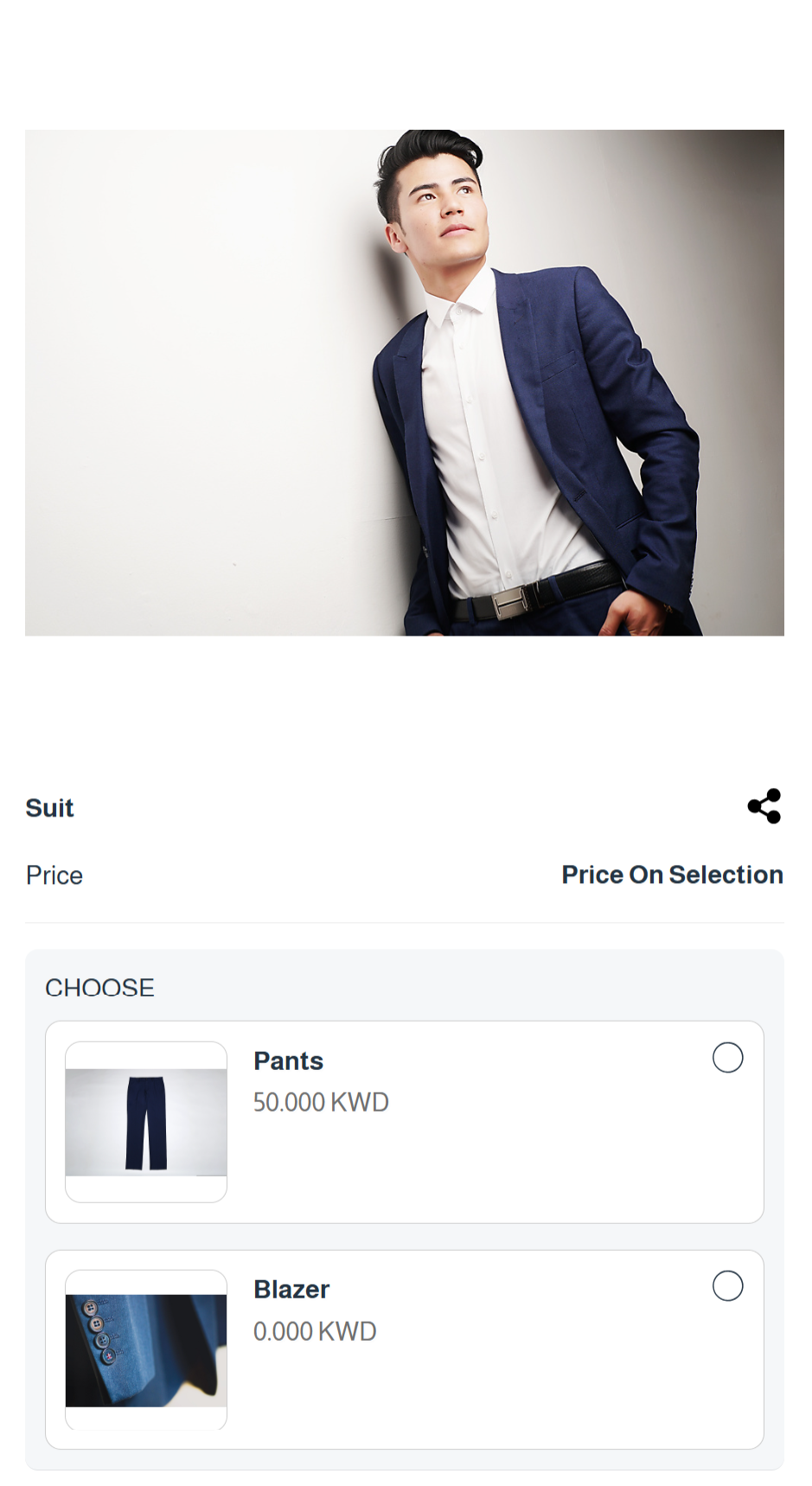
What Are Variants Products?
Variants Products are products that are linked to a main product and displayed under it within an organized structure, allowing related products to be grouped in one place for easier management and presentation to customers. Each variant product can be customized independently by adding its own images, pricing, inventory, options, and add-ons, providing greater flexibility in product management while maintaining store organization and improving the customer browsing and purchasing experience.
How to Create Variants Products
- Go to Products → Variants Products → Create Variant
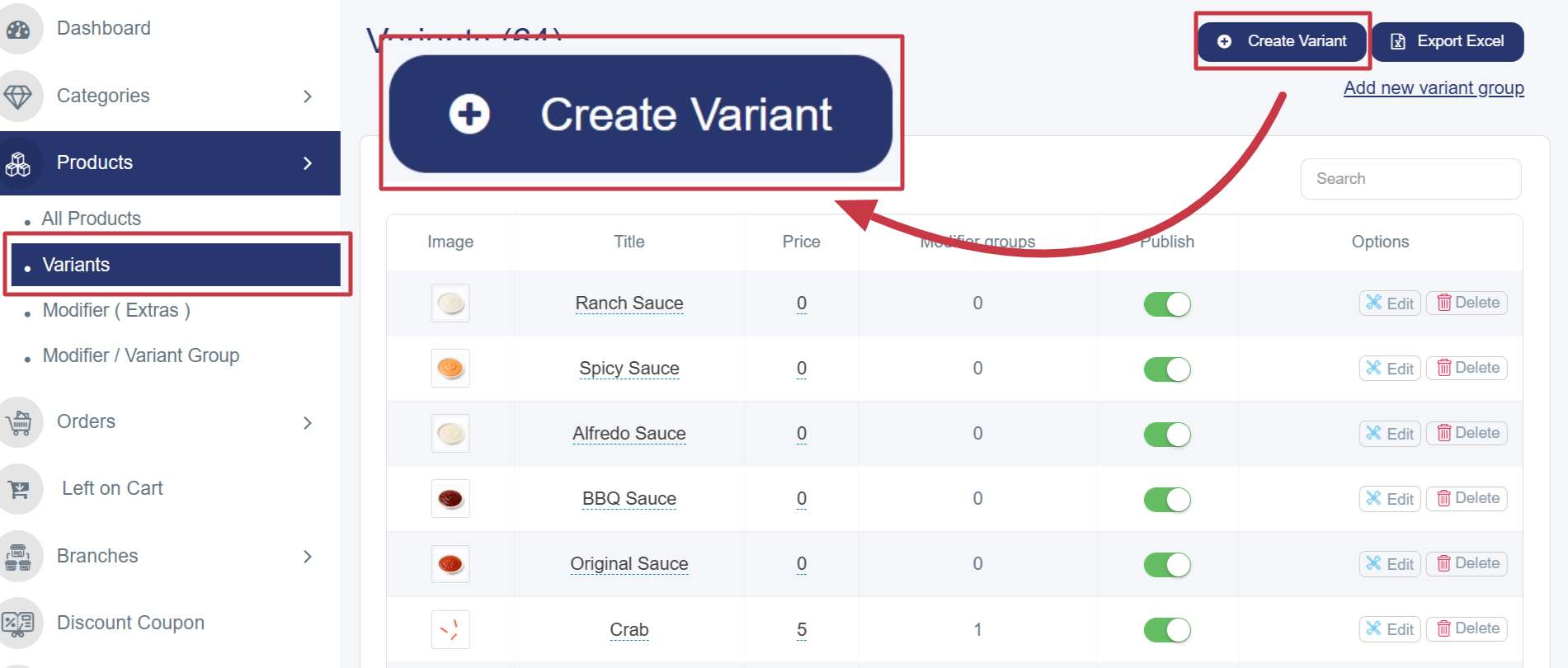
- Fill in the product details:
- Product Title: Enter the product name in both Arabic and English.
- Images (JPG/PNG): Upload the product image by clicking Choose File. The recommended image size is 500 × 500 pixels.
- Description: Add a detailed product description in both languages. -
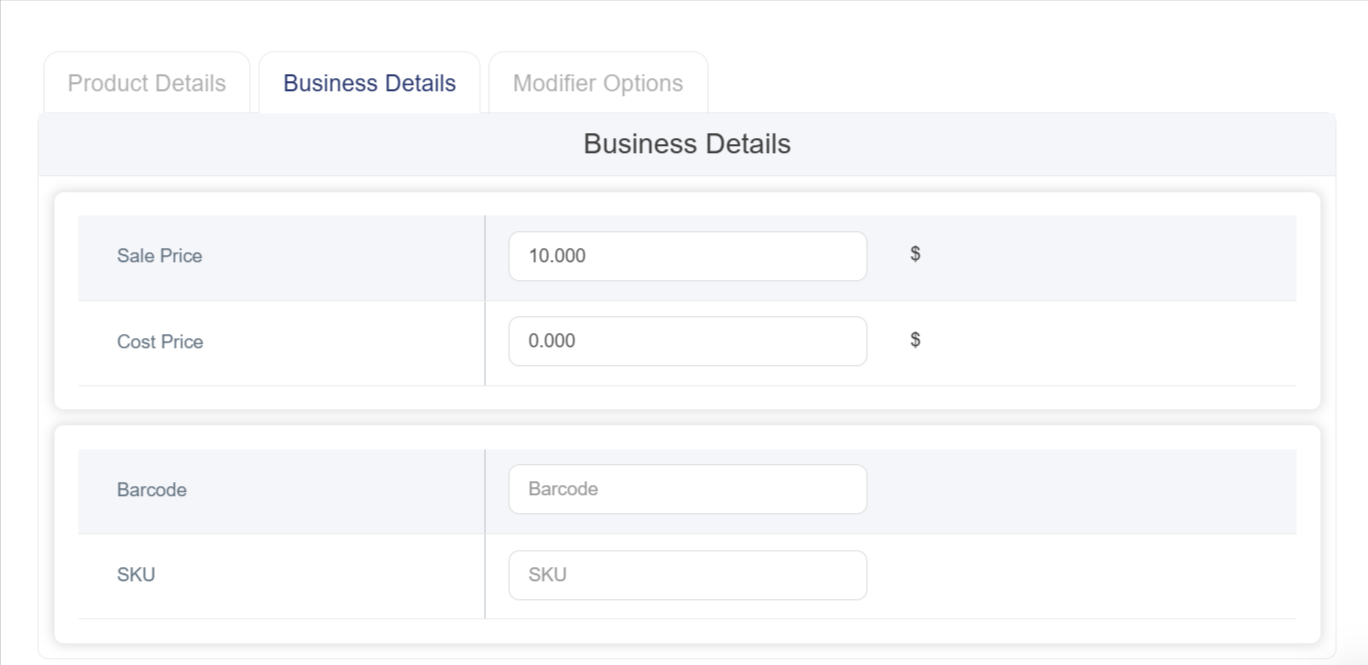
Fill in the business details, such as the product price and cost, if available
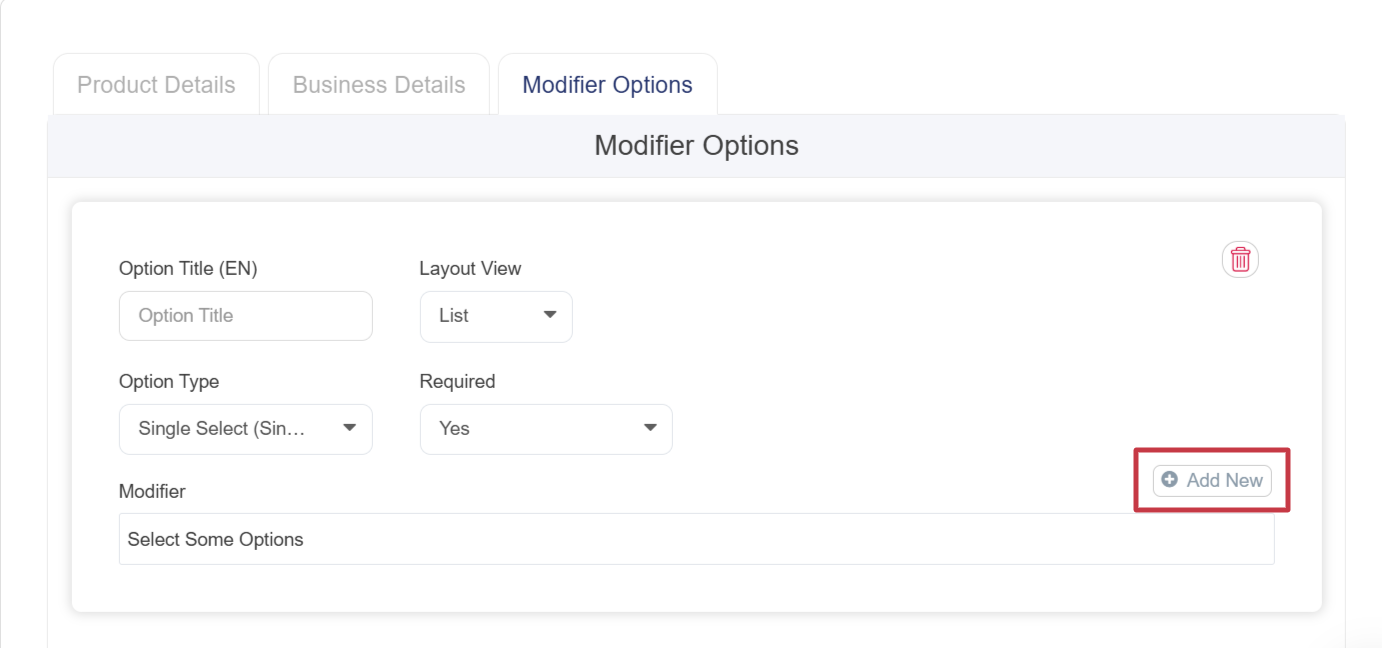
- Go to Modifier Options to add product options.
- Option Title (EN/AR): Enter the option name.
- Option Type: Select Single Choice if the customer can choose only one option, or Multiple Choice if more than one option can be selected. - Click Add New above the search box and fill in the Modifiers details:
- Name in Arabic and English.
- Group Name (Optional): Use the # symbol to group similar add-ons.
- Image: Images can be assigned so that the displayed image changes based on the option selected by the customer.
- Status: Enable or disable the add-on using the toggle button.
- Price: Enter the add-on price, or leave it as 0 if there is no additional charge.
- Barcode / SKU (Optional): Enter tracking or inventory codes if available. - Click Save.
How to Link Variants Products to the Main Product
1. From the side menu, click Products.
2. A submenu will appear; select All Products.
3. Click the blue Create Product button at the top right.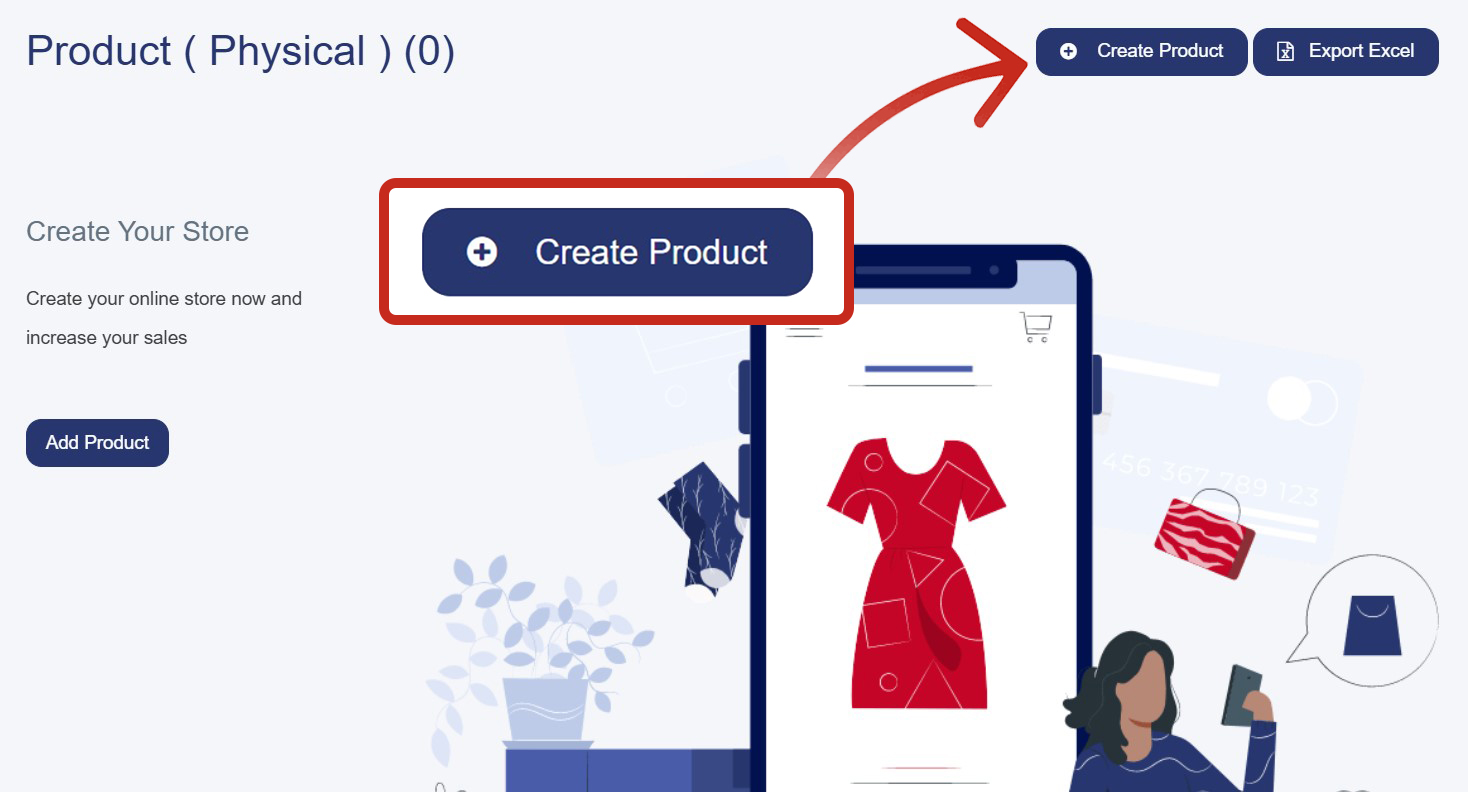
4. Fill in the product information:
- Product Name (Arabic & English): Enter the product name in both languages (e.g., Chicken Pizza or Vegetable Pizza).
- Category: Select a category from the list (e.g., Clothing, Accessories).
- Product Type: Must be set to Advanced .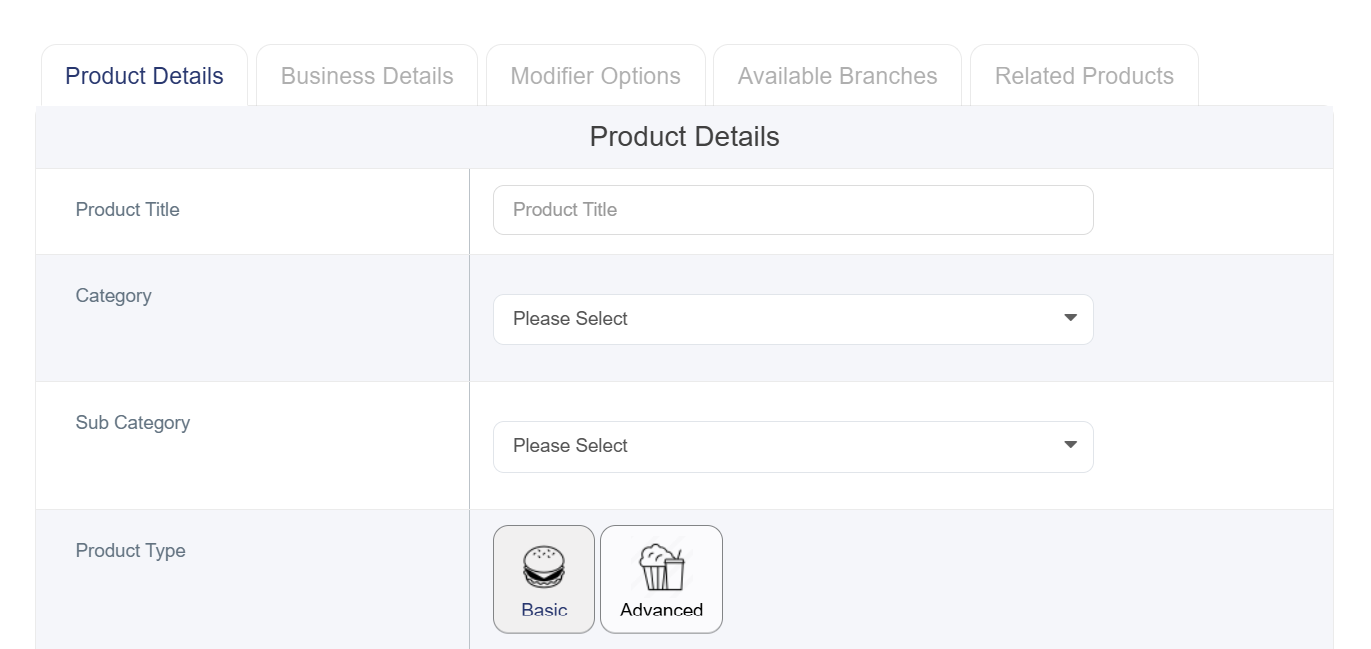
- Product Image: Click Choose File to upload the product image (recommended size: 500 × 500 pixels, format: JPG/JPEG).
- The remaining details such as preparation time, keywords, and description are optional.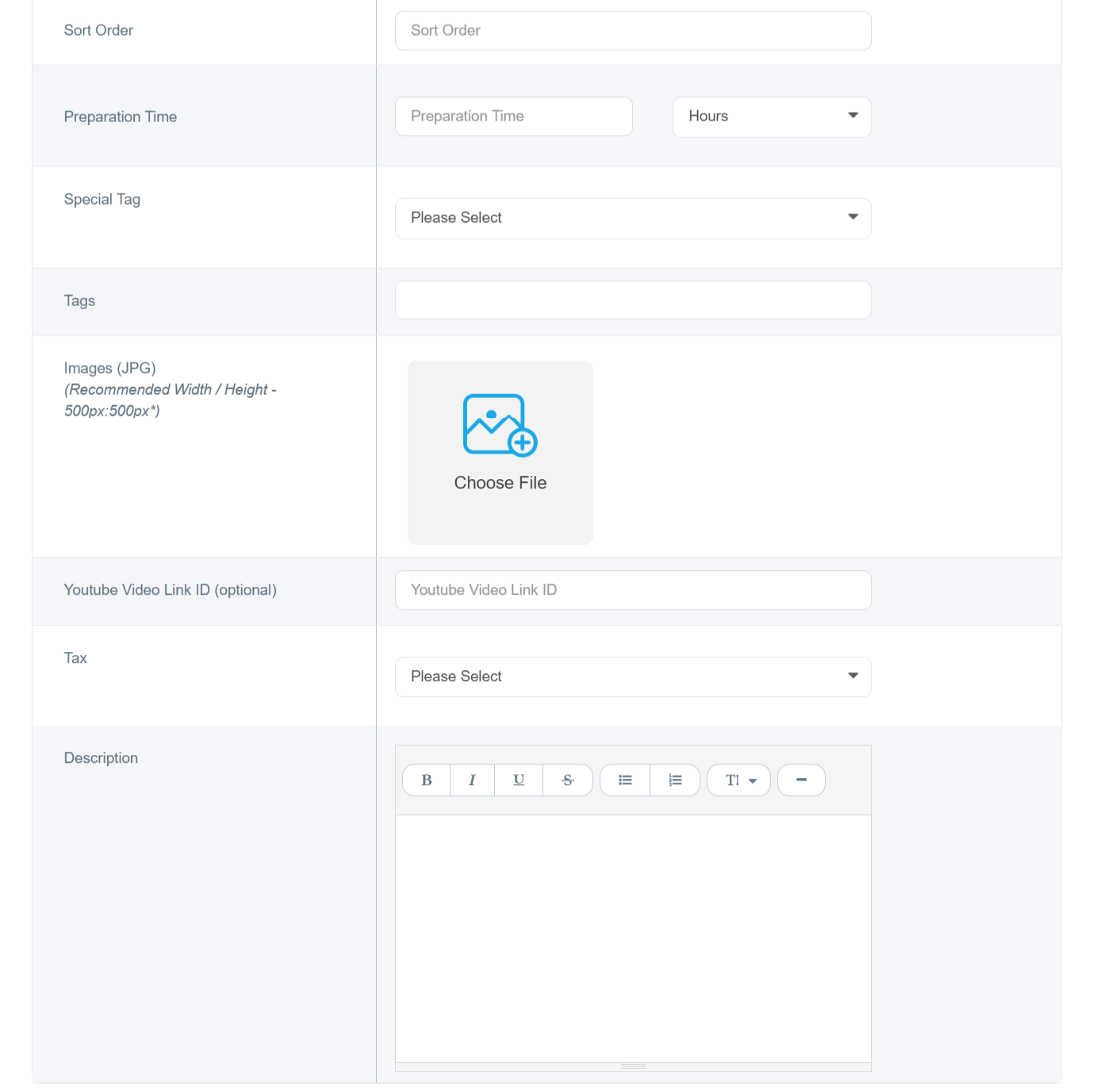
5. Fill in the Busuness Details:
- Sale Price (Required): Enter the selling price.
- Cost Price (Required): Enter the product cost.
Note: If pricing information is unavailable, enter 0.
- Purchase Limit: Set the maximum quantity allowed per order.
- Barcode: Enter the product barcode.
- SKU: Enter the inventory code.
- Discount Type: Choose either percentage or fixed amount.
- Discount Value: Enter the discount amount.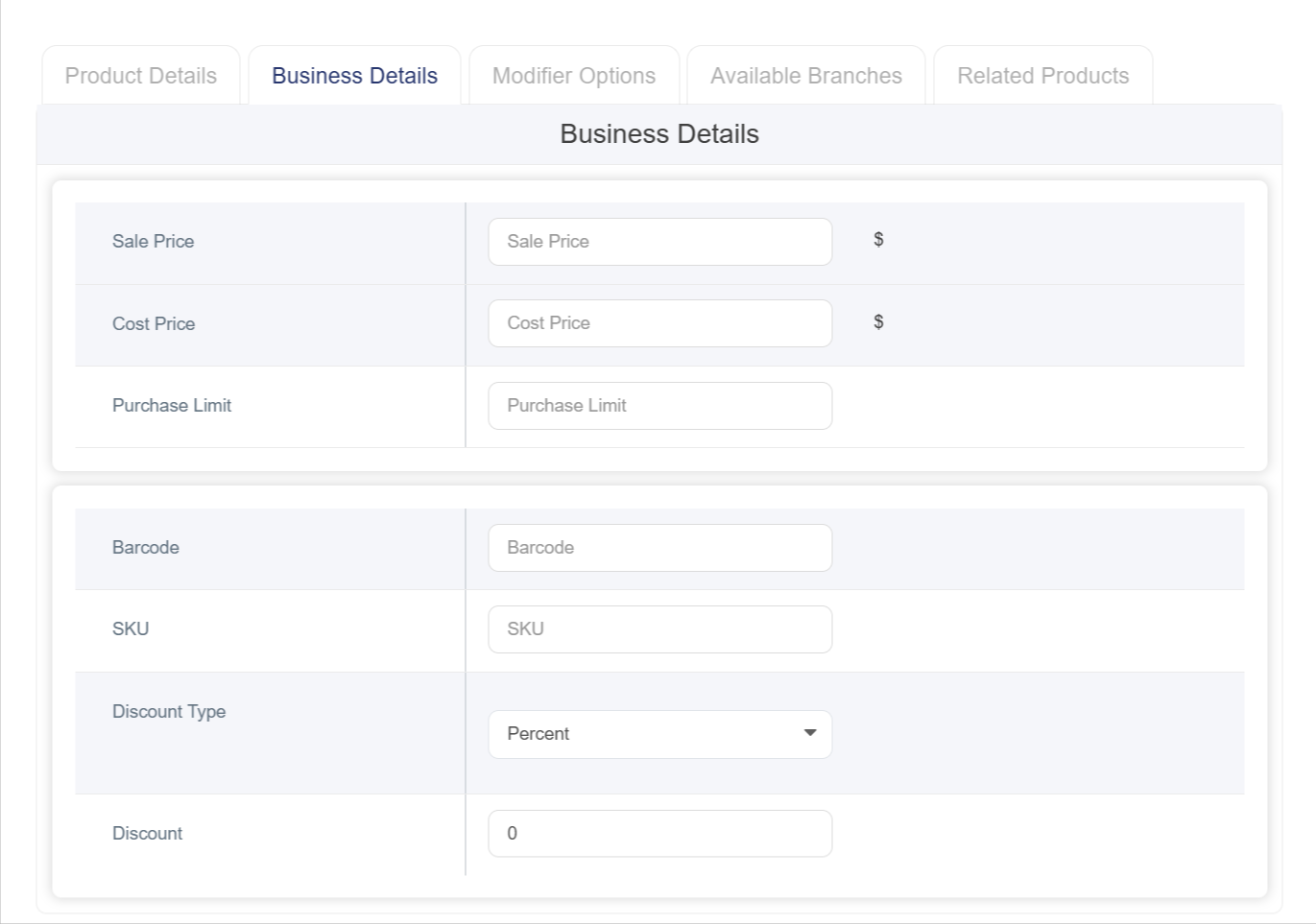
6. Manage Variants Products and link them to the main product:
- Click Add Variants Group.
- Enter the option title in both Arabic and English.
- Select the Option type (single or multiple choice).
- Search for and select the variants products. They will be displayed in an organized table. Then, rearrange them to ensure they appear in the correct order for customers on the website.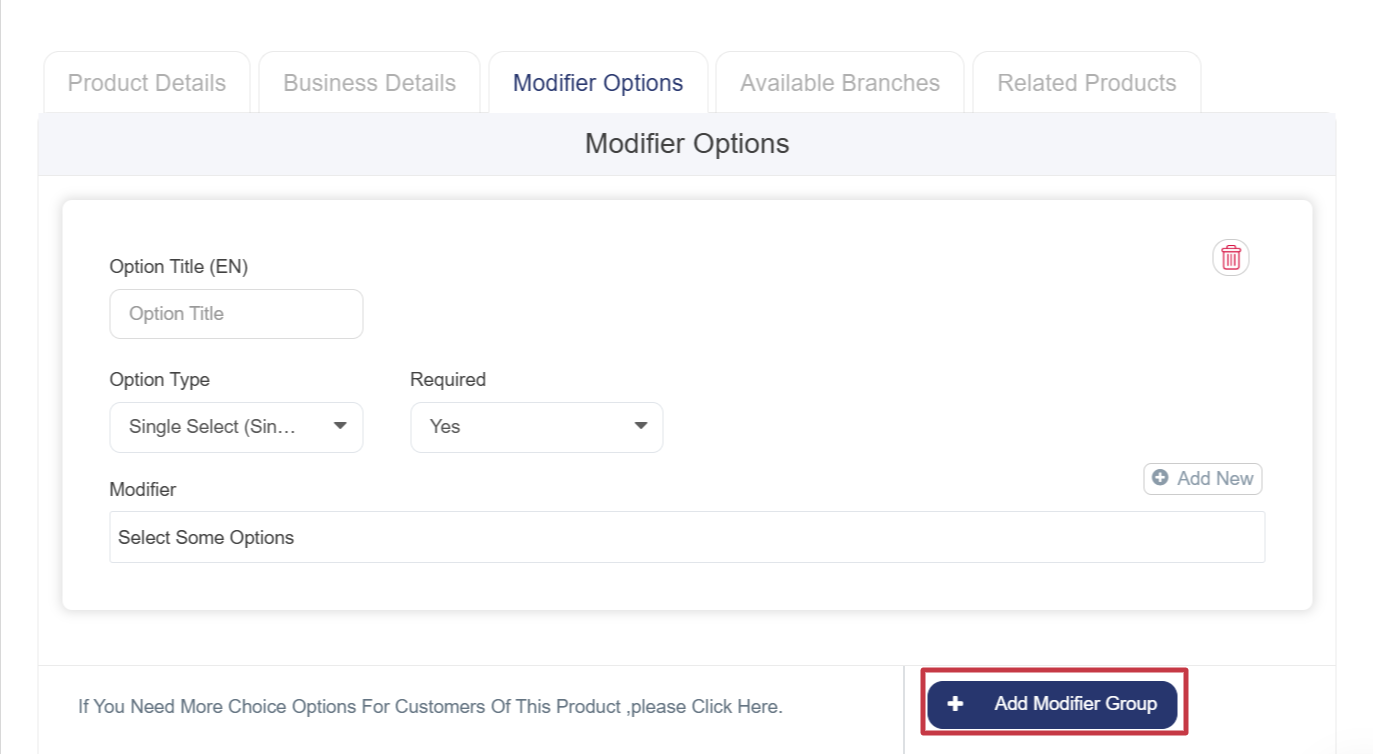
7. Modifiers Options: This section is used to add additional options to the product. If no modifiers are required, you may skip this tab.
8. Go to the Available Branches tab and enable the toggle if the product is available in all branches.
9. Click Save.