Follow these simple steps to add a new subcategory to your Cartley store:
Step 1: Access the Subcategories Section
1. Log into your admin dashboard.
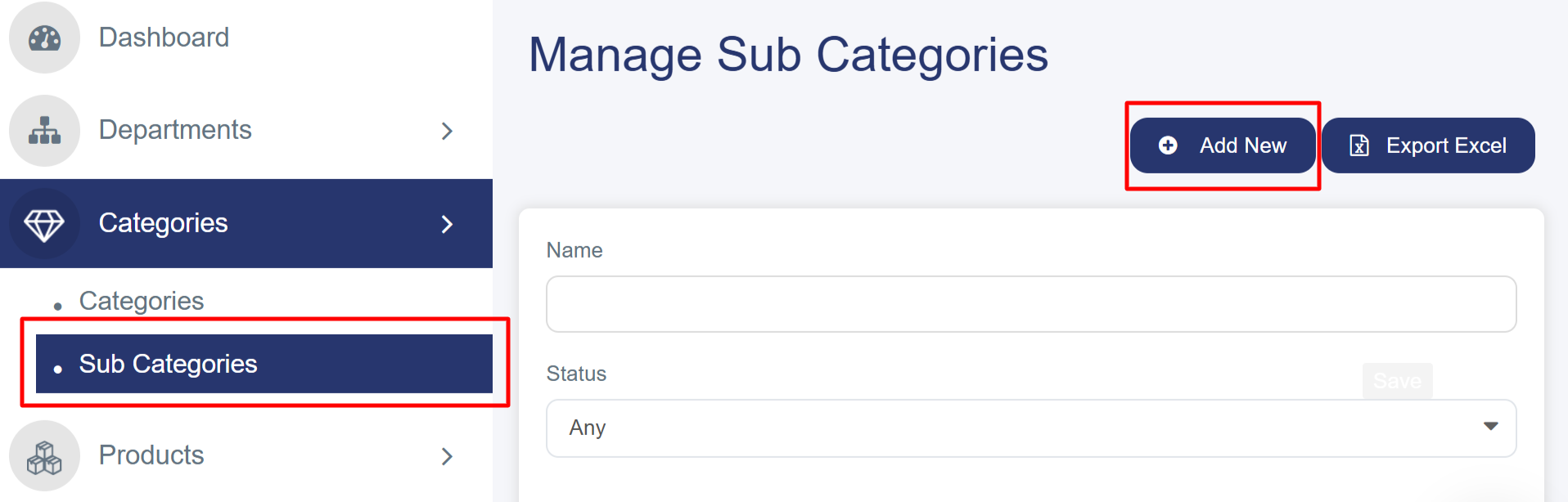
2. From the left sidebar menu, click on "Categories".
3. Select "Sub Categories" from the dropdown menu.
4. You'll see the "Manage Sub Categories" page with all existing subcategories.
Step 2: Start Creating a New Subcategory
1. Click the blue "Add New" button in the top right corner
2. This will take you to the "Add New Sub Category" form
Step 3: Filling in the Required Information
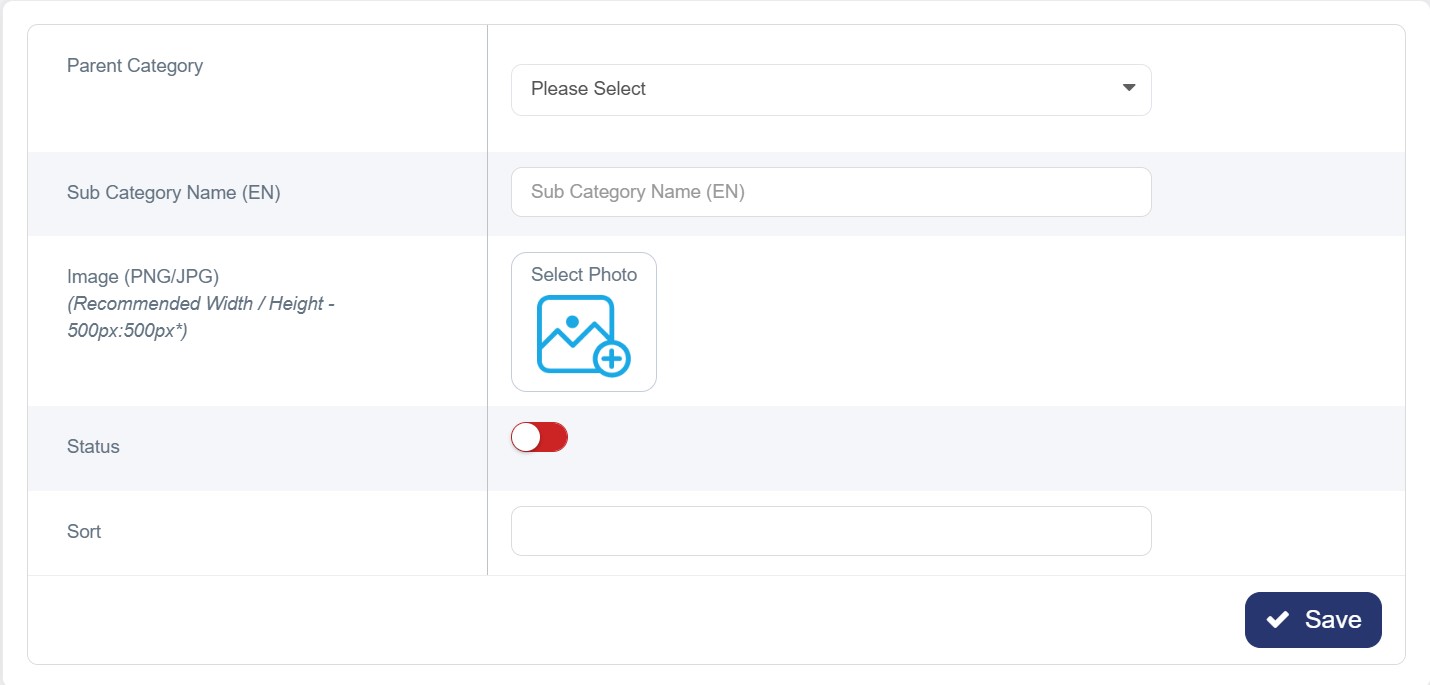
Parent Department-Category :
- Select Parent: Click on "Please Select".
- Link Hierarchy: Choose the Department followed by the Main Category that this subcategory belongs to.
- Example: If you are adding "Clothes", select "Women" as the Department and "Clothes" as the Main Category.
Subcategory Names:
- Subcategory Name (English): Enter the subcategory name in English.
- Clarity: Ensure both names clearly describe the specific category group.
Image Upload:
- Select Image: Click the "Choose Image" button in the image section.
- Representation: Upload an image that accurately represents the subcategory.
- Recommended Dimensions: 500px × 500px for the best display.
- Recommended Format: JPG or JPEG.
- Maximum File Size: Must be less than 2 MB.
Status and Sorting:
- Status: Use the toggle switch to enable or disable the subcategory:
- Red (Off): The subcategory is disabled and hidden.
- Green (On): The subcategory is active and visible to customers.
- Sort Order: Enter a number to determine the display priority (lower numbers appear first in the list).
Step 4: Save Your Subcategory
· Review all the information you've entered
· Click the blue "Save" button in the bottom right corner
· You'll be redirected back to the subcategories list
· Your new subcategory should appear in the table
Example:
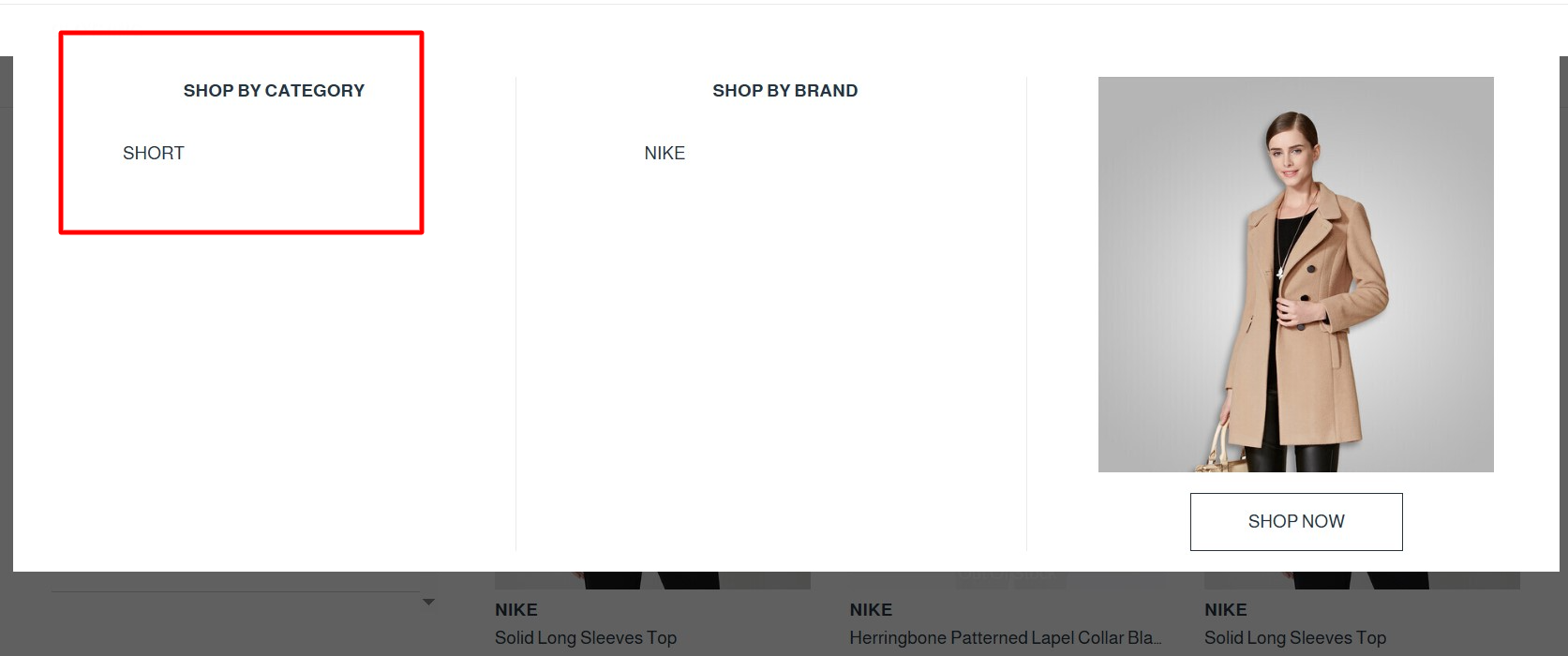
When adding a subcategory as shown below:
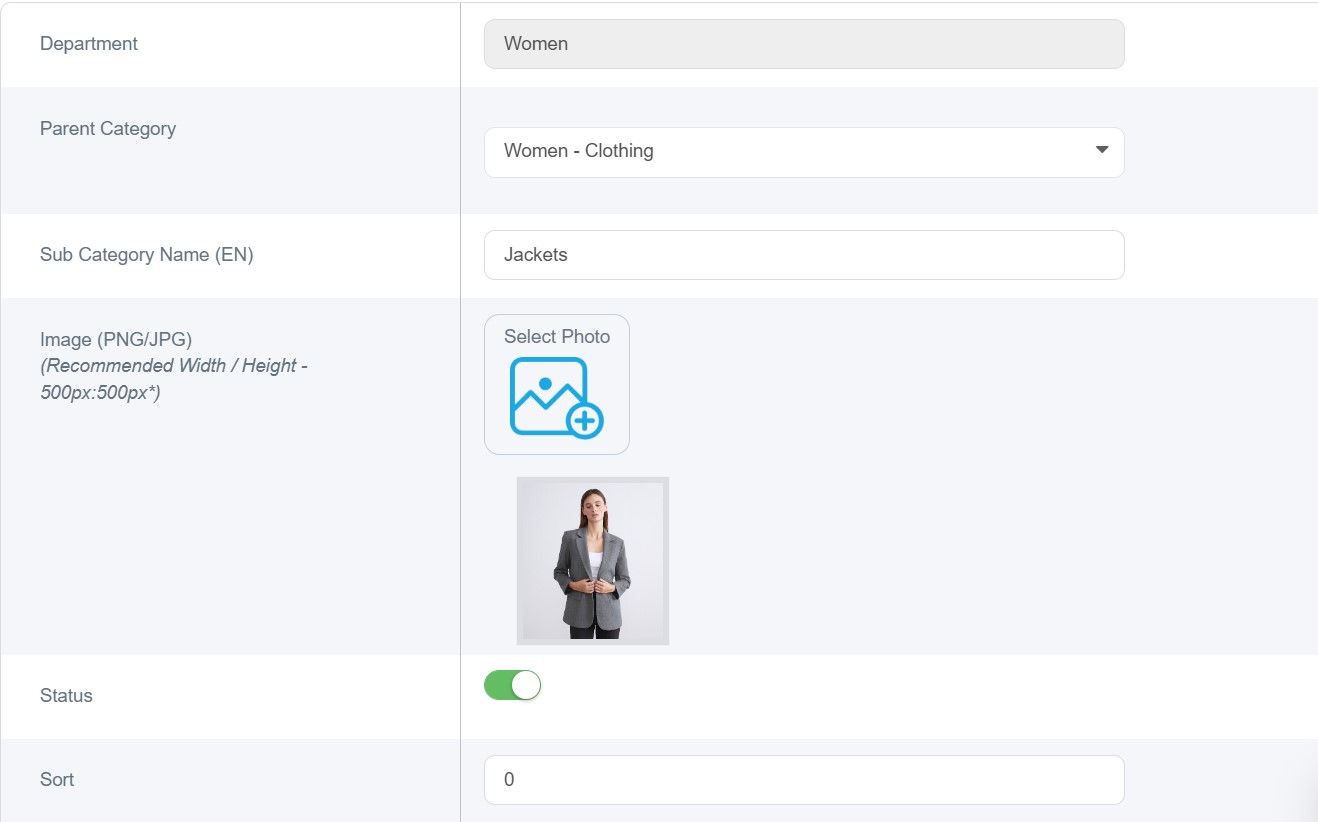
It will be displayed on the website for the customer as shown below:
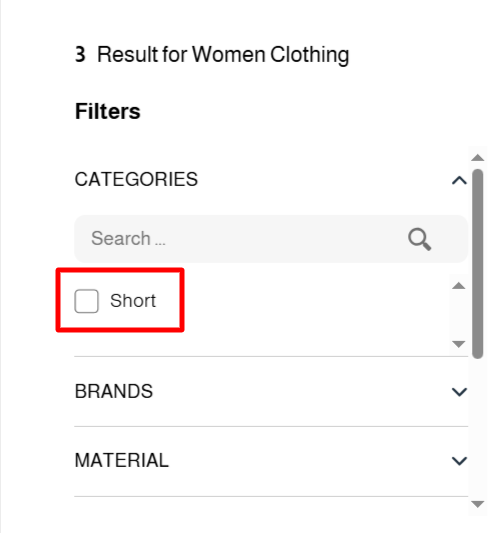
The customer can also select from the top of the homepage:
· Use clear, descriptive names that customers will easily understand
· Upload high-quality images that represent the subcategory well
· Choose appropriate parent categories to help customers navigate your store
· Set logical sort numbers to organize subcategories in a meaningful order
· Your new subcategory will appear in the main subcategories list with a unique Id.
· You can edit it anytime by clicking the "Edit" button
· You can delete it using the "Delete" button if needed
- The subcategory will be available for customers to browse in your store
Troubleshooting
- If the image you choose isn’t uploading, check file size and format
- If no image is uploaded ,the Default image will appear