Video Guide
Start with the video for a quick overview, then follow the written steps below.
How to Create a Discount Coupon for Your Store
You can create a discount coupon for your store on your platform by following these steps
1.Log in to your dashboard.
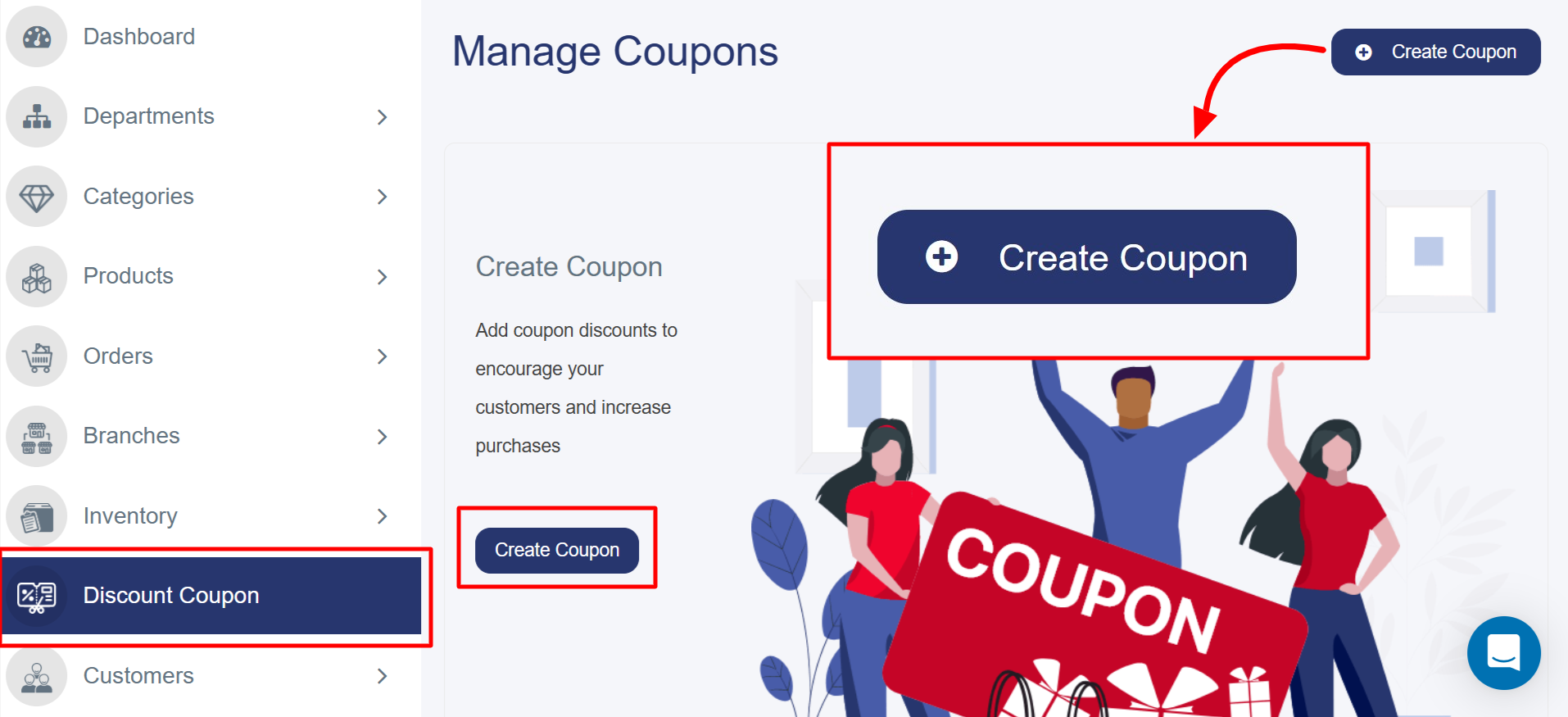
From the sidebar, select "Discount Coupon" to navigate to the coupon management page.
2. Start Creating a New Coupon
On the coupon page, you will see a button named "Create Coupon" in the top right corner. Click on it to go to the page where you can add a new coupon.
3. Add Coupon Details
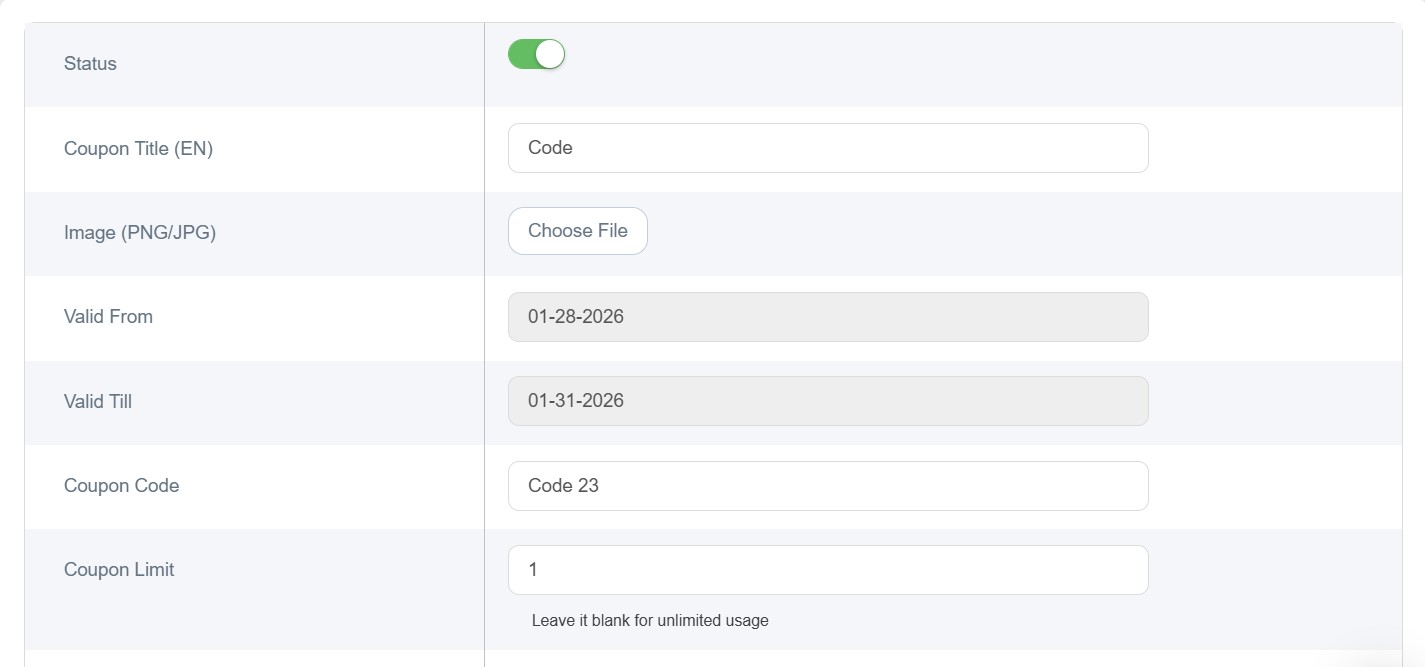
- Coupon Status: You can enable or disable the coupon by toggling the switch between On or Off.
- Coupon Title: Set the coupon title in both English and Arabic.
- Image: You can add an image for the coupon in JPEG or JPG format and the size have to be 500*500 pxl by clicking "Choose File" to upload the image.
- Validity Period: Specify the start and end dates for when the coupon will be valid.
- Coupon Code: Enter the code that customers will use to redeem the coupon.
- Coupon Limit: Set a limit on how many times the coupon can be used, or leave it blank for unlimited use.
- Usage Limit Time: This option defines how the coupon can be used and by whom. The choices include:
1. Customers and Visitors: Available to everyone, whether registered or not.
2. All Customers: Available only to registered users.
3. All Visitors: Available only to unregistered users.
4. Per Customer: Each customer can use the coupon individually according to the usage limit.
- Free Shipping: If you'd like to add a free shipping discount, you can enable this option.
- Discount Value: Choose the discount value and define the amount or percentage.
- Discount Type:
1. Percent%
2. Amount
- Minimum Order Amount: Specify the minimum order value required for customers to use the coupon.
- Display Coupon on the Homepage: You can enable the option to display the coupon on your store’s homepage to make it visible to customers as soon as they land on the site.
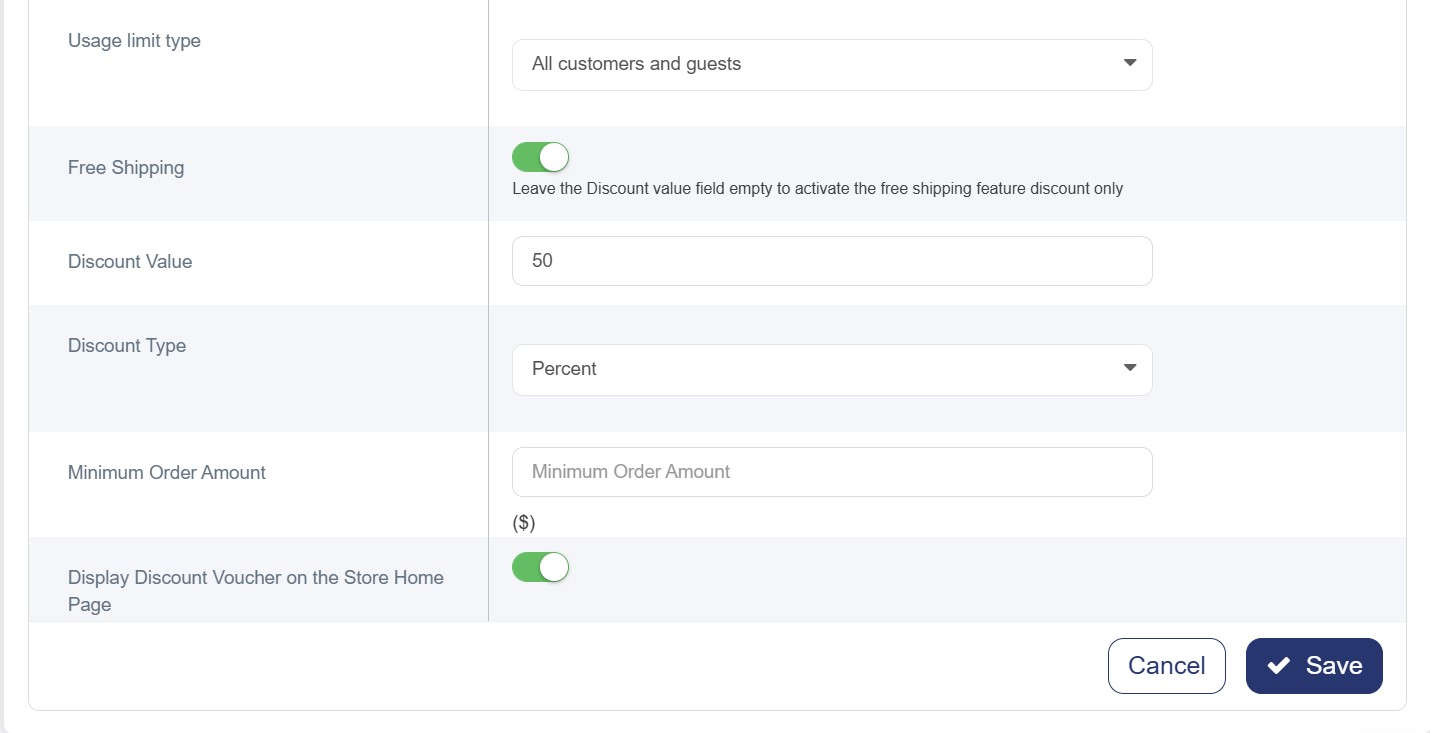
- Save the Coupon: After entering all the details, click "Save" at the bottom of the page to confirm and create the coupon.
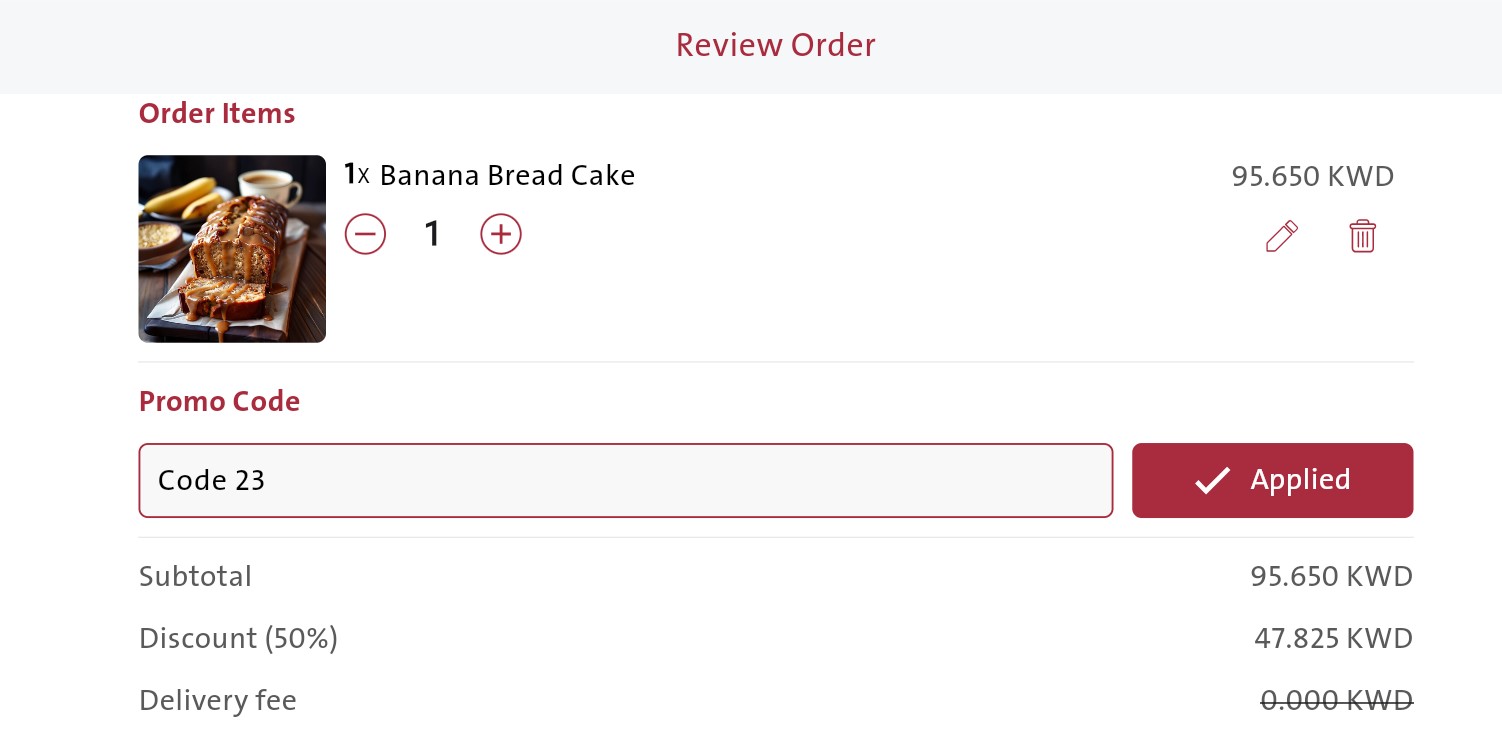
It will be displayed on the website in this format.