What is the Careers Page
The Careers page is a dedicated section within your online store on Cartley that enables store owners to:
· Post available job vacancies in the company or store.
· Display detailed information for each job (title, requirements, responsibilities).
· Receive applications from candidates.
· Manage the recruitment process professionally and efficiently.
Why Do You Need a Careers Page in Your Store
1. Building a strong team: As your store grows, you will need to hire new employees in various roles.
2. Professionalism and credibility: Having a careers page in your store creates an impression of a professional and growing business, enhancing trust among customers, suppliers, and investors.
3. Saving time and money compared to:
· Advertising on paid job platforms.
· Working with recruitment agencies.
· Managing applications via email.
4. Attracting talent interested in your field: People who visit your store are often already interested in your industry, making them more enthusiastic about joining your team.
How to Access the Careers Page:
1. Log in to your store’s dashboard on Cartley .
2. On the right side of the screen, locate the "Store Landing Pages” section.
3. From the dropdown menu, select "Careers."
4. Click on the Add button located at the top right of the screen

5. The Careers page will appear, containing three main tabs:
· Basic Details:
1. Type:
§ Content: This is used to display static information or elements on the careers page, such as an overview of the work environment or team photos. You can organize and present the content:
o Cover: A high-quality image or video related to the job, spanning the full width of the screen, with a title in English and a description of up to 500 characters, highlighting the content attractively without affecting the page’s visual balance.

o Card: A design that combines a square image or video on one side of the screen, with the option to select the side (left or right), used to display short and appealing content clearly and neatly.

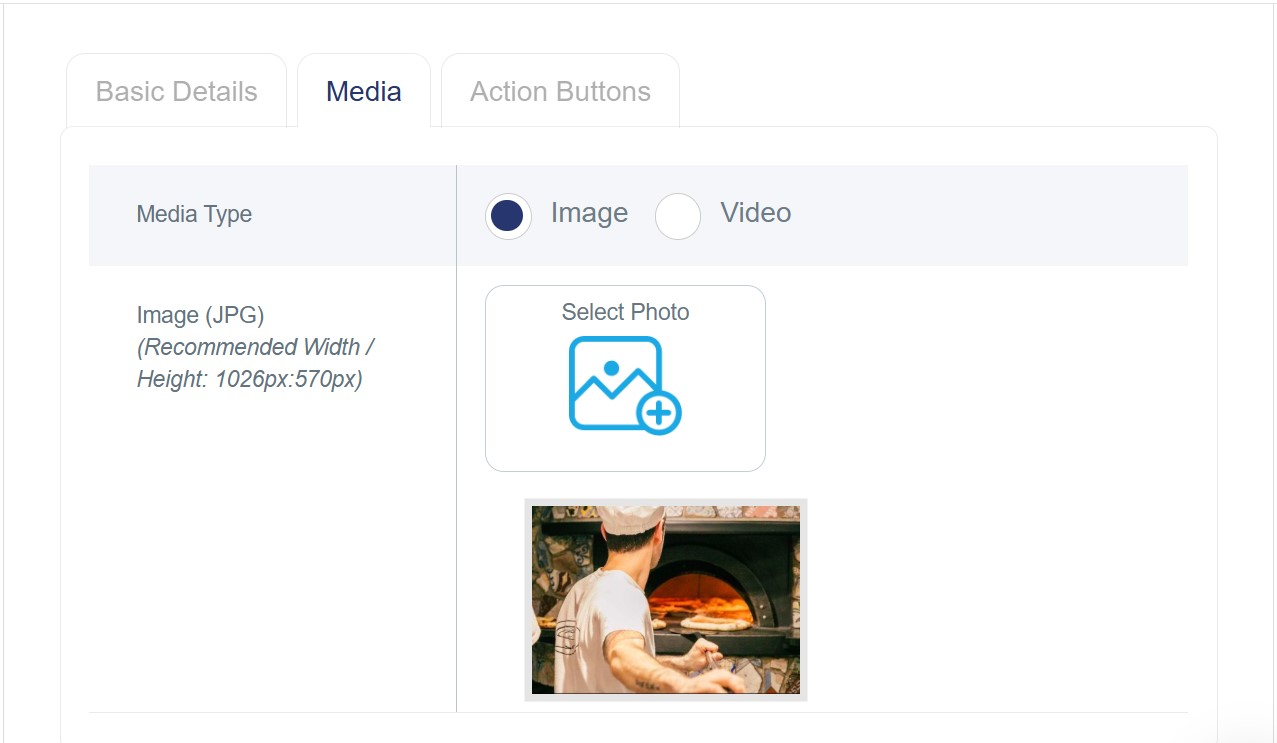
o Media: Appears only if the interface type is set to Content. You can upload images or videos:
§ Images: JPG format, 570×1026 pxl.
§ Videos: MP4 format only; you can add the video link.
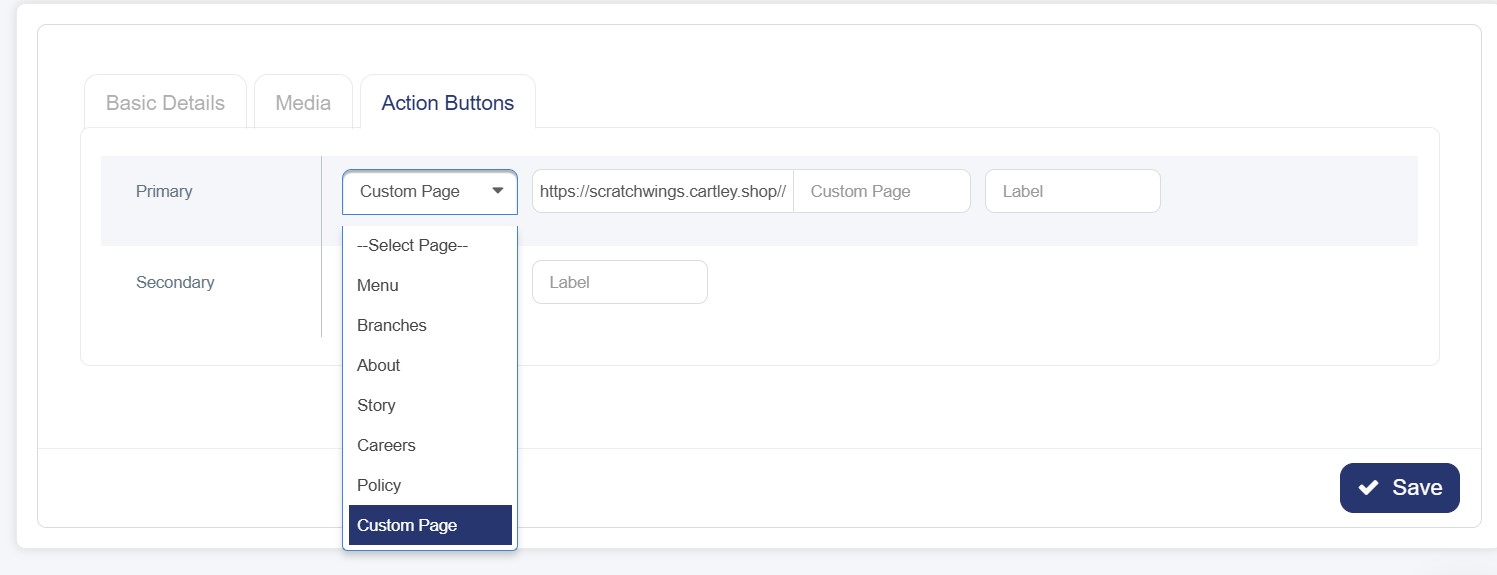
o Additional Keys: Depending on the interface type, you may find extra fields categorized as primary and secondary, which help enable additional features and navigation options after selecting the page type:
§ Menu
§ Branches
§ About
§ Story
§ Careers
§ Policy
§ Custom Page: Selecting this option shows an additional field where you can enter the URL of the page you want to link to. Copy the part after "/" from the chosen page URL.
§ Features:
Used to display the benefits of the specific job, such as working hours, leave, growth opportunities, and the nature of the work
§ . It allows job seekers to understand what the store offers to employees for that particular position, helping attract suitable candidates and encouraging them to apply. It can be displayed as text only, with a title in English and a description of up to 500 characters.
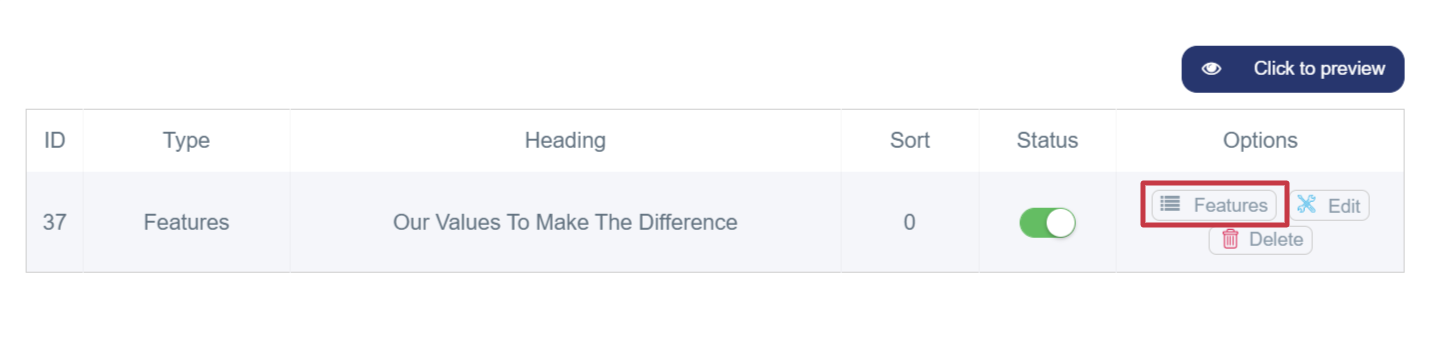
After saving the feature details, a Features button will appear in the Options column, allowing you to add more detailed information. By clicking on it, a window will appear containing:
· Image (JPG): You can add an image related to the job or its benefits in JPG format with dimensions of 500×500 pxl.
· Title: Must be added in English .
· Content: You can add a description and additional details about the features in the content box, provided it does not exceed 500 characters.
· Sort and Status: Choose the order of the features if there are multiple, then activate the status (green) to display them on the Careers page.
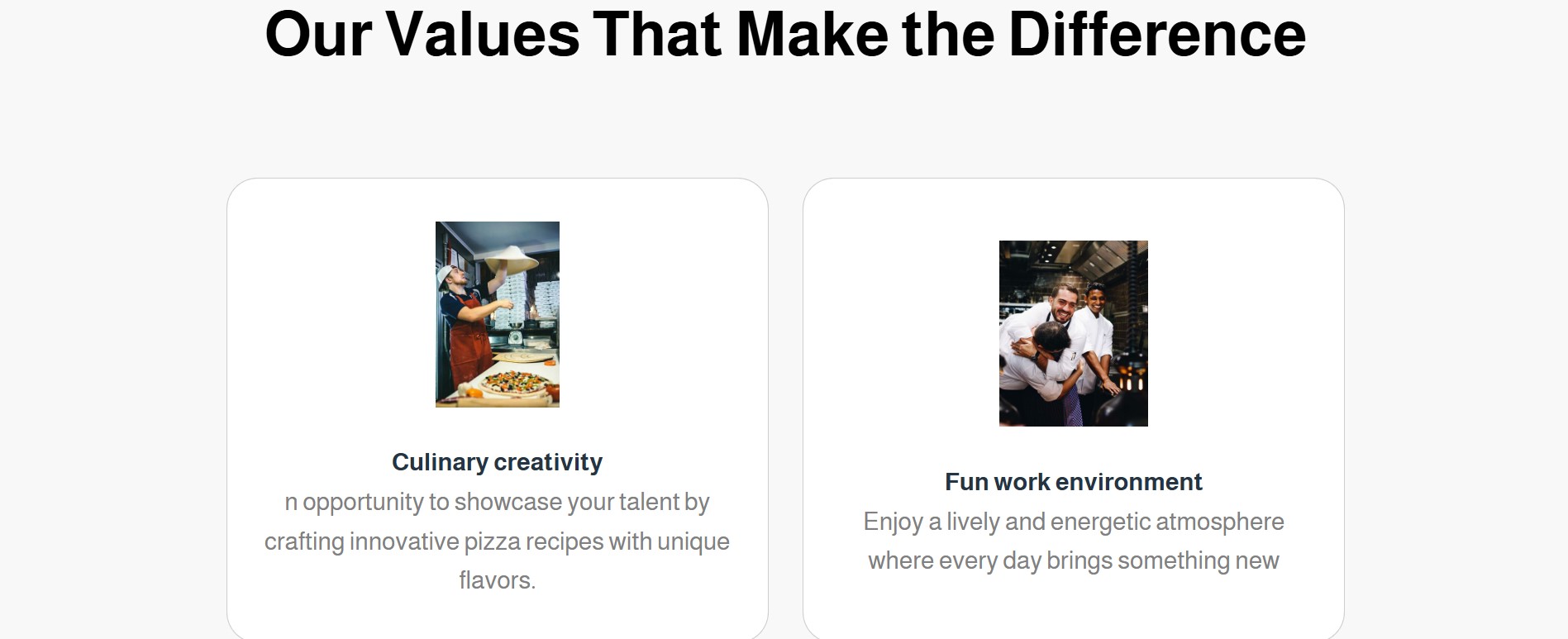
And it will appear on your store as shown below.
§ Jobs:
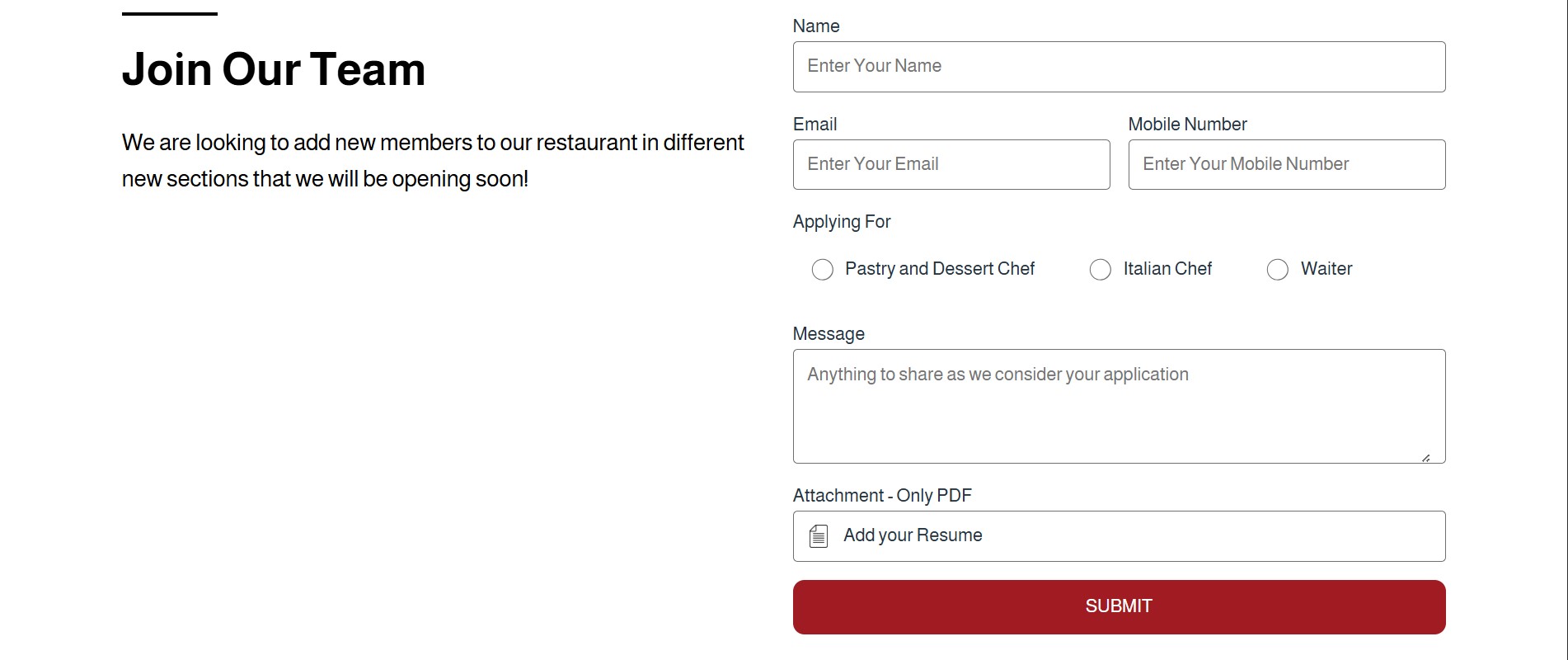
This is the functional part of the careers page, used to display current job openings in a structured and clear way. Store owners can add details for each available job so applicants can review requirements and apply easily. Content can be displayed as text with a title in English and a description of up to 500 characters.
After saving the job details, a Jobs button will appear in the Options column, allowing you to add more detailed information. By clicking on it, a window will appear containing:
· Title: Must be added in English .
· Content: You can add a description and additional details about the jobs in the content box, provided it does not exceed 500 characters.
· Sort and Status: Choose the order of the jobs if there are multiple, then activate the status (green) to display them on the Careers page.
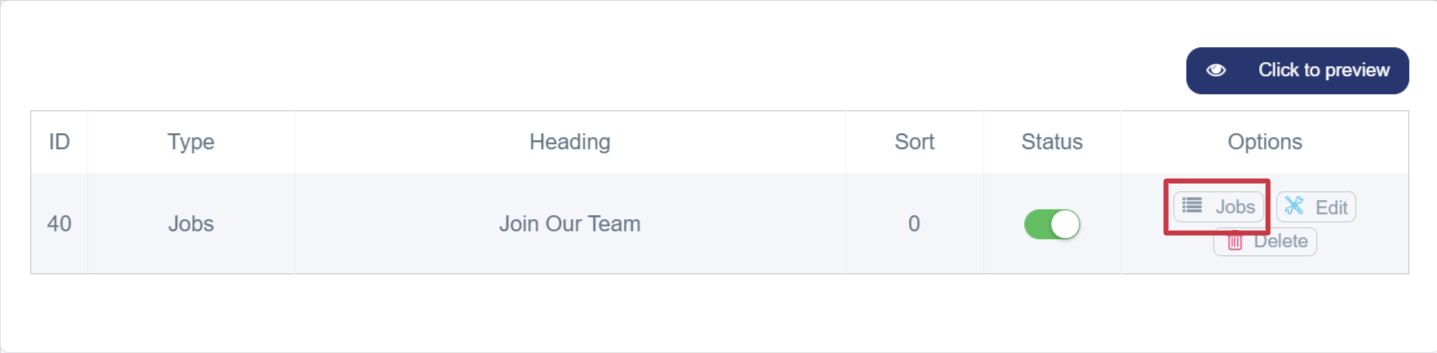
And it will appear on your store as shown below
2. Sort and Activation: Choose the sort if multiple items exist, then activate the status (green) to display it on the Careers page.
3. Save Settings: After filling in all required fields and information, click the Save button at the bottom of the page to apply the settings.