Video Guide
Start with the video for a quick overview, then follow the written steps below.
What are Advanced Coupons?
The advanced coupon on Cartley is a professional marketing tool that provides exceptional flexibility in managing discount strategies. It enables you to precisely target customers and offer personalized promotions that enhance engagement and boost sales. Advanced coupons are available only to registered customers (those who have an account on the store)
Creating an Advanced Coupon
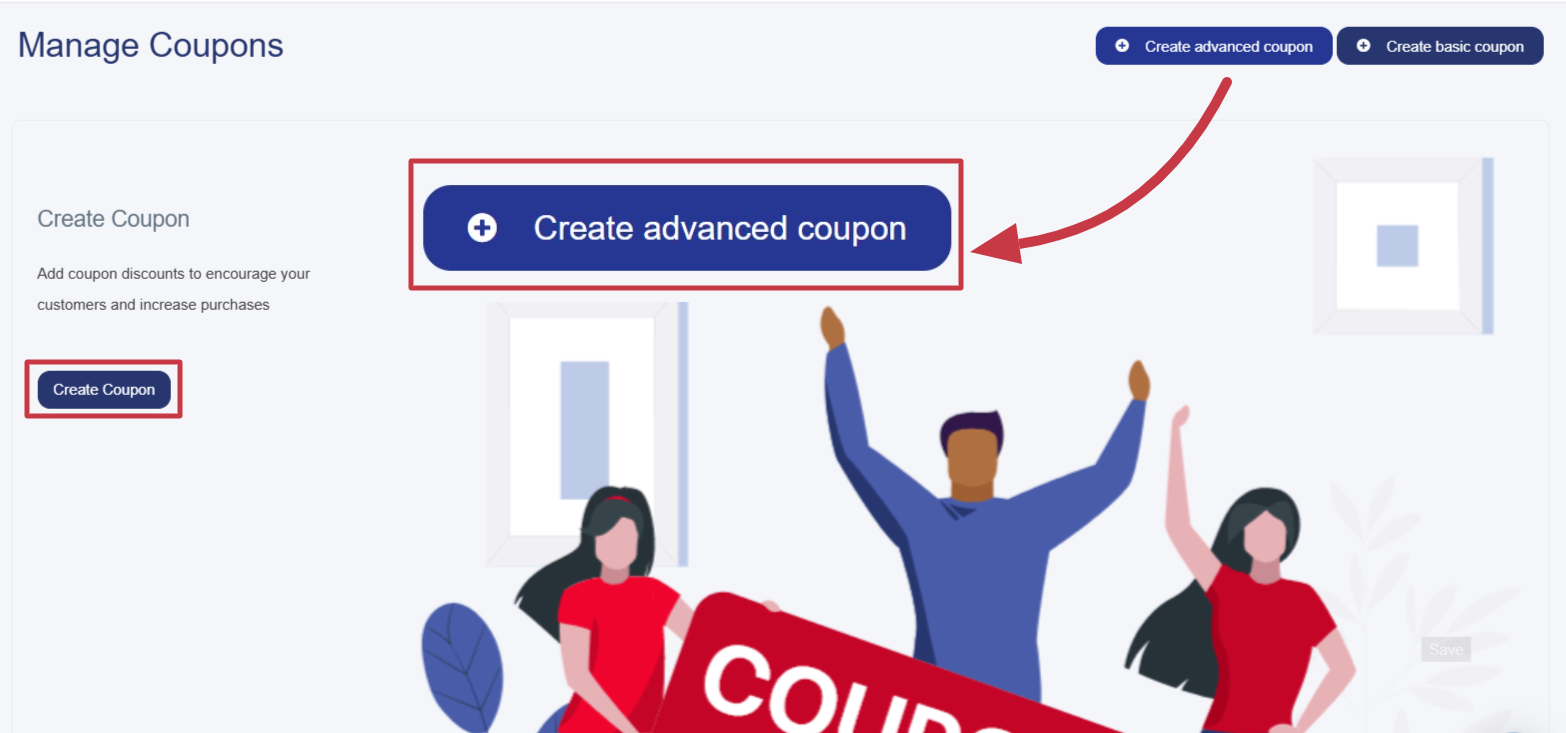
· Start by navigating to the Discount Coupon section and clicking the Create Advanced Coupon button at the top-right of the screen.
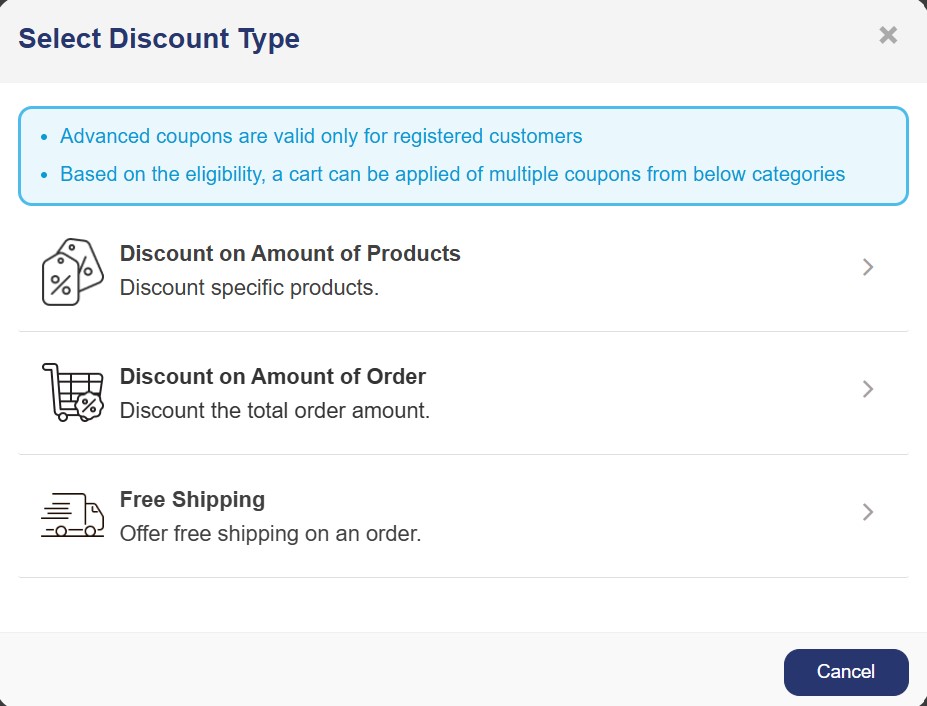
· The platform will open a discount type selection window, where you can choose from them .
Discount types
1. Product Amount Discount: Targets specific products in the store, allowing you to create product- or category-specific promotions.
2. Order Amount Discount: Applies to the total cart value.
3. Free Shipping: Removes delivery costs from orders.
POV: All three coupon types can be used together if each meets its specific conditions.
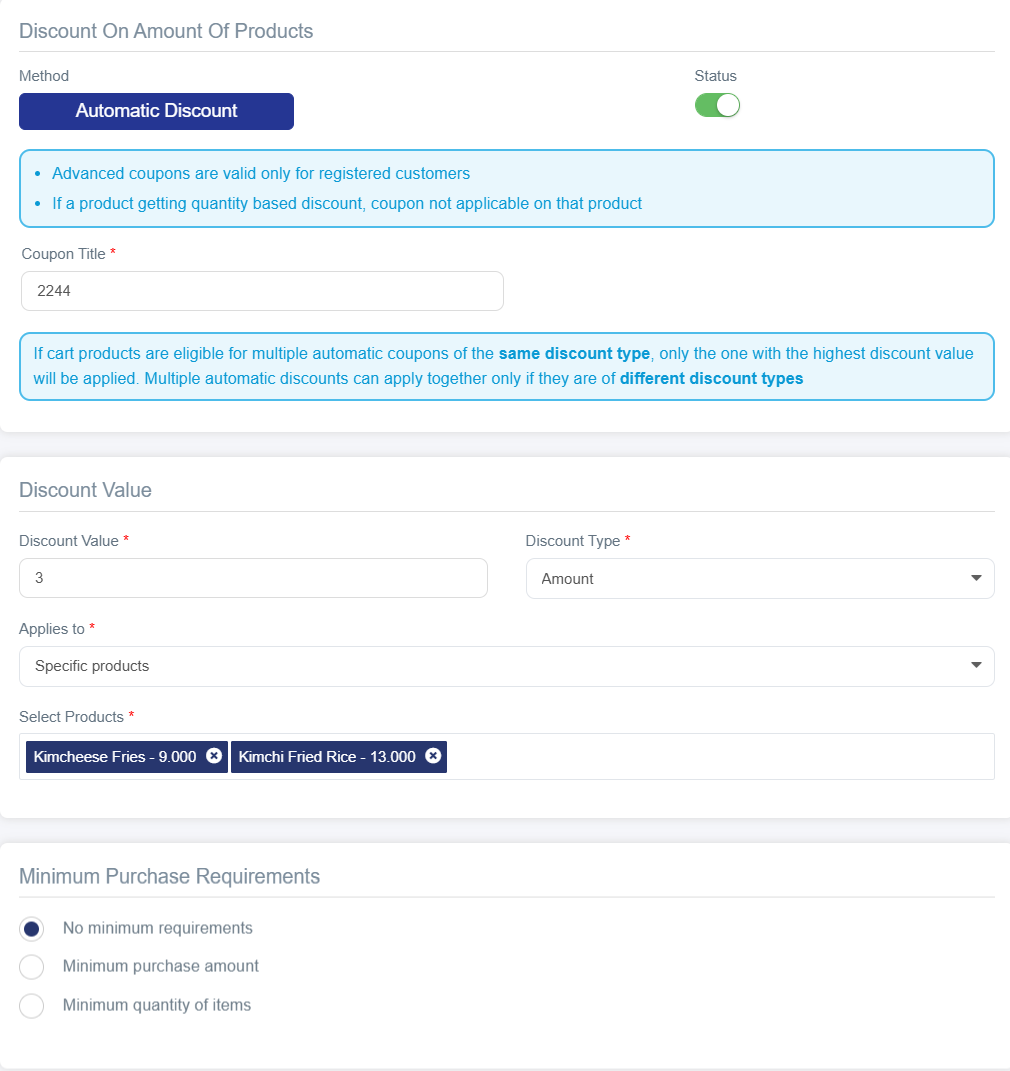
· When selecting the discount type, a window will appear for entering the coupon details, including the option to specify the discount methods.
The Discount Methods
1. Manual Discount Code: Requires customers to enter a specific code during checkout. The customers can use only one manual discount code per purchase, even if different types of discounts are available.
2. Automatic Discount: Applies the discount automatically when conditions are met, without any input from the customer. If products or orders are eligible for multiple automatic coupons of the same discount type, only the coupon with the highest discount value will be applied.
· Status:You can enable or disable the coupon using the toggle switch (On / Off).
Configuring Discount Values
§ Set the discount value that customers will receive.
§ Choose the discount type from a dropdown, which typically includes:
1. Percentage Discount
2. Fixed Amount Discount
Setting Minimum Purchase Requirements
§ No Minimum Requirement: Coupon applies regardless of cart value.
§ Minimum Purchase Amount: Requires customers to spend a specific amount to receive the coupon.
§ Minimum Quantity of Item: Requires a certain number of products in the cart.
Customer Eligibility
Configure who can use the coupon. Typical options include:
- All Customers: Accessible to anyone registered on your store.
- Specific Customer Segments: Target groups based on purchase history, location, or other criteria.
- Specific Customers: Target individual customers.
Managing Maximum Discount Usage
-
Discount Limits: Set the total number of times the coupon can be used across all customers.
-
Usage Type: Choose whether the coupon applies to all customers collectively or to each customer individually.
Applicable Dates
-
Use the “Valid From” and “Valid Until” fields to schedule the coupon.
-
Time-restricted coupons are activated and deactivated automatically according to your schedule.
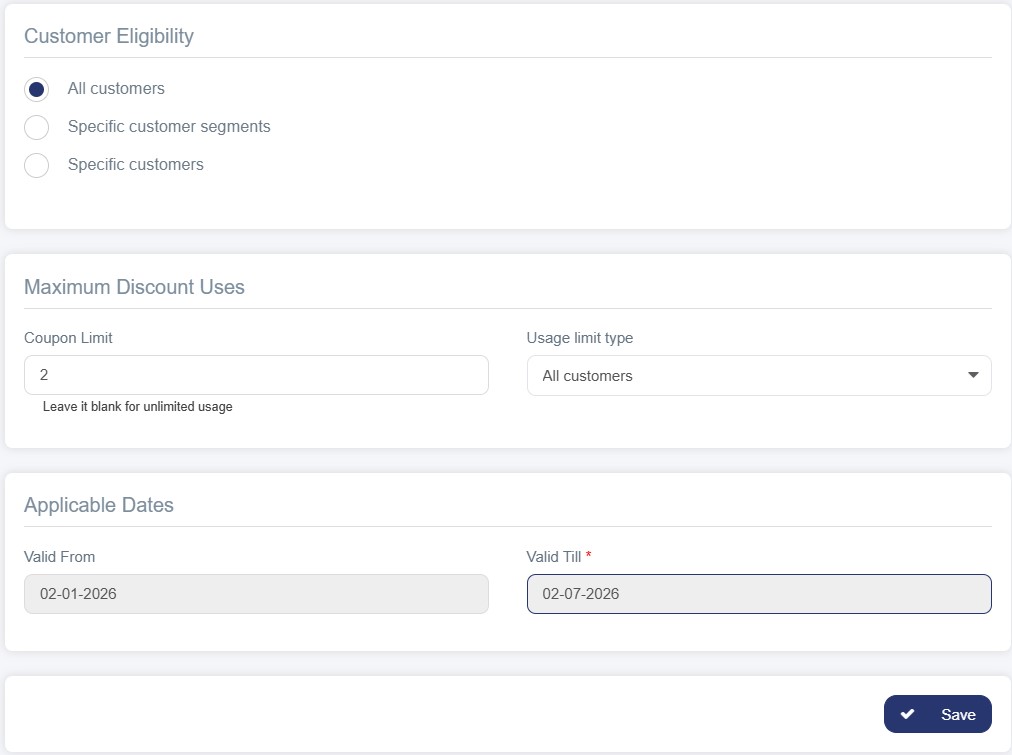
· Click the Save button at the bottom of the screen to create the coupon.
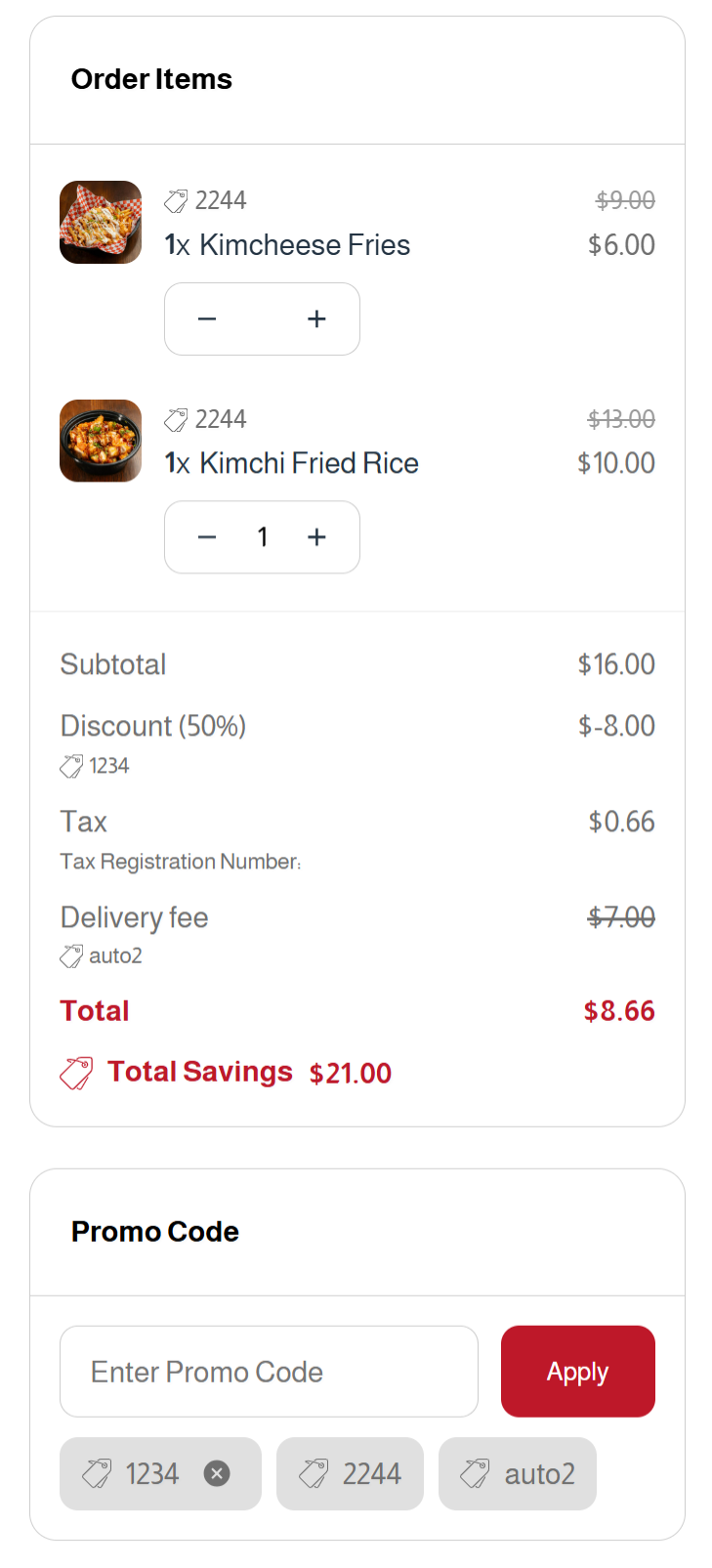
The advanced cuopon will be displayed on the website clearly, in the format and style shown below