What are sub-users
Sub-users are additional team members who can access and manage your Cartley online store with customized permissions. This feature allows store owners to delegate specific tasks to staff members while maintaining control over sensitive operations and data. Whether you need assistance with product management, order processing, or customer service, adding sub-users streamlines your workflow and enhances team collaboration.
Accessing the Sub-Users Page
To begin managing sub-users in your Cartley store, follow these steps:
1. Log in to your Cartley admin dashboard using your main account credentials.
2. Locate the left sidebar menu that contains all administrative options.
3. Click on the "Sub Users" menu item. This will navigate you to the sub-users management interface.
The Sub-Users page displays all current sub-users in your system, along with an empty state illustration if no users have been added yet. This page serves as your central hub for managing team member access to your store.
Creating a New Sub-User
Once you're on the Sub-Users page, you can create a new sub-user account by following these instructions:
1. Locate the "Add New Sub User" button, which appears in two locations: at the top-right corner of the page and within the main content area.
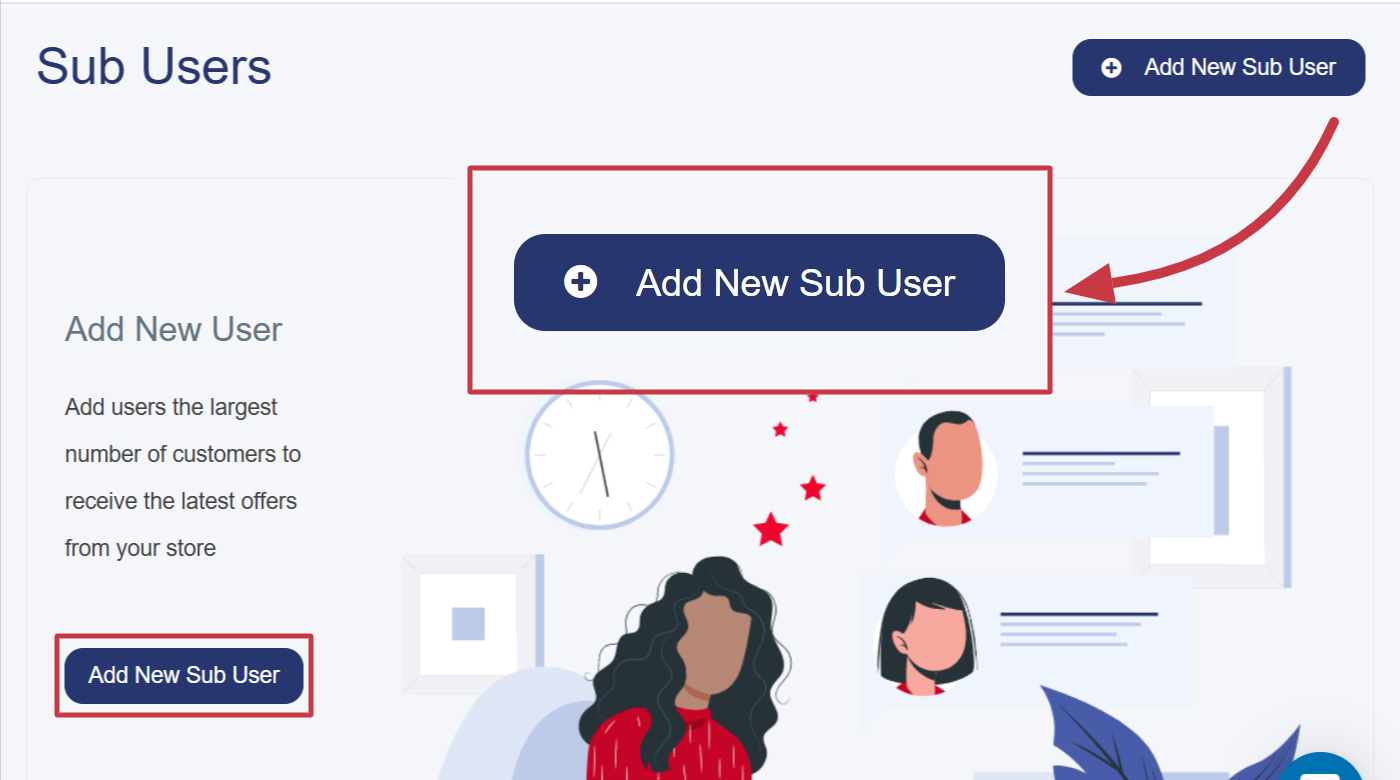
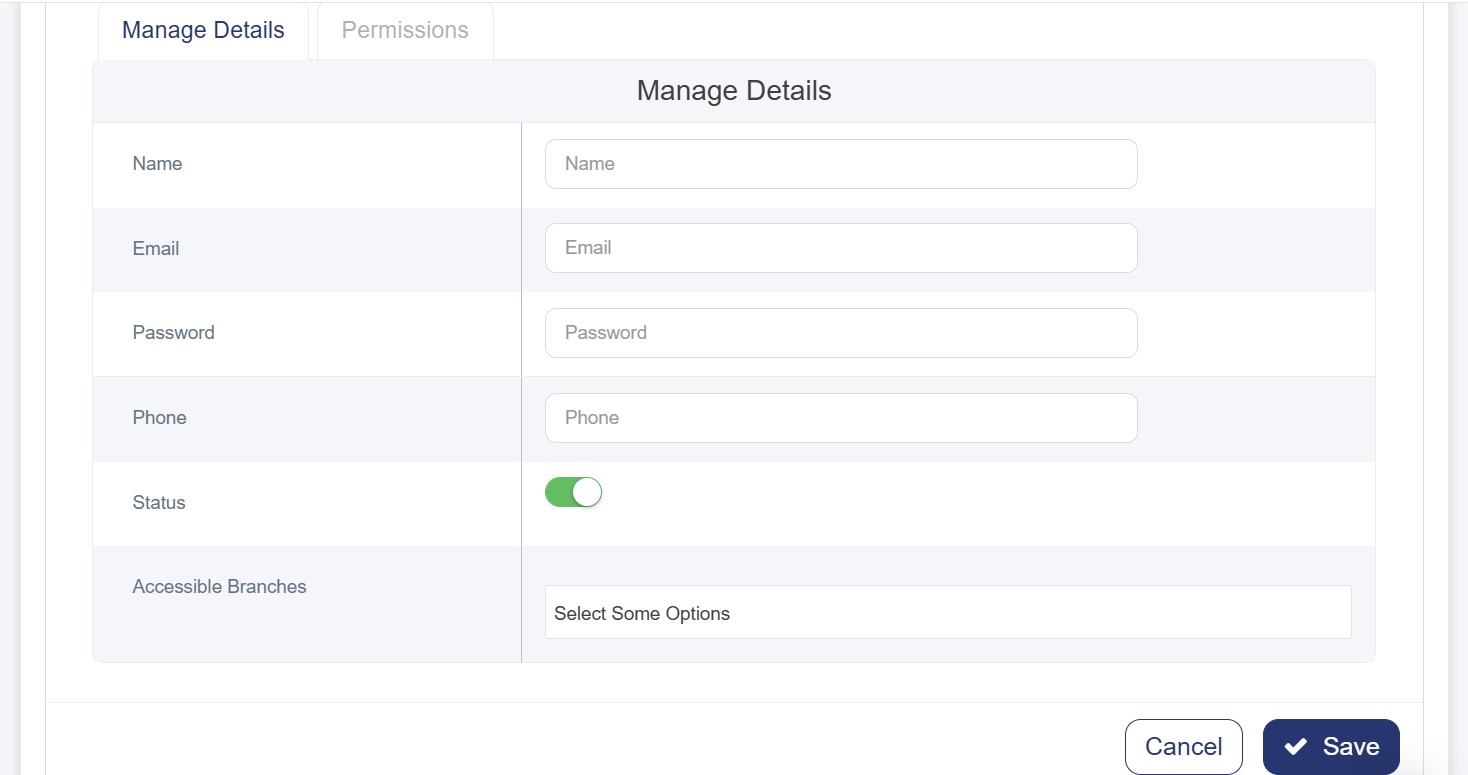
2. Click on either button to open the "Add New User" form. The form contains two main tabs: "Manage Details" and "Permissions".
3. Start by filling out the "Manage Details" tab with the following information:
|
Field |
Description |
|
Name |
Enter the full name of the sub-user who will be accessing the store. |
|
|
Provide a valid email address. This will serve as the login username and receive system notifications. |
|
Password |
Create a secure password for the sub-user. It's recommended to use a combination of letters, numbers, and special characters. |
|
Phone |
Add the phone number with the country code. |
|
Status |
Toggle this switch to activate or deactivate the sub-user account. Active accounts can log in; inactive ones cannot. |
|
Accessible Branches |
If your store has multiple branches, select which branches this sub-user can access and manage. |
Configuring Permissions
After entering the basic details, the next crucial step is to define what the sub-user can and cannot do within your store. Cartley provides granular control over permissions through the Permissions tab.
1. Click on the "Permissions" tab at the top of the form.
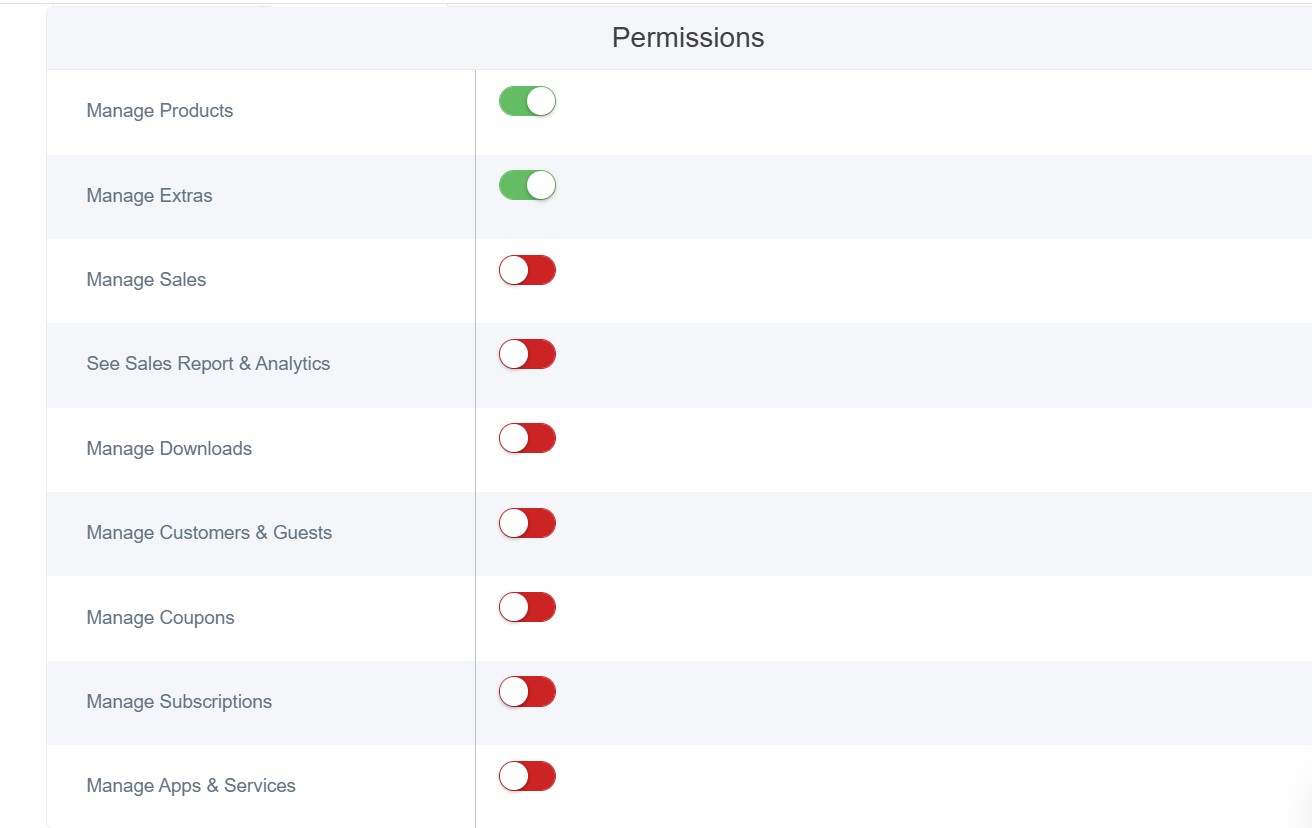
2. You will see a comprehensive list of available permissions, each with a toggle switch.
3. Enable (green toggle) or disable (red toggle) each permission based on the sub-user's role and responsibilities.
Available Permissions
· Manage Products: Add, edit, delete, and organize products in the store catalog.
· Manage Extras: Configure product add-ons, variations, and optional features.
· Manage Sales: Process orders, refunds, and sales transactions.
· See Sales Report & Analytics: View sales performance data, charts, and business insights.
· Tax Report: Access tax calculations and generate tax reports.
· Manage Downloads: Handle digital product files and downloadable content.
· Manage Customers & Guests: View and manage customer accounts, addresses, and guest checkouts.
· Manage Coupons: Create, edit, and deactivate promotional discount codes.
· Manage Subscriptions: Oversee recurring payment plans and subscription products.
· Manage Apps & Services: Install, configure, and manage third-party integrations.
Saving the Sub-User
After saving, the system will create the sub-user account and send login credentials to the provided email address. The new sub-user will appear in your Sub-Users list and can immediately log in using their email and the password you created.