Video Guide
Start with the video for a quick overview, then follow the written steps below.
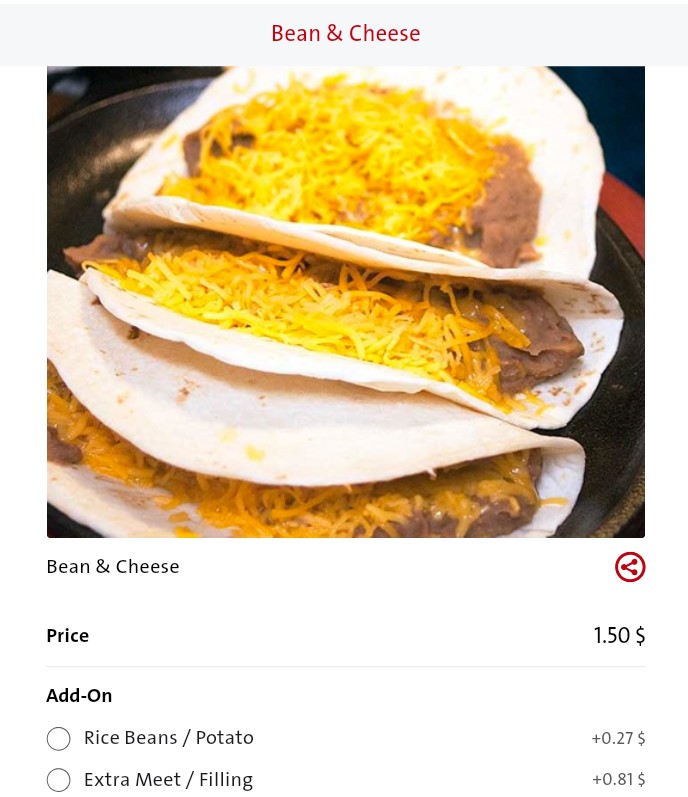
Product modifiers are additional options or variations that customers can choose when purchasing a product. Common examples include:
· Size options (Small, Medium, Large)
· Color variations (Red , Black, White ….)
To manage modifiers in Cartley, follow these steps:
- Log in to your Cartley Admin Dashboard.
- Go to Products from the left sidebar.
- Select Modifier (Extras).
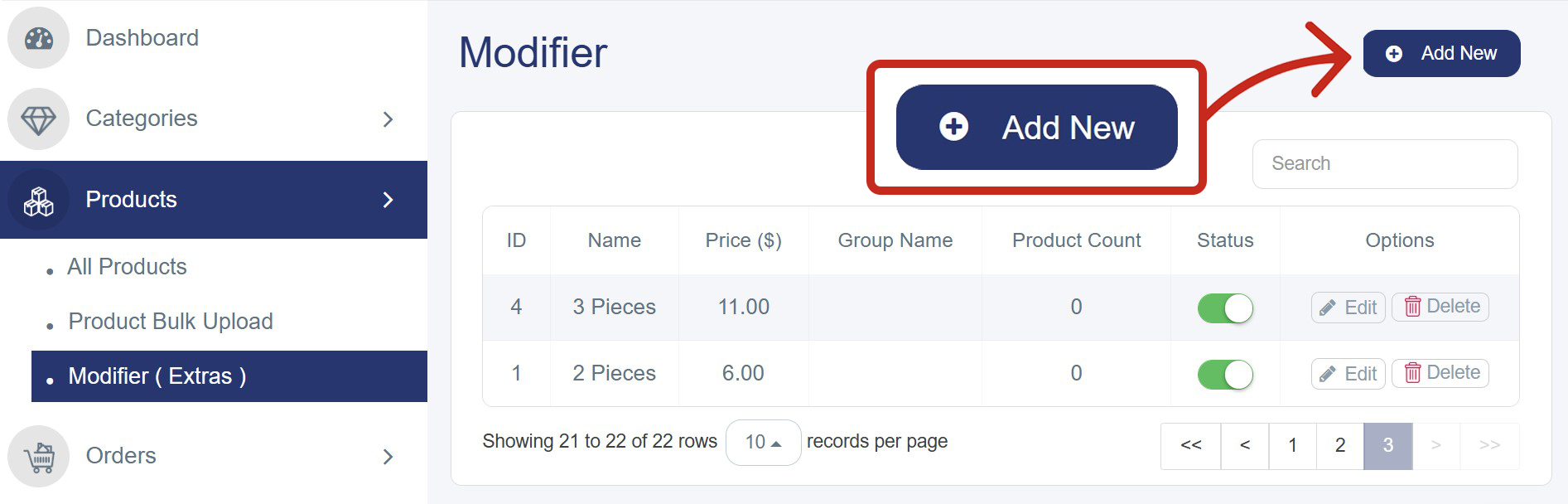
- The Modifier Management page will appear, showing all existing modifiers.
Adding Modifiers steps:
Step 1: Create a New Modifier
- On the Modifiers page, click Add New (top-right corner) to open the creation form.
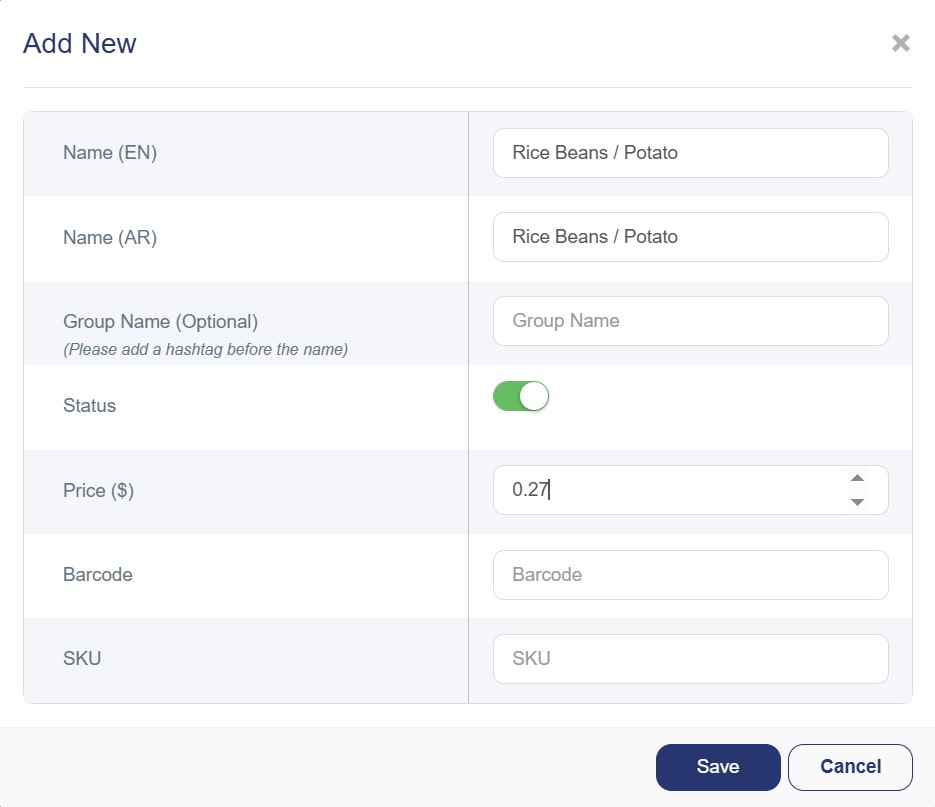
Step 2: Enter Modifier Details
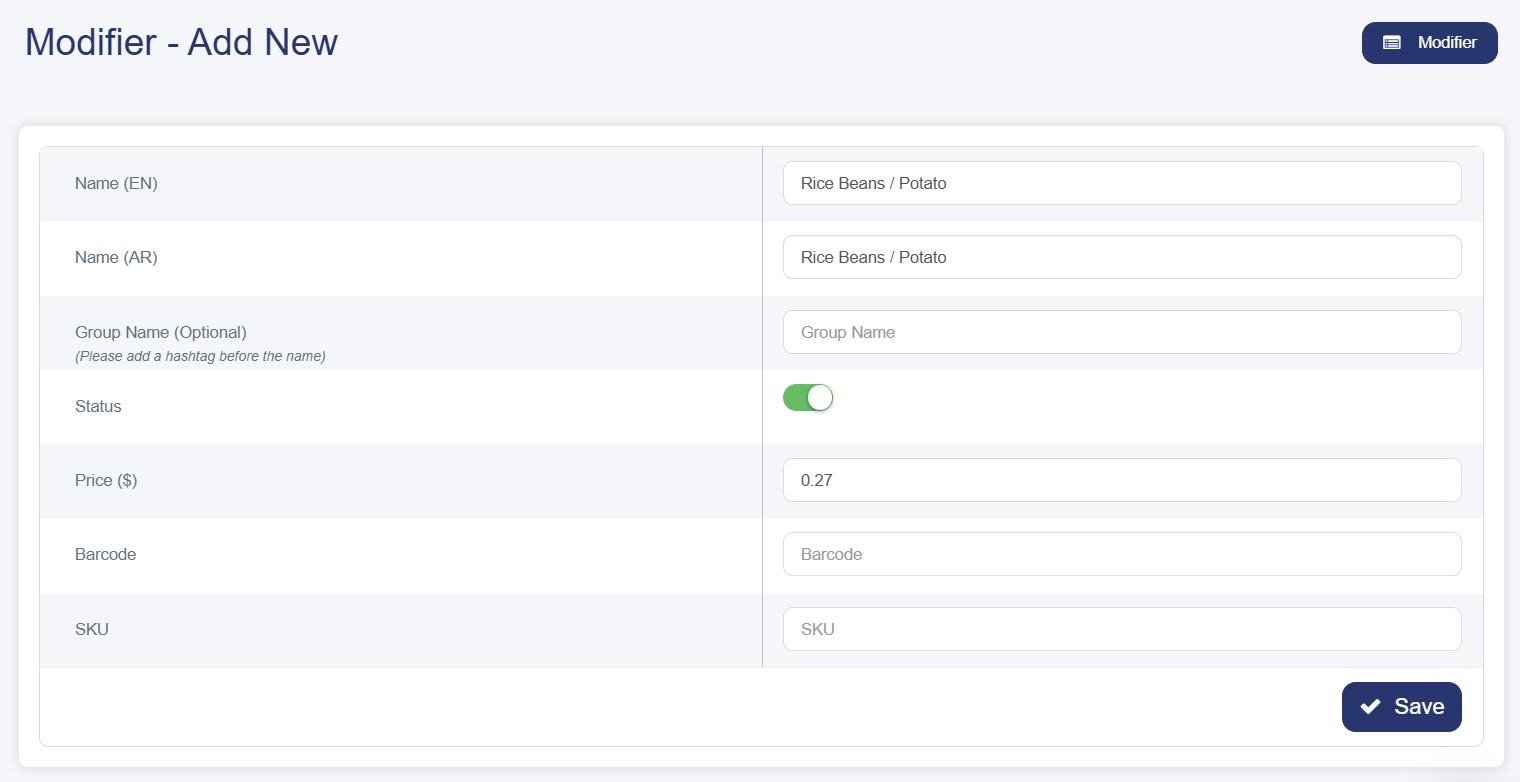
- Name (EN): Modifier name in English.
- Name (AR): Modifier name in Arabic.
- Group Name (Optional): Use a hashtag to group related modifiers (e.g., #Sizes, #Colors ).
- Status: Toggle ON/OFF to activate or deactivate the modifier.
- Price: Set the extra cost, or leave as 0 if none.
- Barcode / SKU (Optional): Enter tracking or stock codes if applicable.
- Save
Another Way to Add
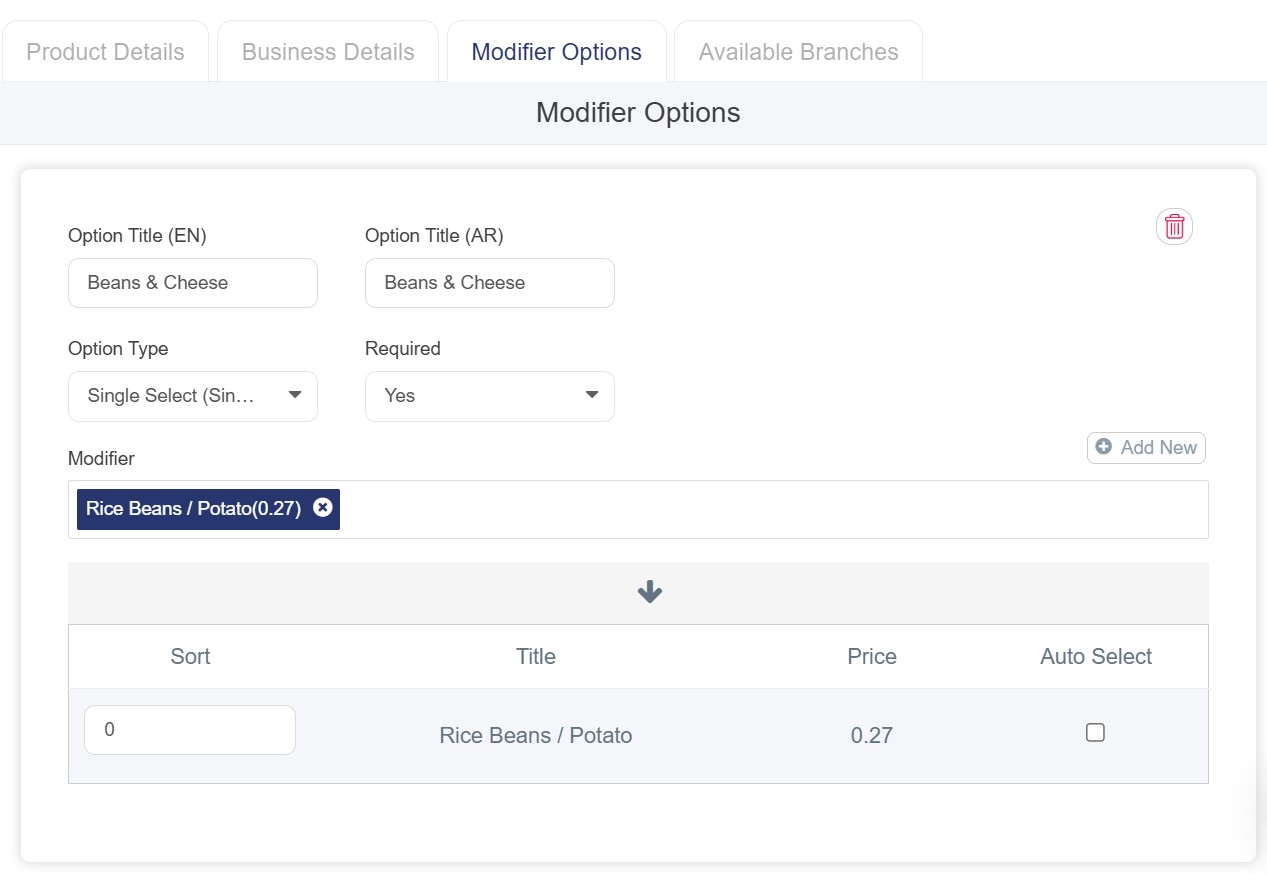
You can also add modifiers directly from the desired product page by following these steps:
- From the product page, click Modifier Options .
- Select the Add Modifier Group .
- After entering the modifier details (option title and type — single or multiple choice), click the Add New button on the right side of the screen.
- A modifier creation window will appear.
- Fill in all required modifier information, then click Save.
Edit the Modifiers
If you want to modify the modifiers details (Name, Price, …) you can follow the below steps:
1. Go to Products → Modifier (Extras).
2. Find the modifier you want to edit.
3. Click the Edit icon under the Options column.
4. The form will open with existing details.
5. Make the needed changes.
6. Click Save to update the modifier.
Delete the Modifiers
Also If you want to delete the modifiers you need to know
· Cannot delete if the modifier is assigned to products (Product Count > 0)
· Can delete if not assigned to any products (Product Count = 0)
To remove an active modifier, first unassign it from all products, then delete it by the following steps:
1. Go to the Modifier (Extras) page.
2. Locate the modifier you want to delete.
3. Select Delete (often shown as a trash ).
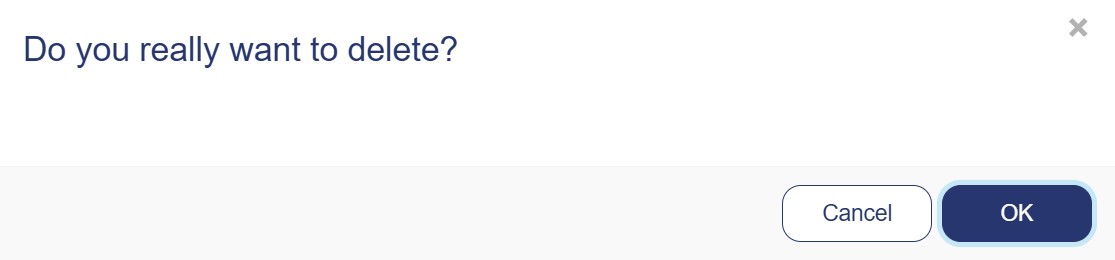
4. Confirm the deletion when prompted.