Prerequisites
- Access to the MNASATI admin dashboard
- Admin privileges to manage categories
Step-by-Step Process
Step 1: Navigate to Categories Management
- Log into your Cartley dashboard
- From the left sidebar menu, click on Categories
- Select Categories from the submenu (if not already selected)
- You'll see the "Manage Categories" page with existing categories listed
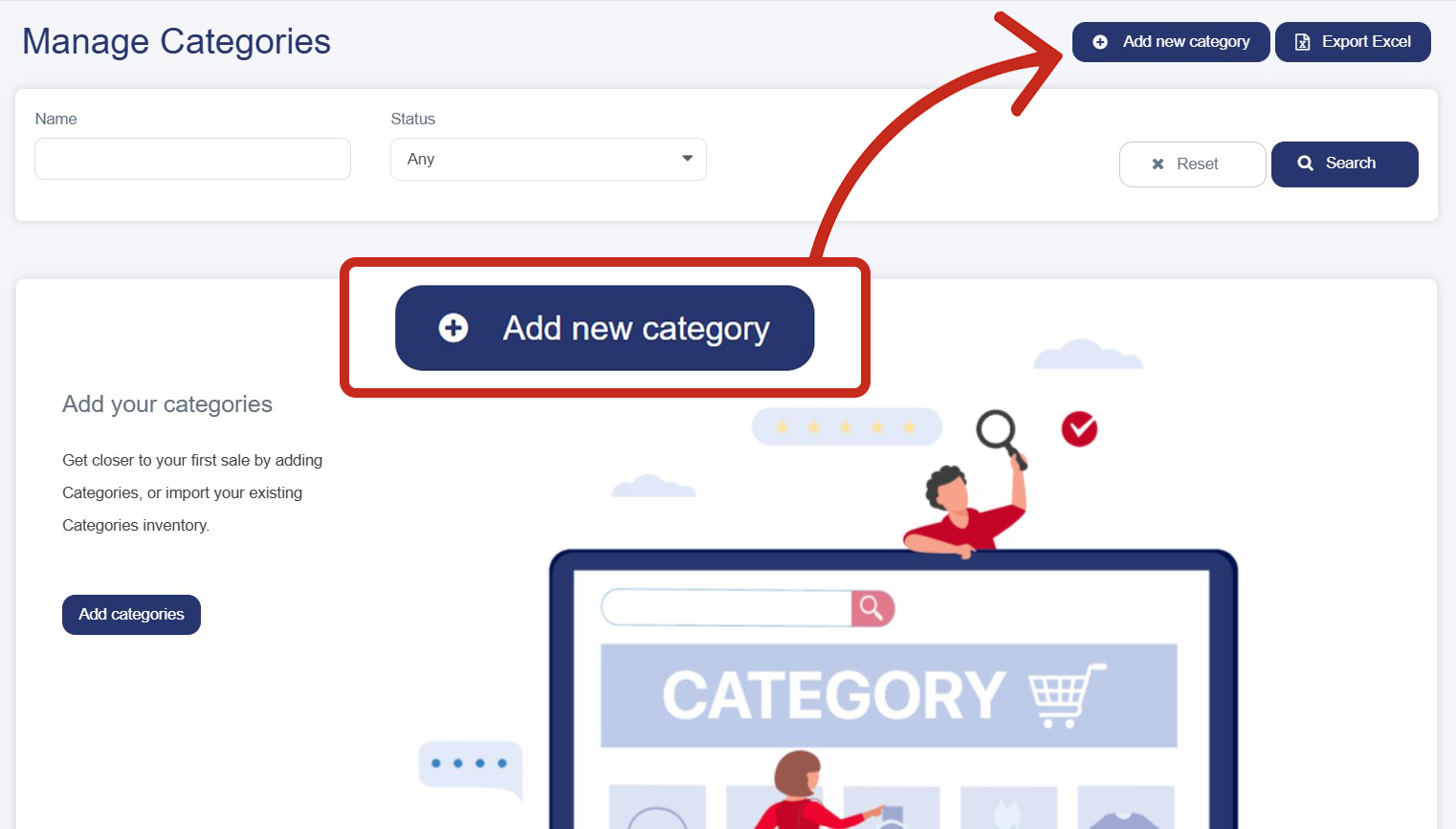
Step 2: Initiate New Category Creation
- On the Manage Categories page, click the "Add new category" button (blue button in the top right)
- This will open the "Add new category" form
Step 3: Fill in Category Details
Basic Information
- Name: Enter the category name in English
- Arabic name: Enter the category name in Arabic
- Description: Add a detailed description of the category
Step 4: Upload Category Image
- Click "Select Photo" button
- Upload an image file (JPG /JPEG format recommended)
- Recommended dimensions: 500px × 350px for optimal display
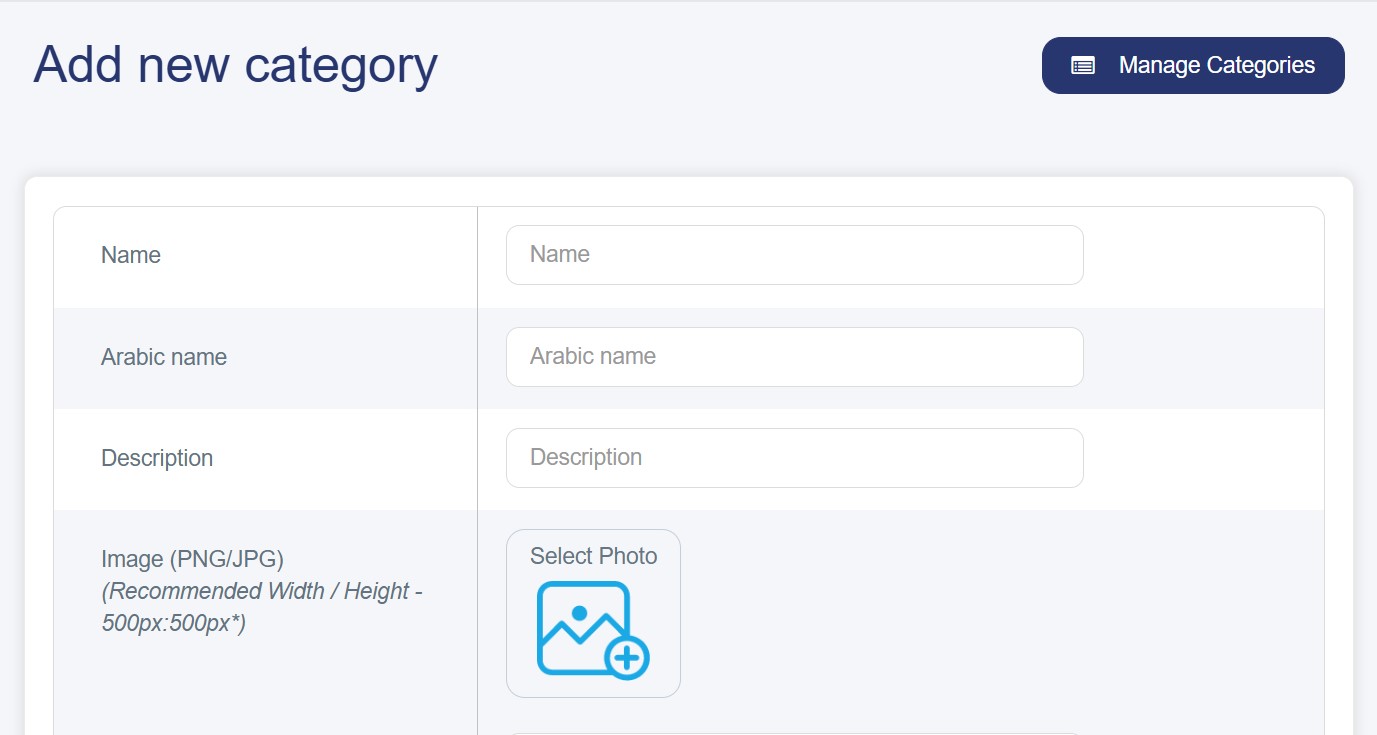
Step 5: Configure Category Settings
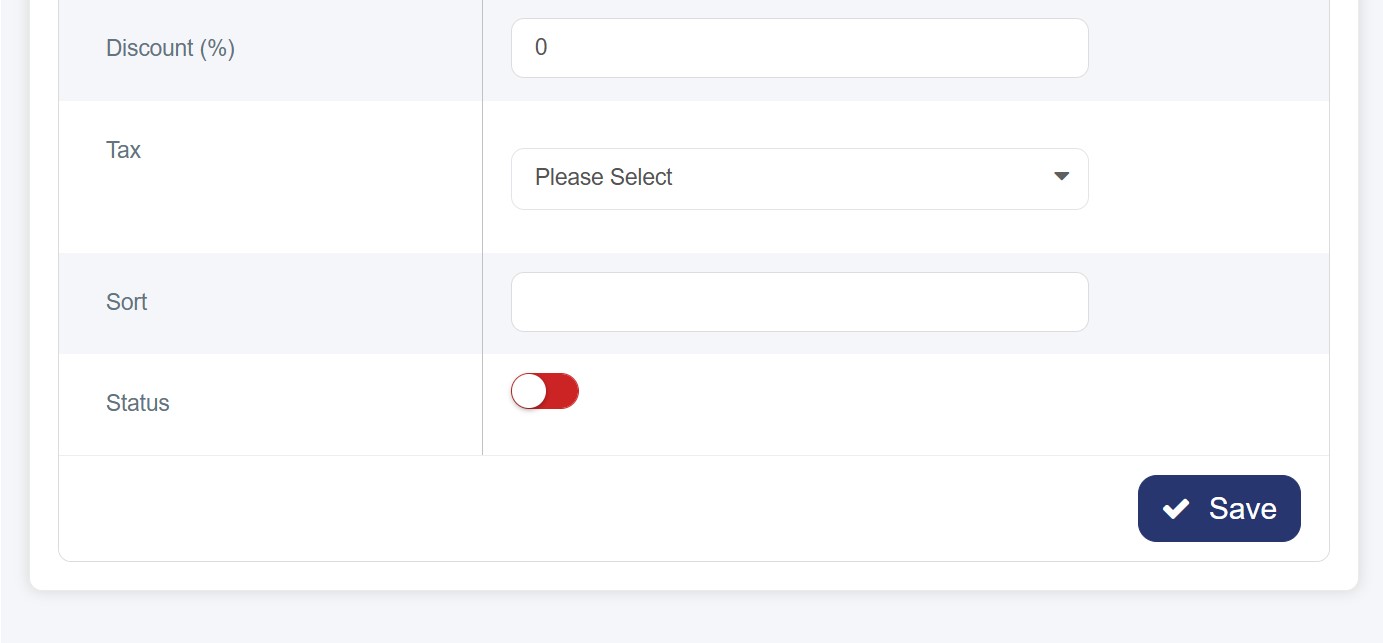
- Discount (%): Set a default discount percentage for this category (leave it empty if no discount)
· Sort: Enter a number to determine the display order of this category(lower numbers appear first)
- Status: Toggle the switch to enable/disable the category
- Red (Off): Category is disabled
- Green (On): Category is active and visible
Step 6: Save the Category
- Review all entered information
- Click the "Save" button (blue button at bottom right)
- The system will create the category and redirect you back to the categories list
Post-Creation
- Your new category will appear in the categories list with a unique ID
- You can edit, delete, or manage products within this category
- The category status can be toggled on/off as needed
- You can view the total number of products assigned to this category
Tips
- Use clear, descriptive names for better user experience
- Ensure Arabic translations are accurate for bilingual support
- Choose appropriate sort numbers to organize category display order
- Upload high-quality images that represent the category well
Troubleshooting
- If the image you choose isn’t uploading , check file size and format
- If no image is uploaded ,the default image will appear
- Category not appearing: ensure the status is set to active (green) or either ensure it has products and not empty.
- Ensure all required fields are completed before saving
Video Guide
If you need additional help, the video below walks you through the process.